

How it works
You can add a dropdown to your Fillout form that lets respondents pick existing records from your Zite database. This record picker only links to the selected record. It does not update existing records. If you want respondents to edit records without database access, see this article.Common use cases
- Employee Onboarding: Let HR select a manager, department, or mentor
- Equipment Checkout: Allow staff to select equipment or devices from a database
- Course Enrollment: Let students pick existing courses or programs in an enrollment form
- Vendor Requests: Link purchase requests to existing suppliers or vendors
- Content Management: Let authors select an existing category, project, or campaign
Add a record picker
1
Link records
On your Zite database, link tables by following these steps.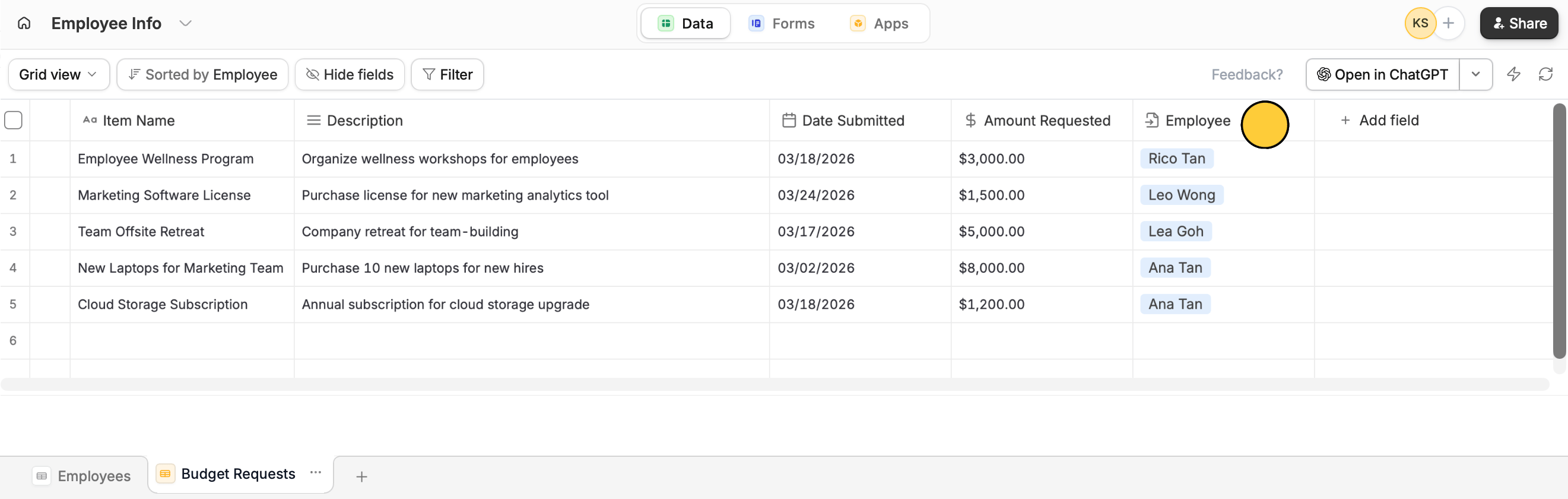
2
Connect your form
Open your Fillout form. Go to Integrate on top and choose Zite Database. Then, set your preferences.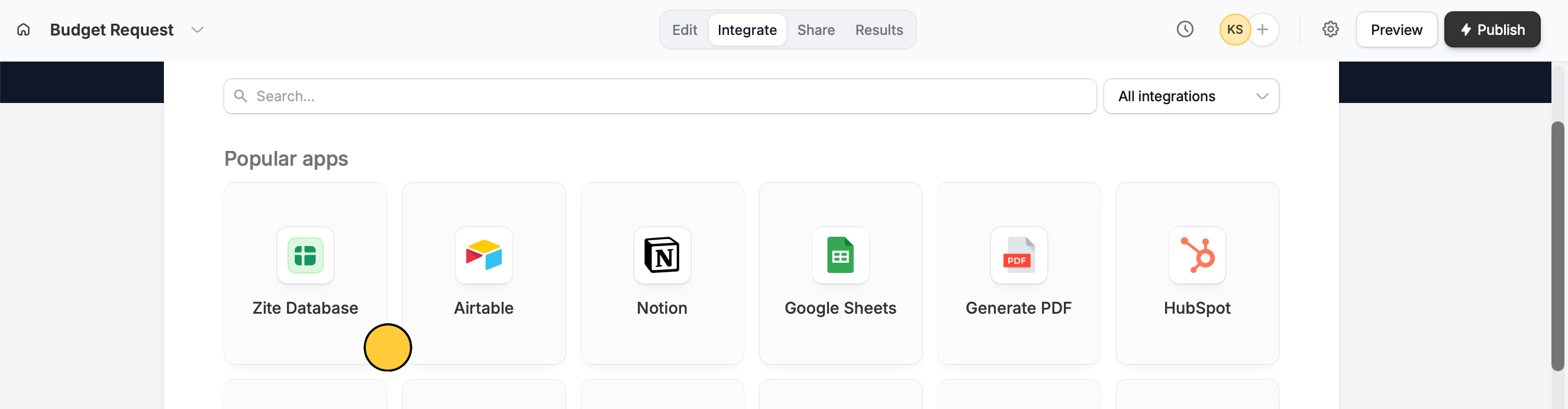
3
Insert record picker field
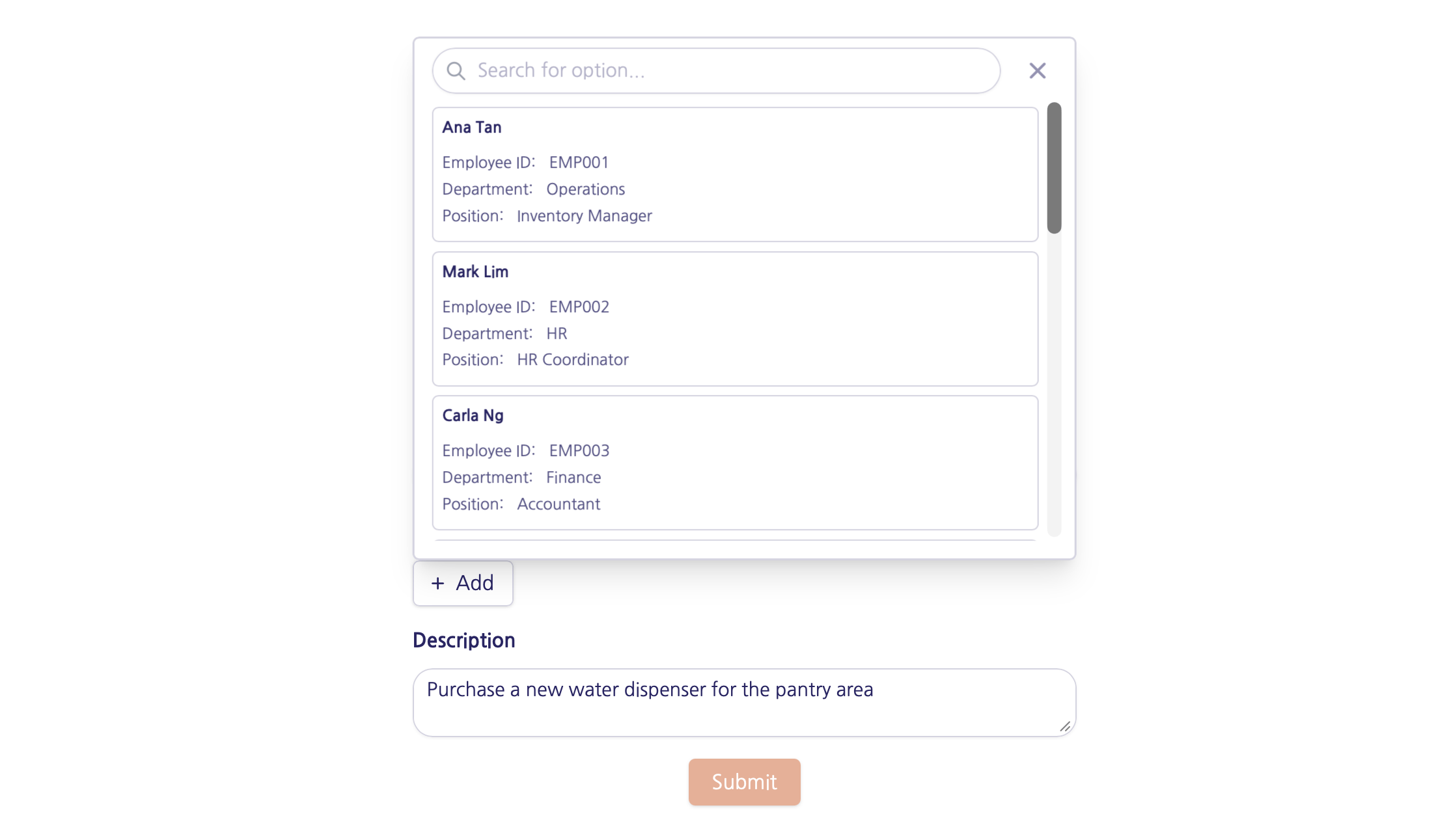
For example, let’s allow our employees to request budget approval through a form. They can select their name from the Employees table. Their response is recorded in the Budget Requests table and linked to them.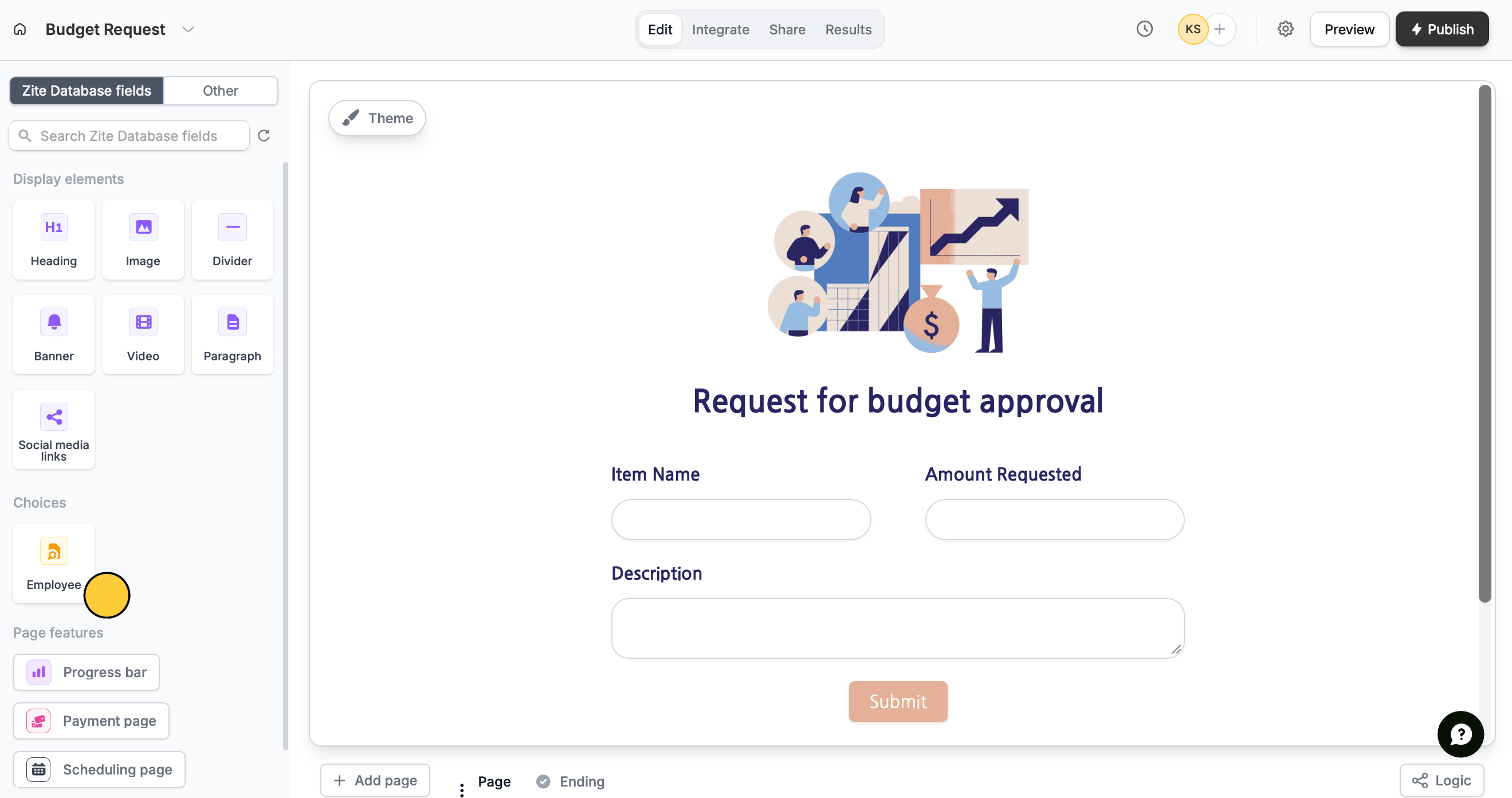
4
Publish and share
Advanced features
Open the record picker’s settings by clicking the settings icon to show Advanced on the right-hand panel.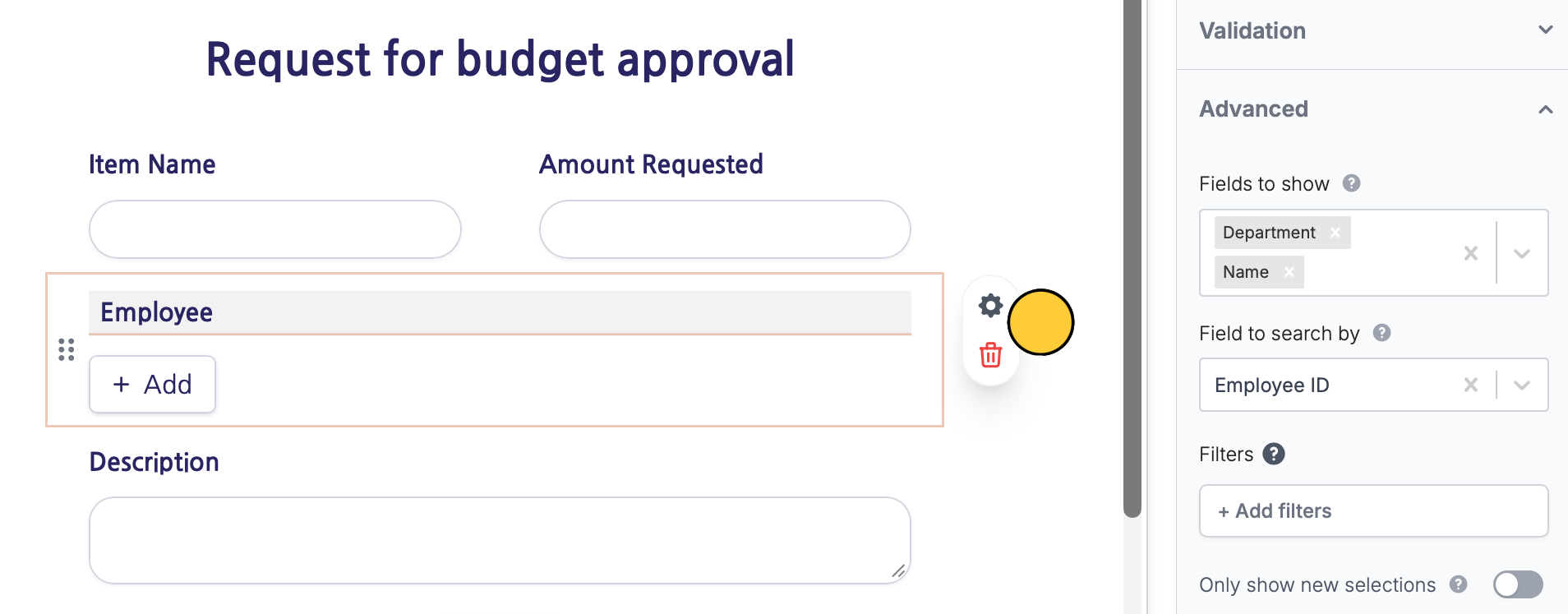
- Fields to show - choose which database fields are visible instead of showing all record details
- Field to search by - allow lookup using a field other than the primary field. Email notifications show this field’s value for the selected record. If it isn’t set, they show Answered instead.
- Filters - show only selected records based on conditions you set
Related articles
Link records
Link records across tables to assign or reference.
Update with forms
Edit existing Zite database records with a Fillout form.