

Video tutorial
How it works
1
Create an autofill PDF or document
Open the form you would like to link with a PDF or document and head over to the 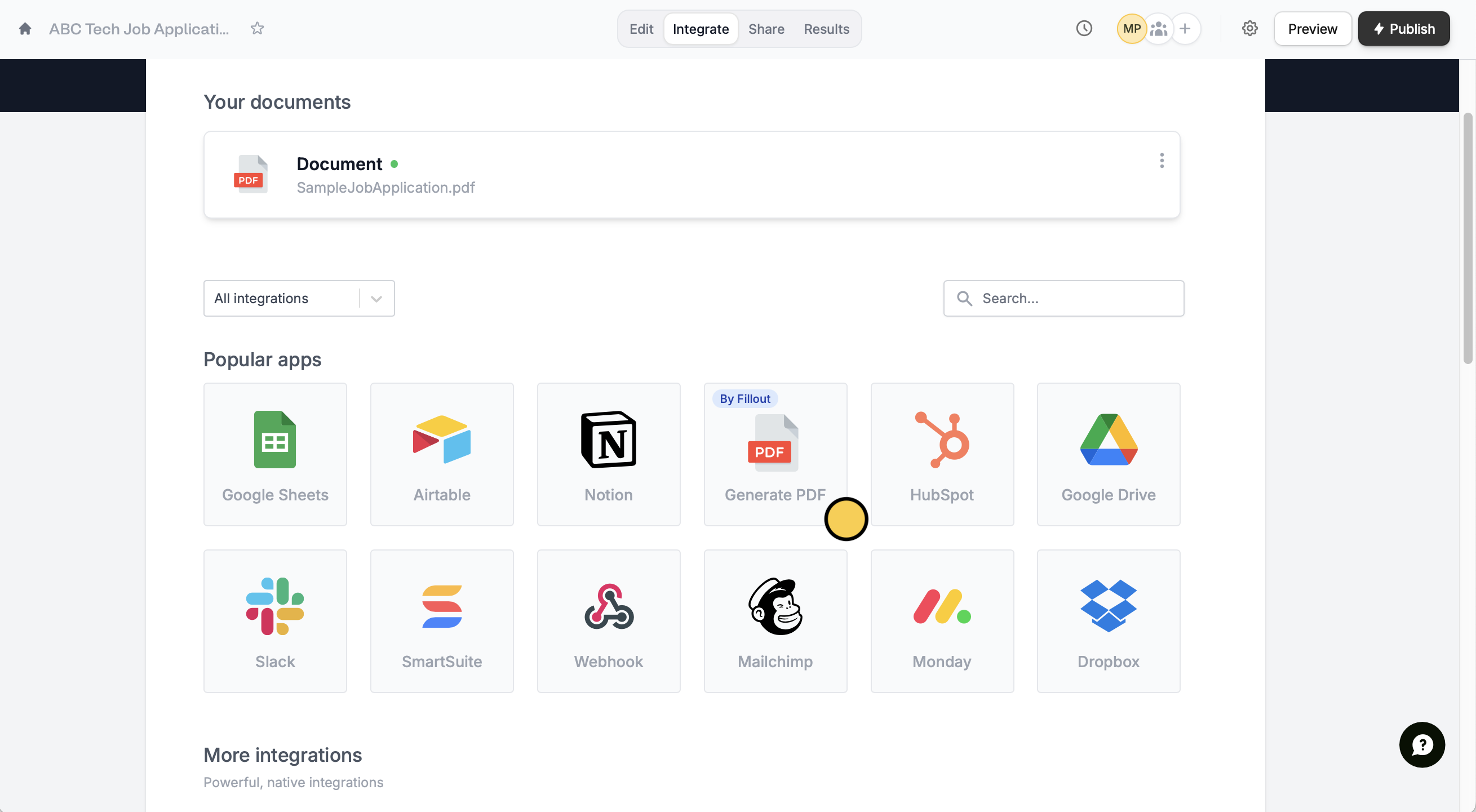
Integrate tab. Look for Generate PDF.You can generate multiple documents if needed.
2
Map fields to your document
If your PDF contains recognizable form fields, Fillout will automatically detect them and add those fields to the document in amber. If not, click 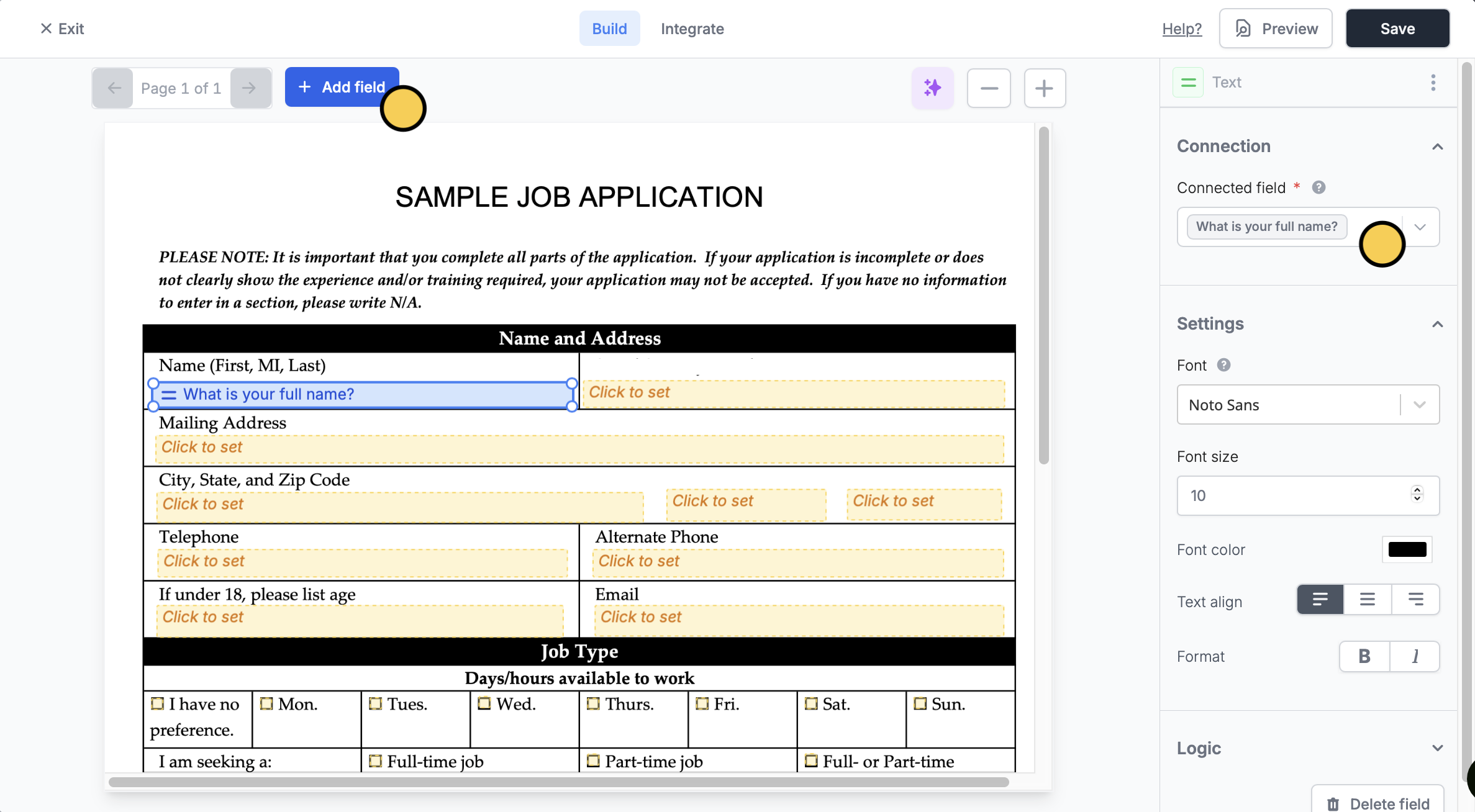
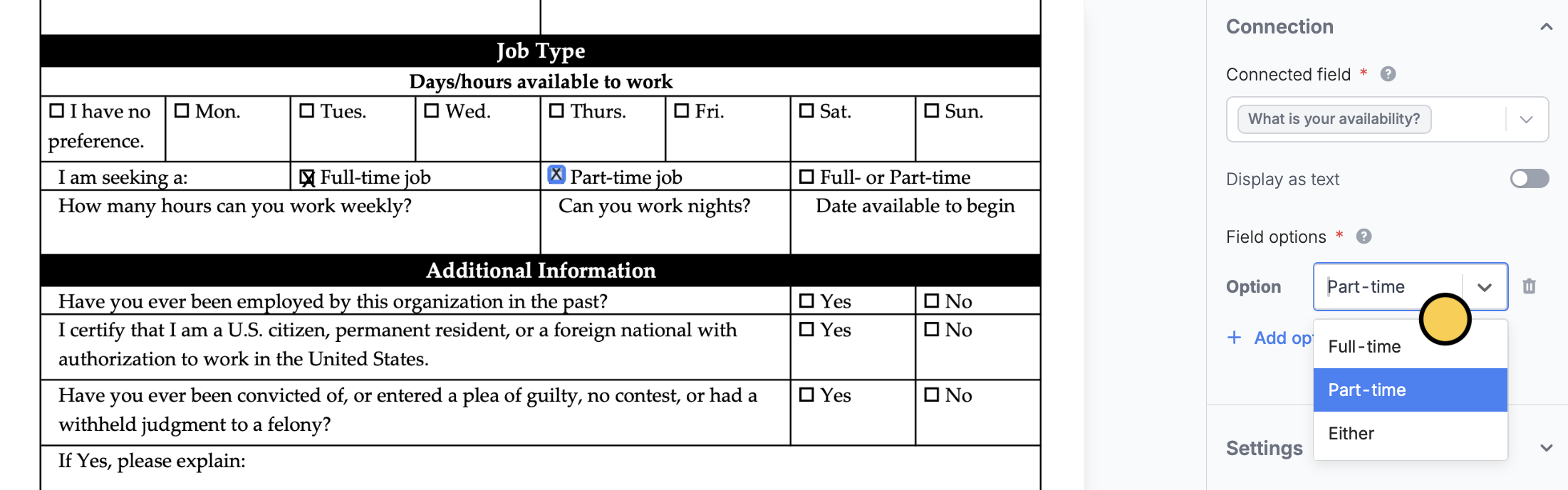
+ Add field and drag/resize fields as necessary wherever you would like to insert text on your PDF.+ Add option to insert multiple fields corresponding to each possible form option.3
Preview and publish
Click
Preview to generate a document using your mappings and the latest submission from your form. Once you’re happy with the result, click Publish in the upper right corner to finalize the document.Set up your preferred workflow (Optional)
Now that your document mappings are configured, there are several ways to use your generated document.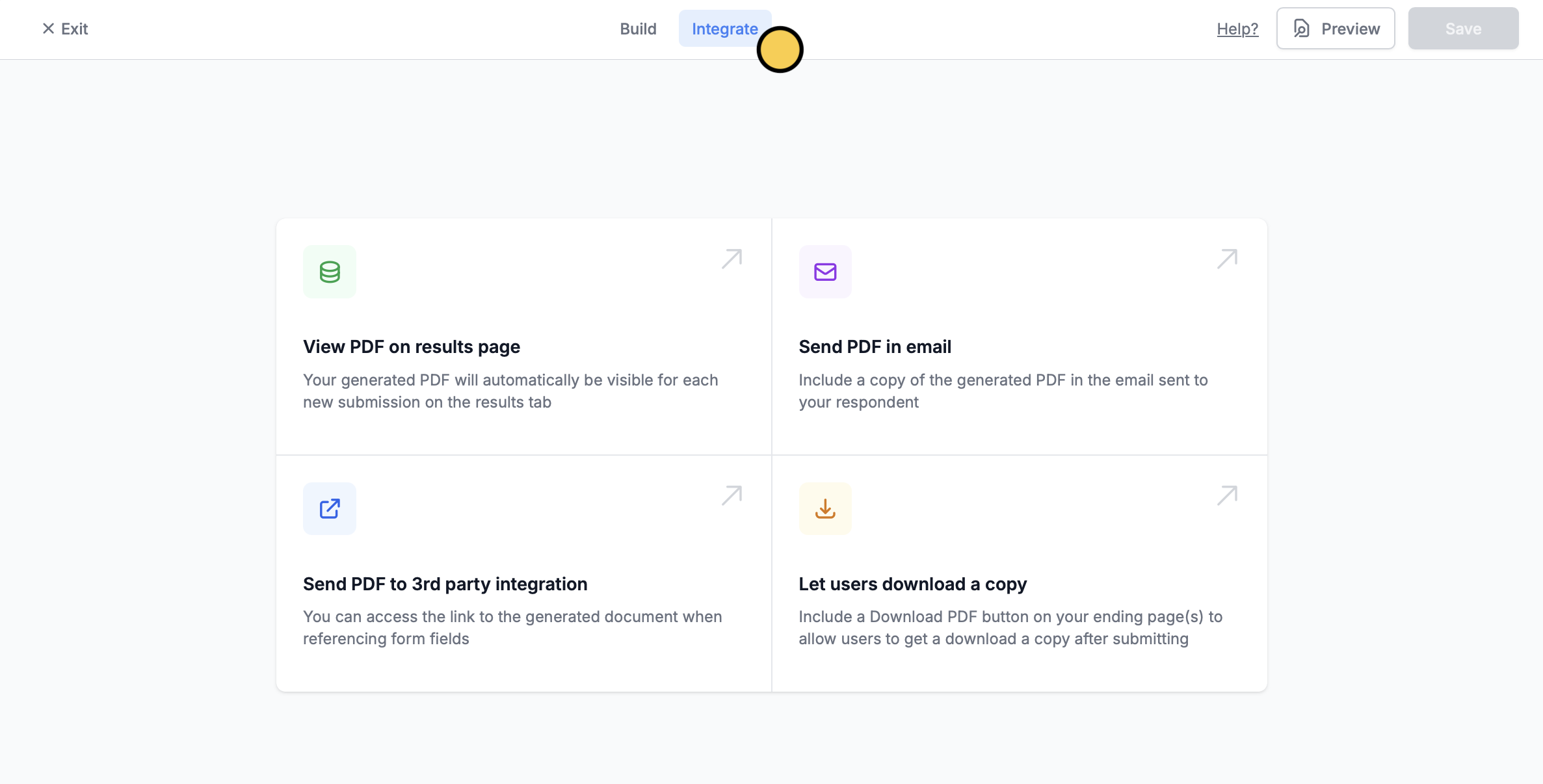
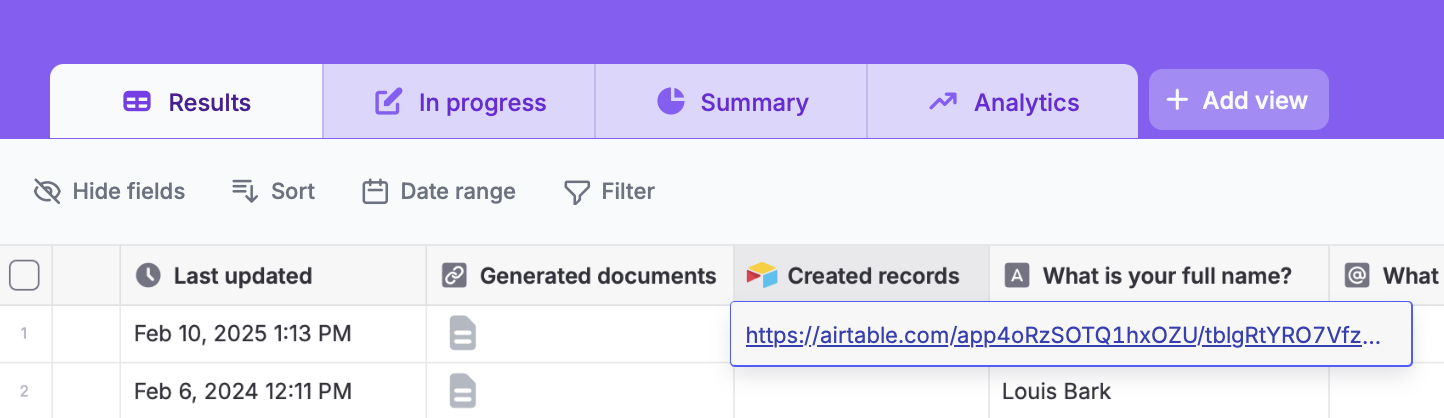
Results tab. Look for the Generated documents column.
Send PDF in email
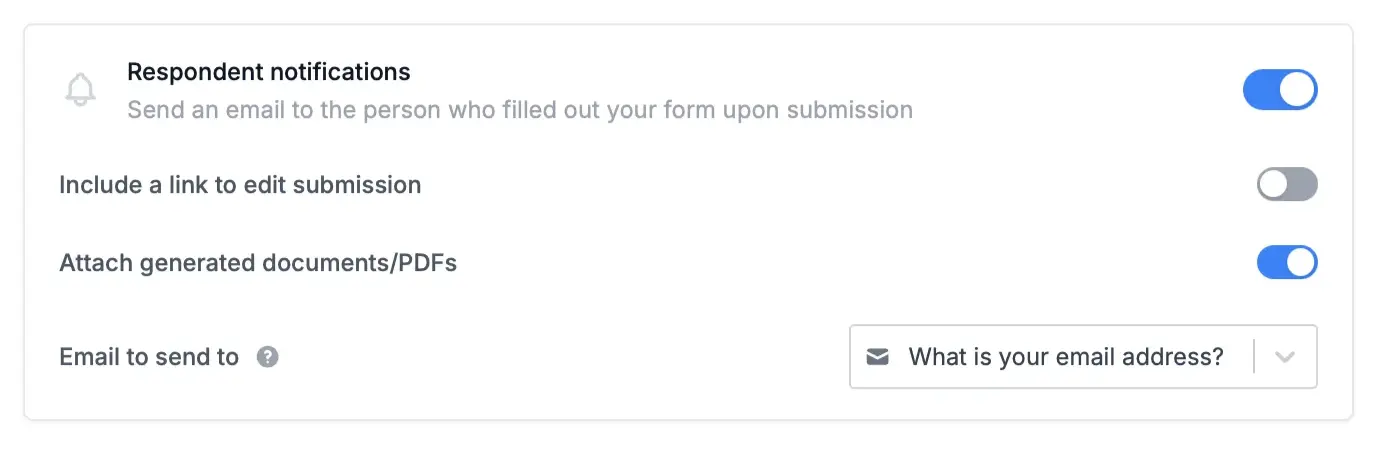
Email autofilled PDFs to respondents. Click this feature or open form settings. Then, enableRespondent notifications and Attach generated documents/PDFs.
Send PDF to 3rd party integration
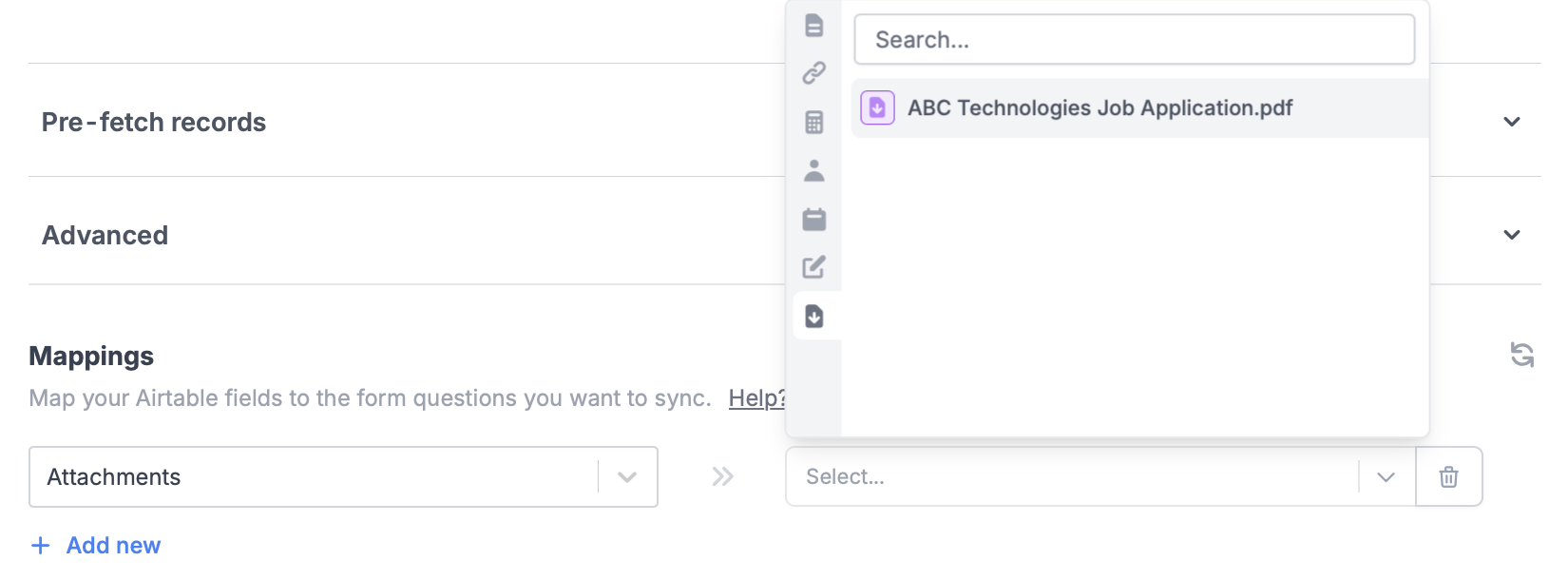
You can upload autofilled PDFs to 3rd party apps, like Airtable, Notion, SmartSuite, Google Sheets, Dropbox, and more. Connect your form to your preferred app in theIntegrate page.
Under Mappings, link a file upload field (from your 3rd party app) to the appropriate Document you created.
Results page that will take you to the uploaded file in your chosen app.
Let users download a copy
Lastly, you can add aDownload PDF button from the left-hand panel to any ending page to let your respondents download the generated document once they complete a form.

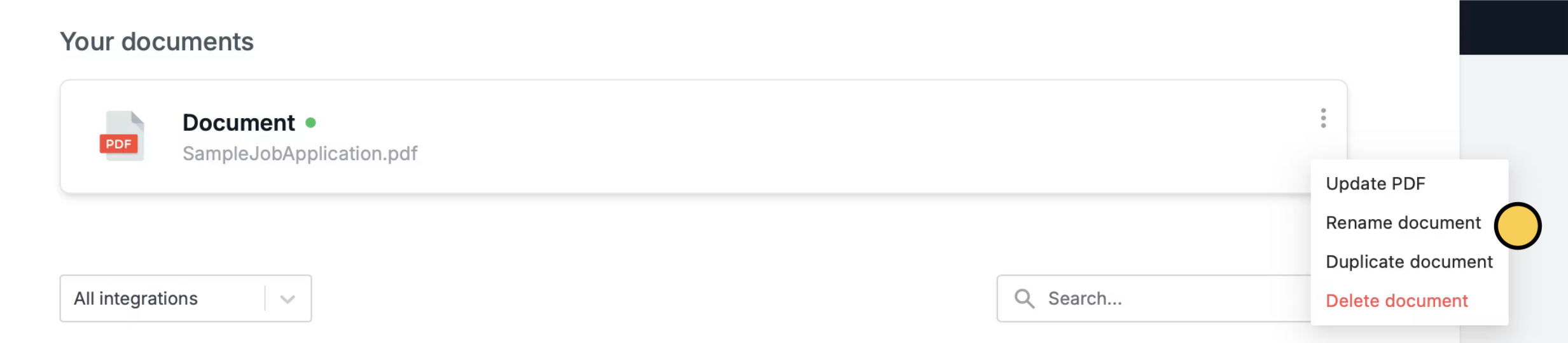
Personalized PDF file names
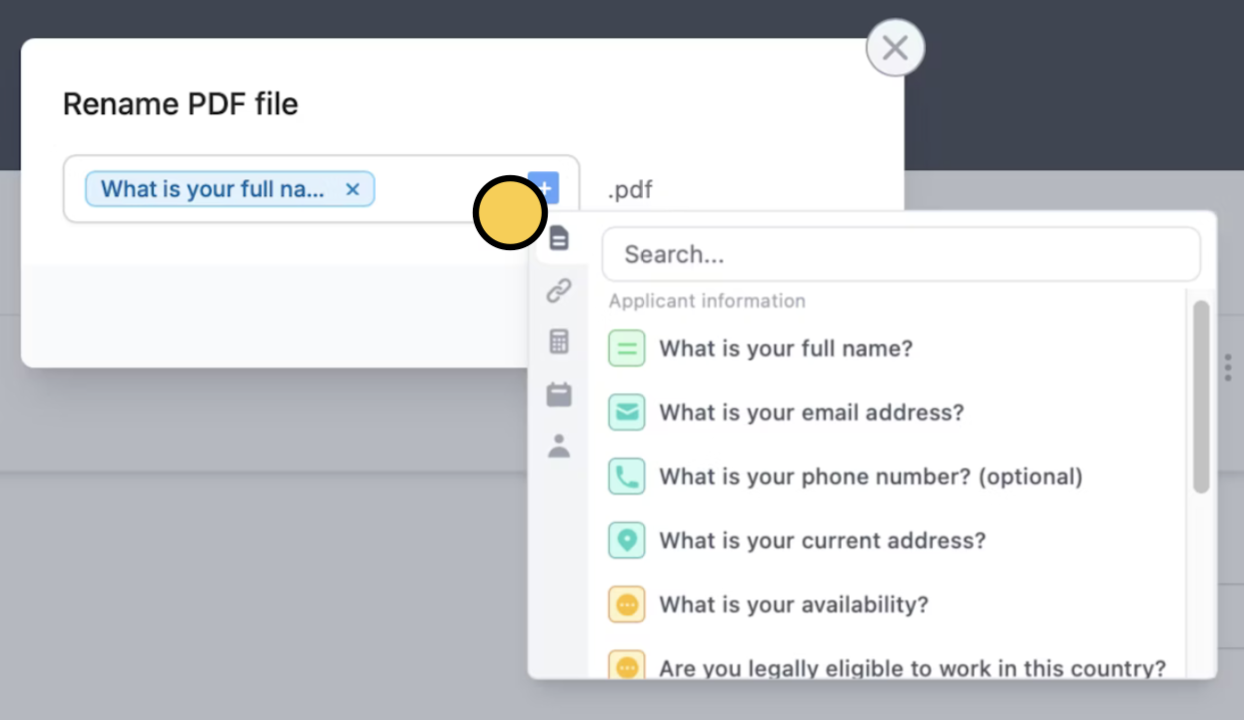
You can automatically rename PDFs by referencing answers from your form, such as name, ID number, or any other collected data. Simply click followed byRename document.
Related articles
Respondent emails
Email respondents a copy of their answers that can be edited.
Create an Airtable form
Use a form to create or update Airtable bases.
Ending page
Show a thank you page, redirect, or allow re-submission.