

What is Zapier?
Zapier lets you connect an app to 2,000+ other web services. Zaps (set up in minutes with no coding) are workflows that automate your day-to-day tasks between apps. Each Zap has one app as the Trigger, where your information comes from and which causes one or more Actions in other apps, where your data gets sent automatically.How it works
1
Link Fillout to Zapier
First, log in to your Zapier account or create a new account. Then, hover over the left-hand panel and click App Connections followed by + Add connection.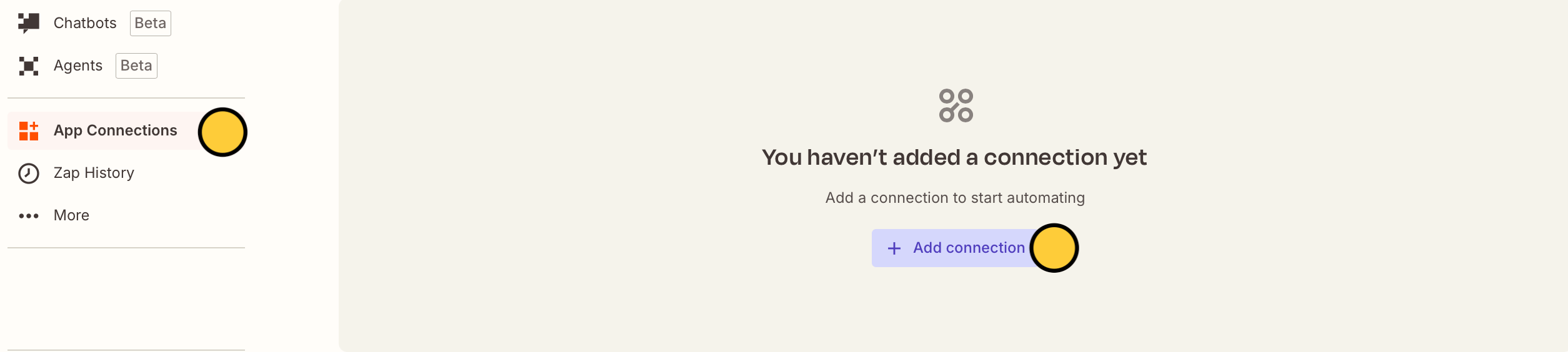
2
Create a Zap
Use a pre-made Zap or create your own. Hover over the left-hand panel, and click + Create followed by Zaps.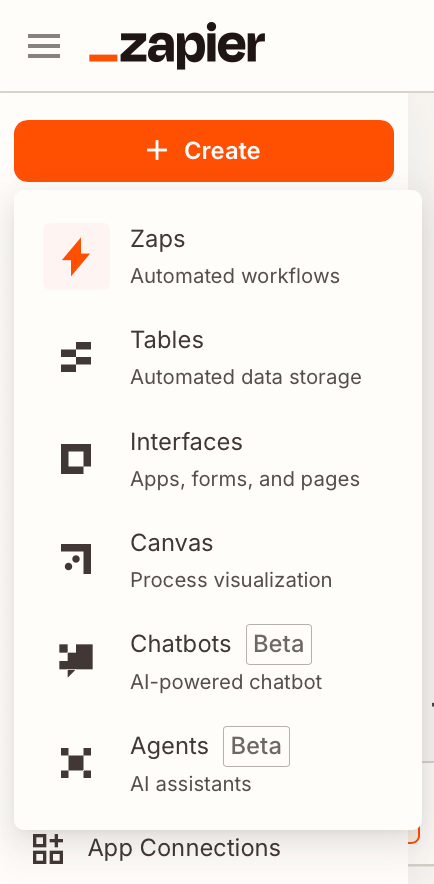
Let’s select Fillout Forms as the trigger app. By default, the automation will start after receiving New submissions.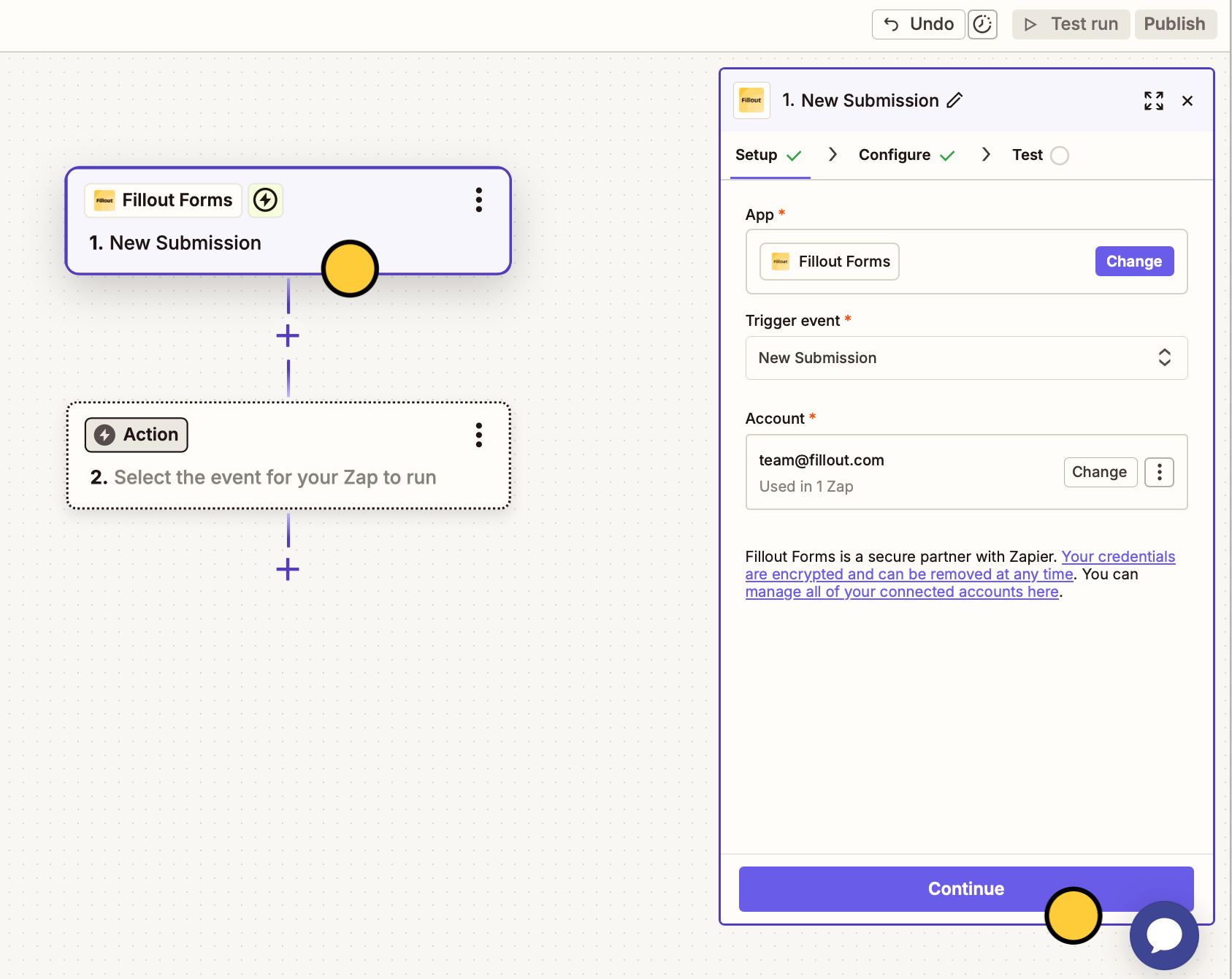
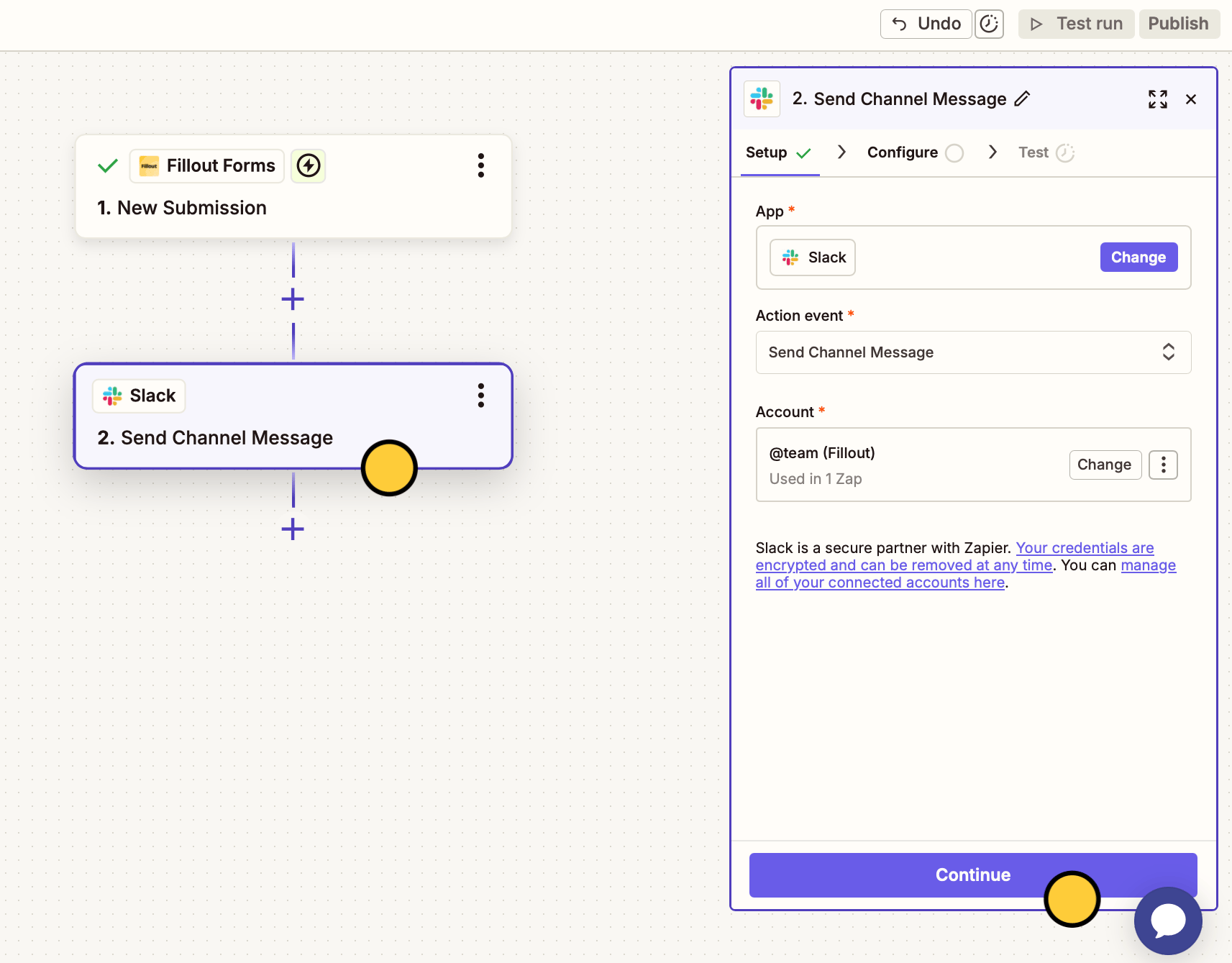
Let’s select Fillout Forms as the trigger app. By default, the automation will start after receiving New submissions.
3
Edit Message Text
You can send the same fixed message (e.g., New ticket received) for submissions received or send each respondent’s answers. To do this, map fields by clicking the plus icon and selecting them in the left dropdown.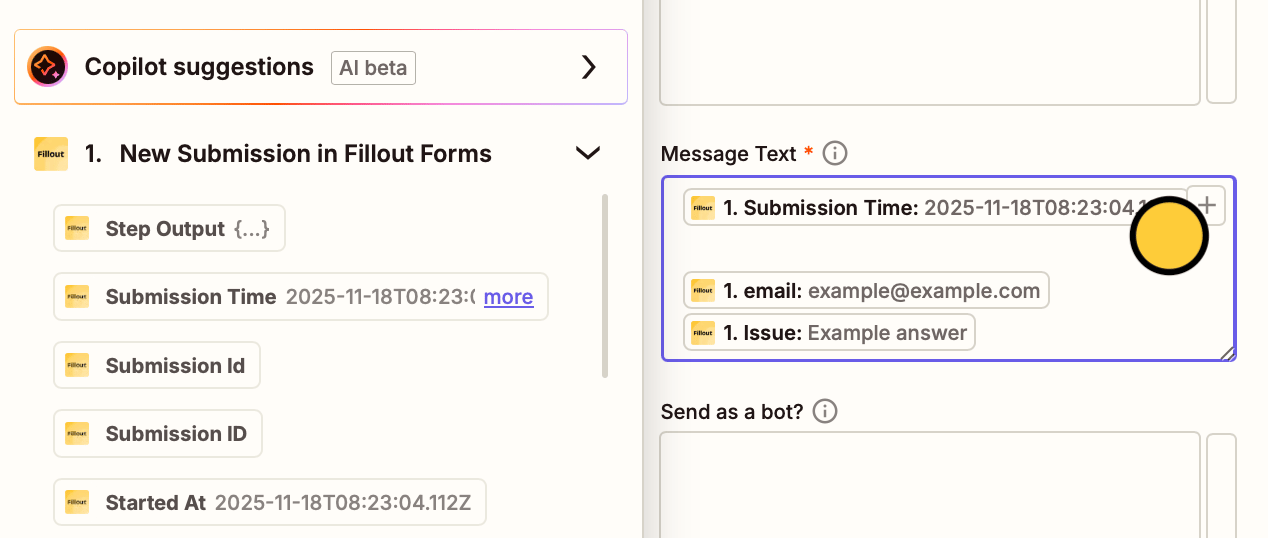
4
Test your automation
Click Test run on the upper right corner to make sure everything’s working as intended.
5
Publish zap
Once everything’s set, click Publish on the upper right corner. Now, all new submissions will be sent to the Slack channel.
Which forms the connection can access
The form list in Zapier only shows forms, not apps, databases, or automations. What the Zapier connection can reach depends on who connected Fillout:- Organization admins - the connection can access every form in the organization.
- Members - the connection can only read responses from forms the member can open, and only add or delete responses on forms they can edit.
If a Zap stops working
If a Zap starts failing with Not authorized, or a form doesn’t show in the list, check two things:- The connection’s access. In Settings, open Integrations, then Authorized apps. If Zapier’s Access shows a number of workspaces, disconnect it, then connect it again and choose Everything you have access to. Reconnecting without disconnecting first keeps the old access.
- The person who connected it. If they don’t have access to the form, share the form with them, or reconnect.