

How it works
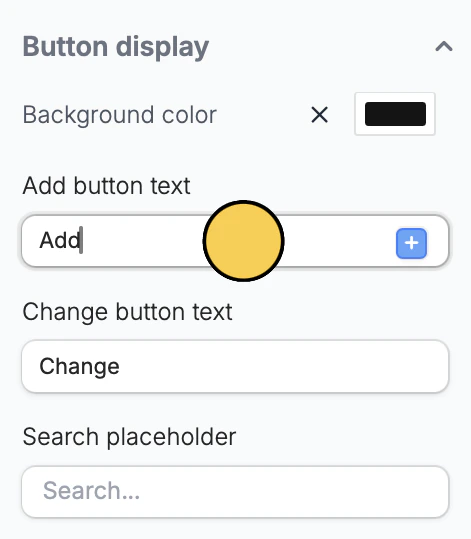
If your form includes a record picker field that allows creating new records, respondents can add multiple linked records in one form. When filling it out, they’ll see an+ Add button. Clicking it opens a dropdown. If there are existing records, they’ll appear there. If not, the list will be empty.
They can click + Create new to open a subform and add a linked record. To add more, they simply need to click the two buttons mentioned.

How to enable adding two or more linked records
Click your record picker followed by itsgear icon . Then, toggle Can select multiple?.
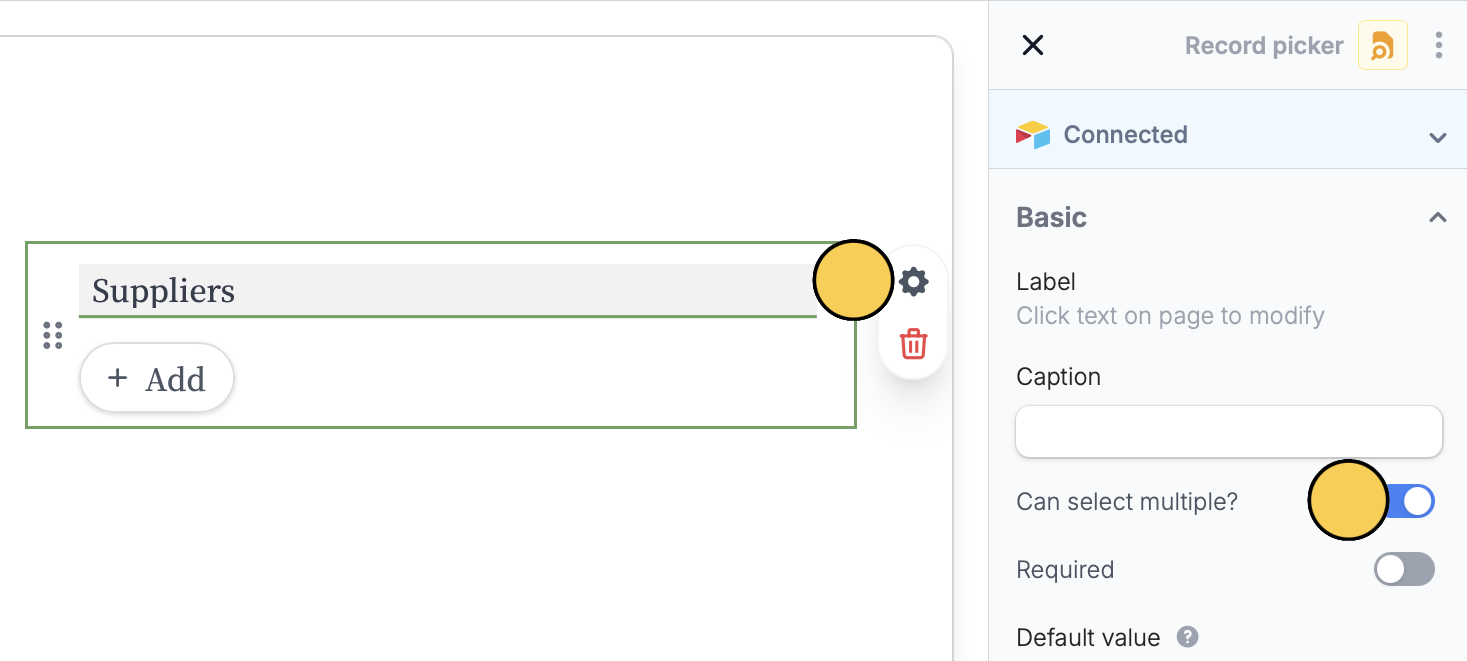
Make sure Can create new records is enabled in order for this feature to work.
Set minimum and maximum limits
You can control how many records respondents can create (or select). Click your record picker followed by itsgear icon . In the right-hand panel, scroll down to Validation.
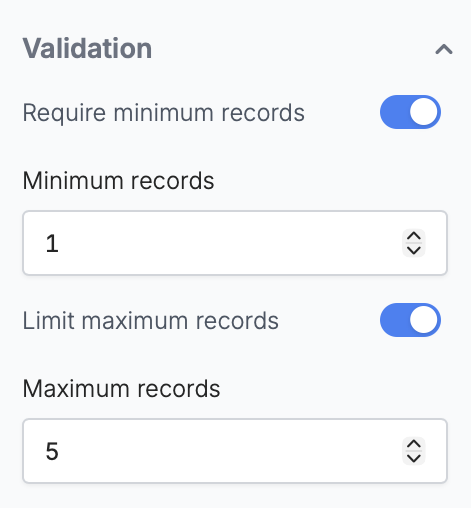
Require minimum records and/or Limit maximum records, then set your preferred numbers.
Common use cases
- Team Management: Add multiple employees in a single submission
- Expense Tracking: Record multiple expenses in one form
- RSVPs: Let respondents log data of multiple guests and their details
- Requests: Submit multiple product requests or support tickets in one form