

What is a submission ID?
A unique Submission ID is generated whenever someone begins to complete your form. Submission IDs are randomly generated, like 6bcedd3a-fe26-4bcb-9ce9-d3850e38d42c. Once the submission is complete, you can reference the Submission ID in Fillout workflows such as confirmation or thank-you emails. However, you can’t reference it within the form it originates from. For example, you can’t display it on the Ending Page because the Ending Page is shown before the submission is finalized, so the Submission ID isn’t available yet.Send the submission ID to your integration
1
Select your integration
First, navigate to the
Integrate tab located on the top menu, and choose the app or service you would like to use.2
Map Submission ID on your Fillout form
Under Mappings, 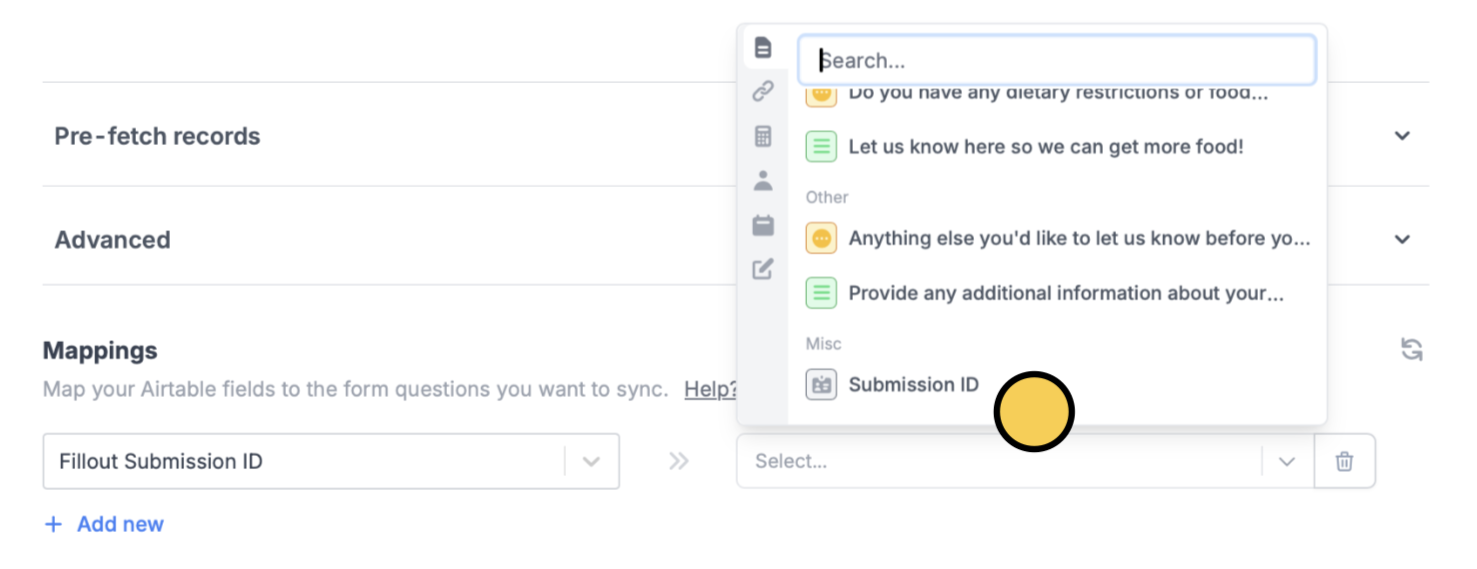
+ Add new. On the left, choose the field from your app where you want to save data, and on the right, click Submission ID from your Fillout form.If you’re using Zapier or Make, you’ll also see the option to reference the Submission ID.
3
Finish setup
Click
Finish setup in the upper right corner. That’s it! The Submission ID will now be saved to your integration. Remember to Publish your form to reflect the changes.Search for a Submission ID in the results
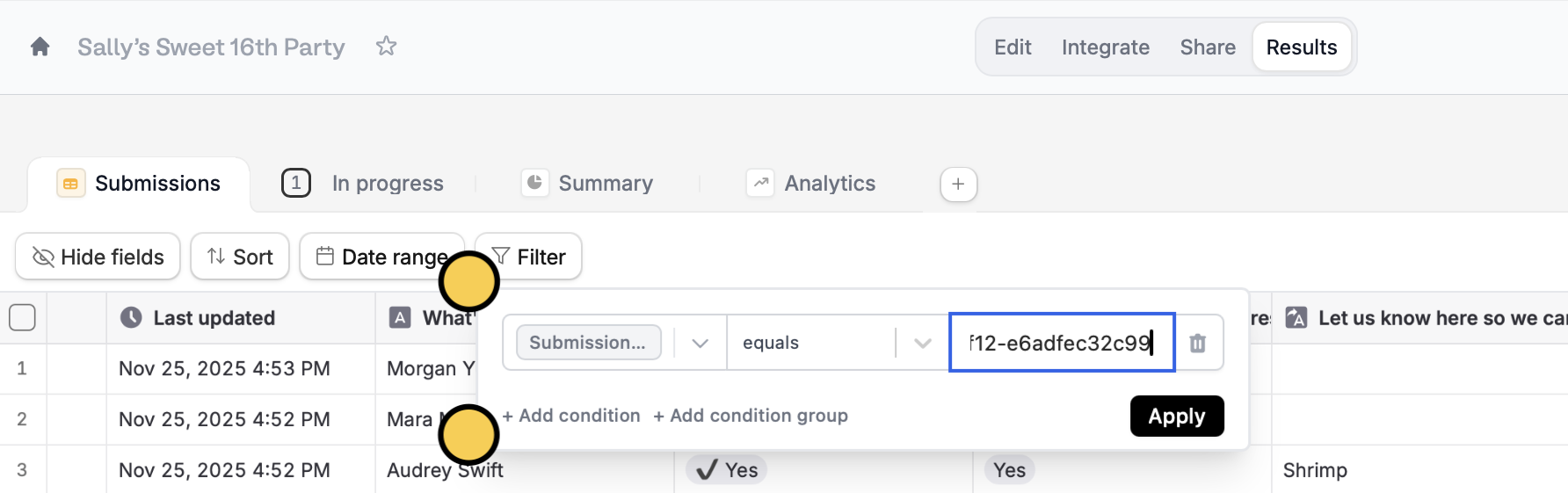
Go toResults from the top menu. Click Filter followed by + Add condition. Then, choose Submission ID in the dropdown and enter the ID number.
Find the Submission ID for a particular result
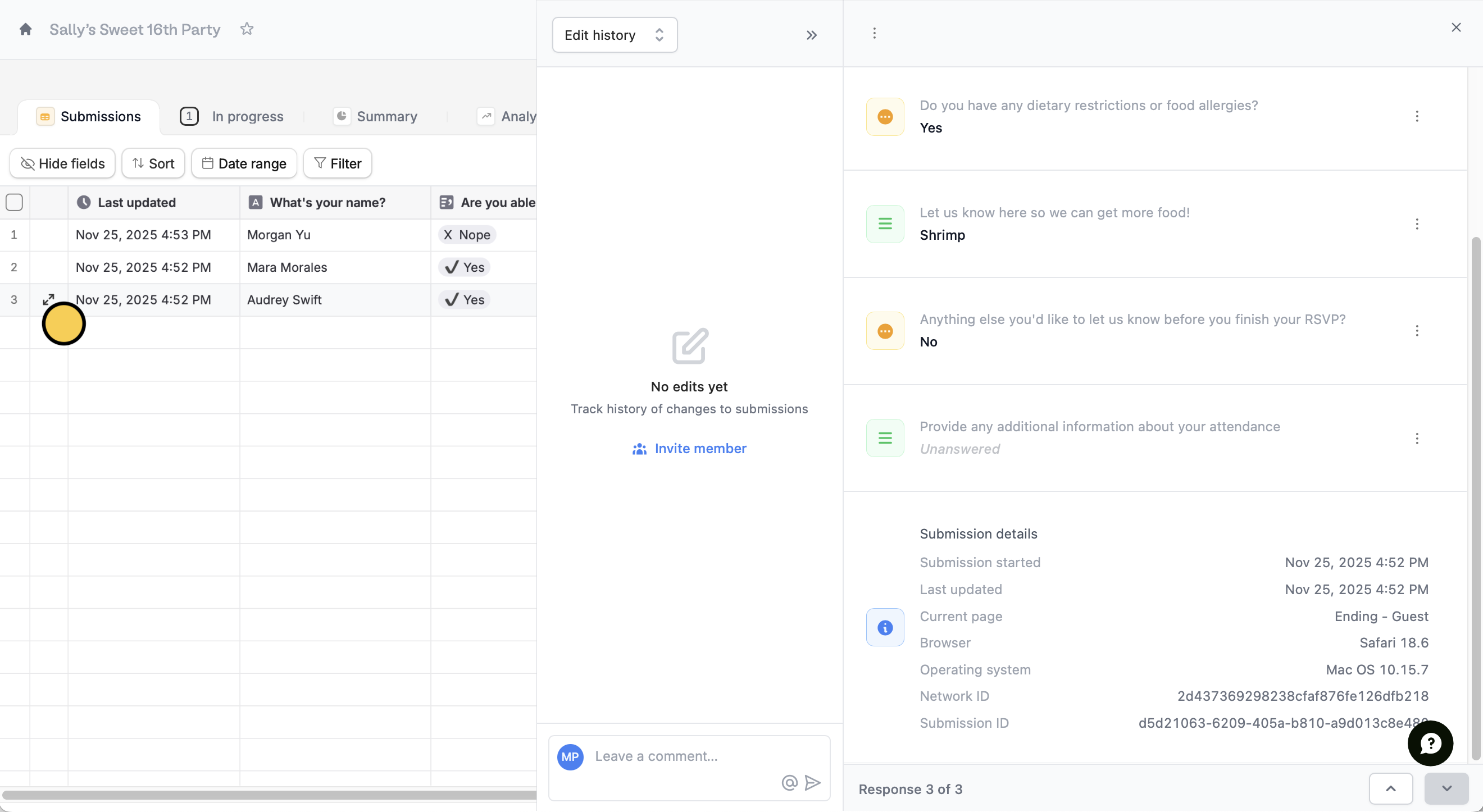
Hover and click theexpand icon on the result you are interested in. You’ll see the Submission ID at the bottom of the window on the right side.
Related articles
Create an Airtable form
Use a form to create or update Airtable bases.
Create a Notion form
Use a form to create or update Notion databases.
View responses
View all submissions to your form. Filter, sort, or export to CSV.