Overview
In certain cases, you may want to save a fixed value to an integration instead of letting your respondents input answers to a field. For example, you might have a single select field in Airtable or Notion that should always be marked as completed when submitted.How to add static values (Recommended approach)
1
Select your integration
First, navigate to the
Integrate tab on top and click Airtable or Notion.2
Map your form fields on Fillout
Go to the Mappings section and link Airtable (or Notion) fields on the left to the Fillout fields on the right. In our example, we’ll choose the Status field on Airtable.Then, select to type a value you would like to use. We’ll type Finished for this example.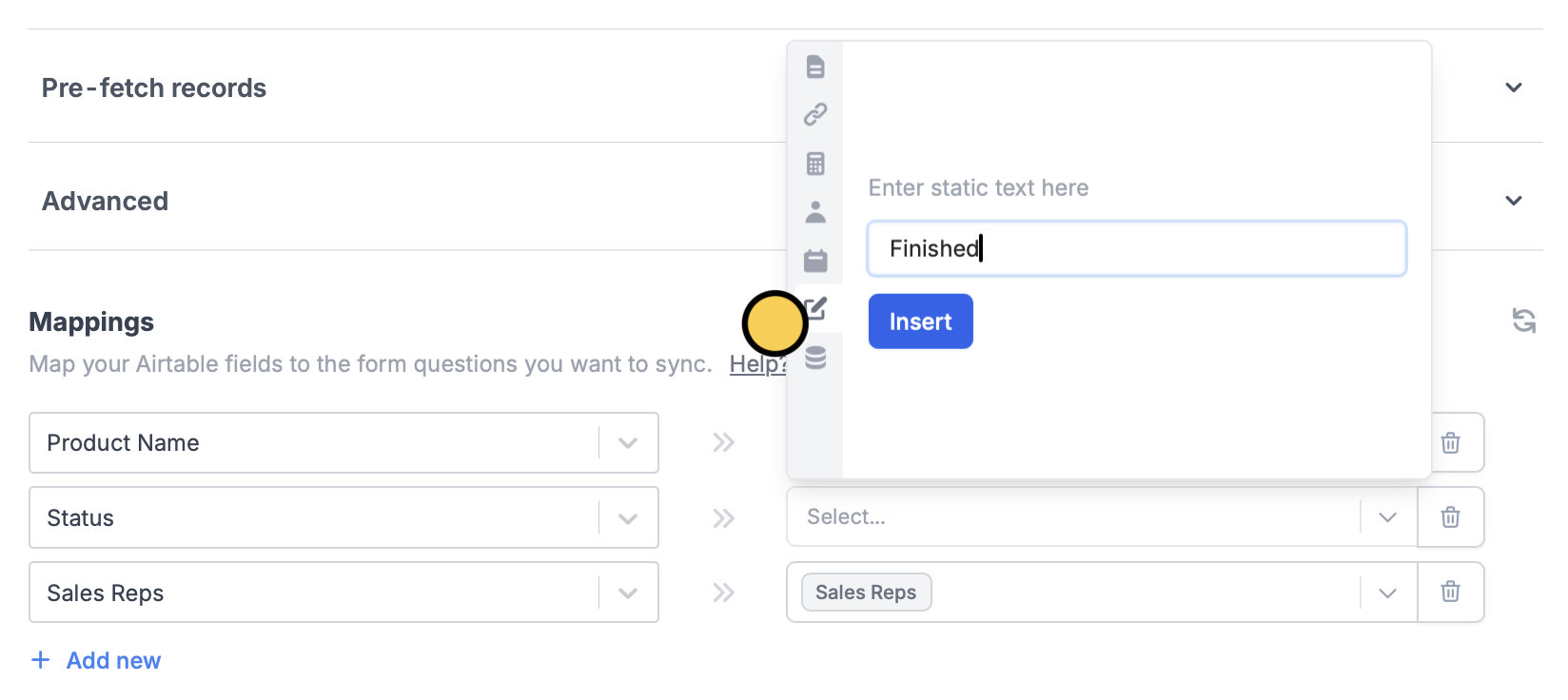
3
Publish and share
Remember to
Publish your form to make the changes reflect.Hide field
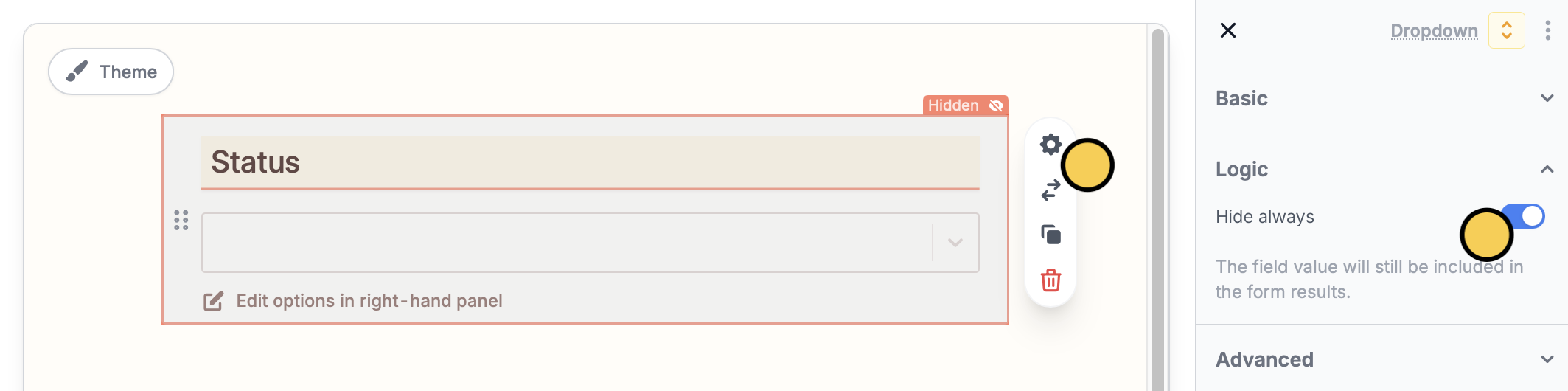
Another option is to go back toEdit from the top menu. Click the field’s to open the right-hand panel. Under Logic, toggle Hide always.