

How to make your payment page dynamic
1
Create calculations
First, click Logic on the bottom right corner to add your Calculations. Check out this guide.
2
Edit payment details
Go to your form’s Payment page or make one if you haven’t yet. Add Your product here and its description if you prefer.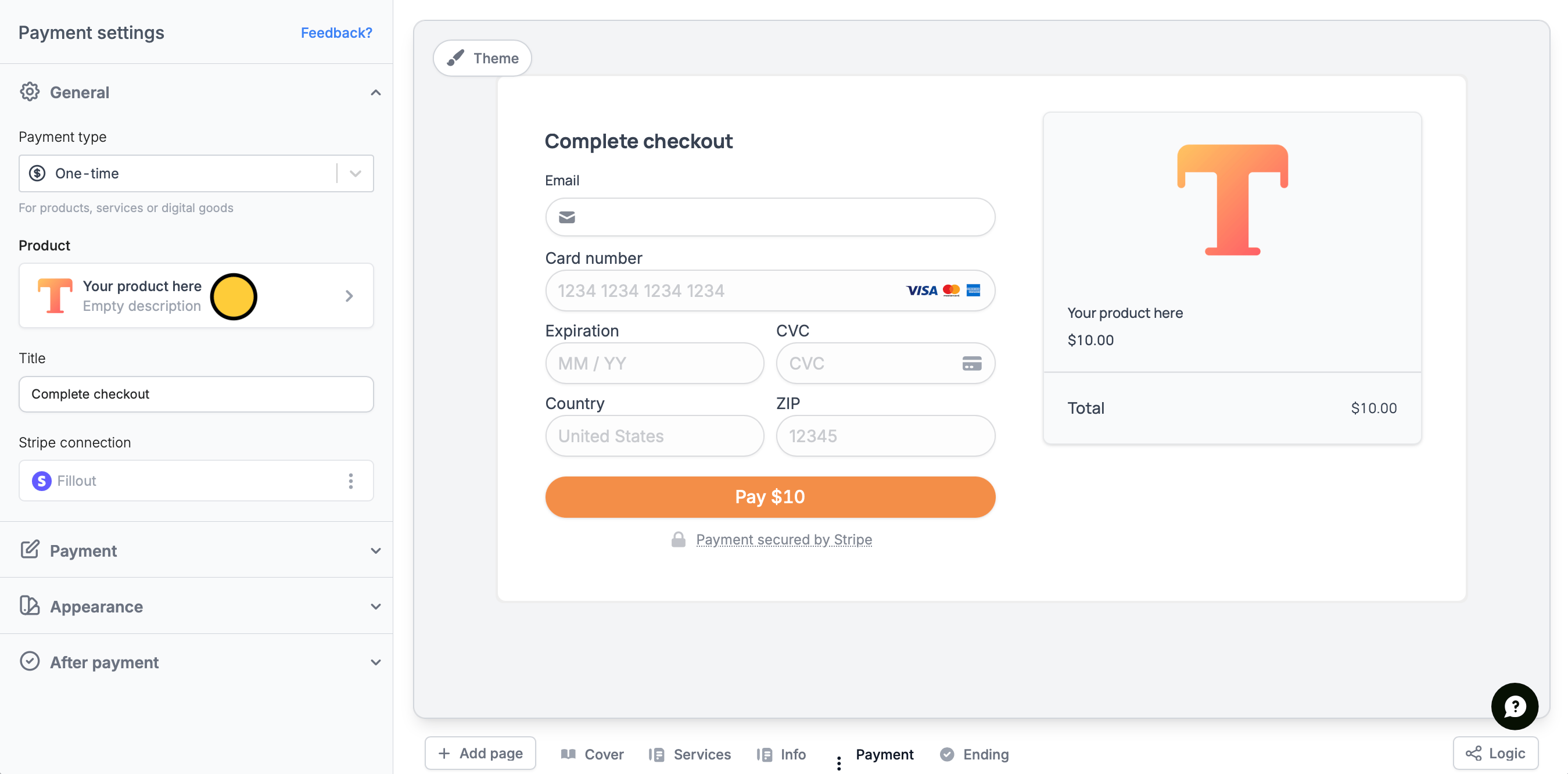
3
Reference a product
Under Product name, type @ or click the plus icon , then select the question or field where you ask customers to choose products or services.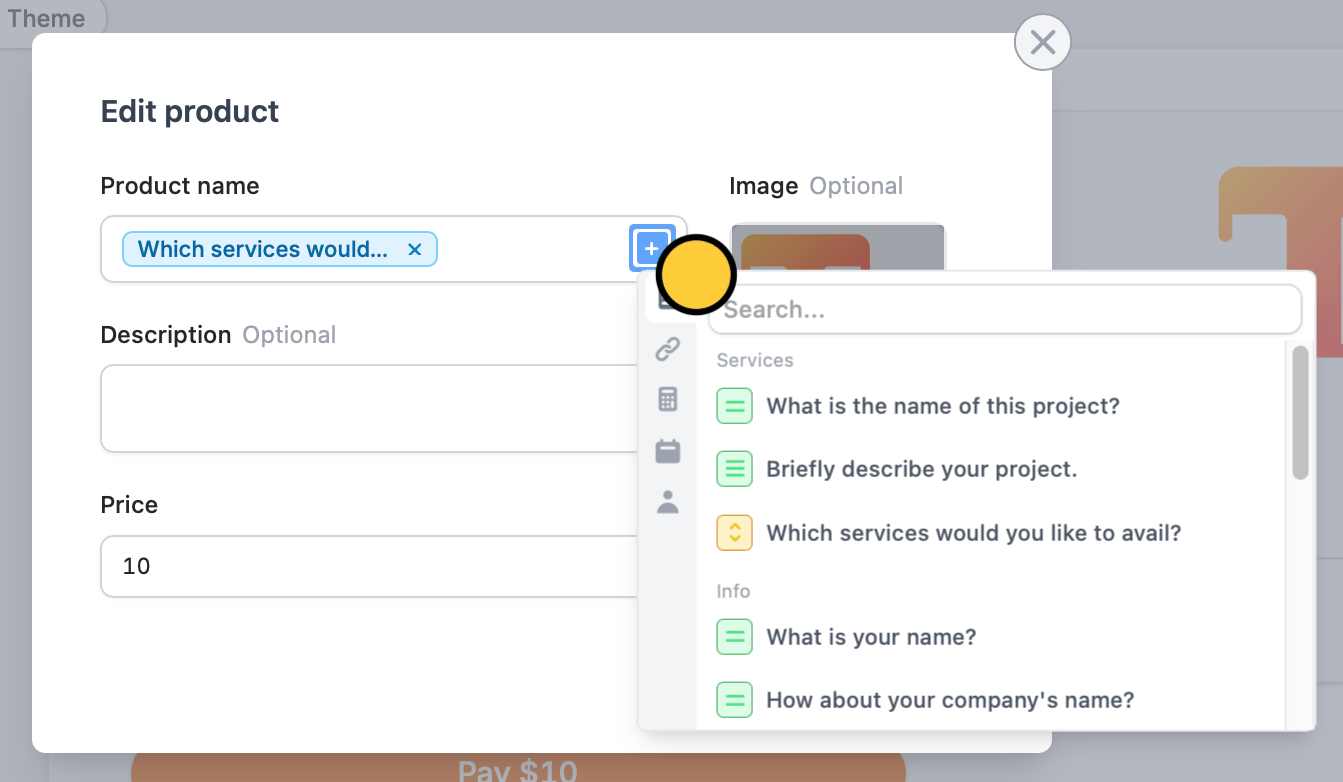
4
Reference price
Do the same for the Price, but this time, click the calculator icon to select the appropriate field.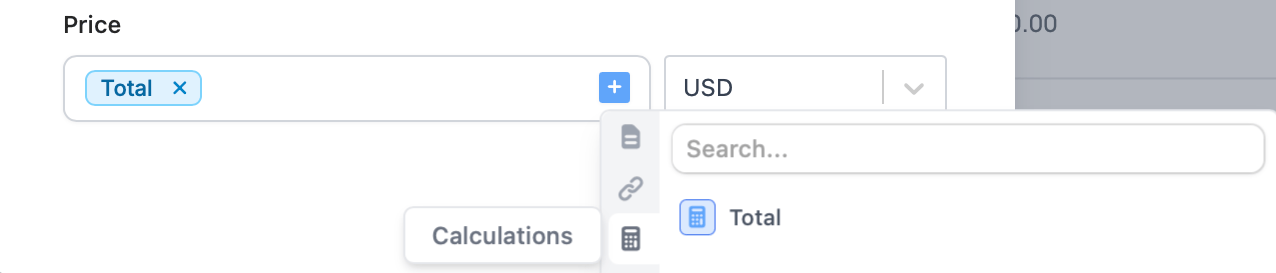
5
Publish and share
Preview your form through the upper right corner to test it, then Publish and share the link or embed on your website.Now, every time someone places an order, the Product name and Price will change depending on their choices.To try the payment on your live form without being charged, see Test your live form without being charged.
Related articles
Payment page
Collect payments via card, US bank account, Affirm, and Stripe.
Calculations
Calculate prices, compute scores, and more.