

How it works
Typically, quizzes have one or more correct answers per question. Choosing the correct answer gives the participant 1 point, and the ending page shows their total score. But what if you’d like to create a quiz where the ending isn’t based on how many correct answers they got, but instead on what type of person, category, or result they fall under? This is done by assigning different weights or point values to answers. Each answer contributes to a score, category, or outcome, and the final result depends on the participant’s overall answers. There are two quiz result types:- Answer-Based Mapping: If answers are mostly A, go to Result A. If answers are mostly B, go to Result B, and so on.
- Score Range Results: If their total score falls within a certain range, they get a matching result type. Example: scores from 1–10 = Type A, 11–20 = Type B.
Common use cases
- Personality Quizzes: Reveal a personality type based on patterns in answers, score ranges, or dominant choices.
- Preference Matching: Recommend categories, styles, or experiences based on answer combinations.
- Weighted Trivia Quizzes: Different answers contribute different point values instead of simply being correct or incorrect.
How to create a which type are you quiz
There are two ways to do this. You can either show results based on whether their answers are mostly A, B, or C OR display different results depending on their total score.Display results based on most frequent answer
1
Add ending pages
By default, you’ll have one ending page after creating your quiz. Edit the elements here to show the result ending for mostly As, for example. Add different ending pages for mostly Bs, Cs, and so on.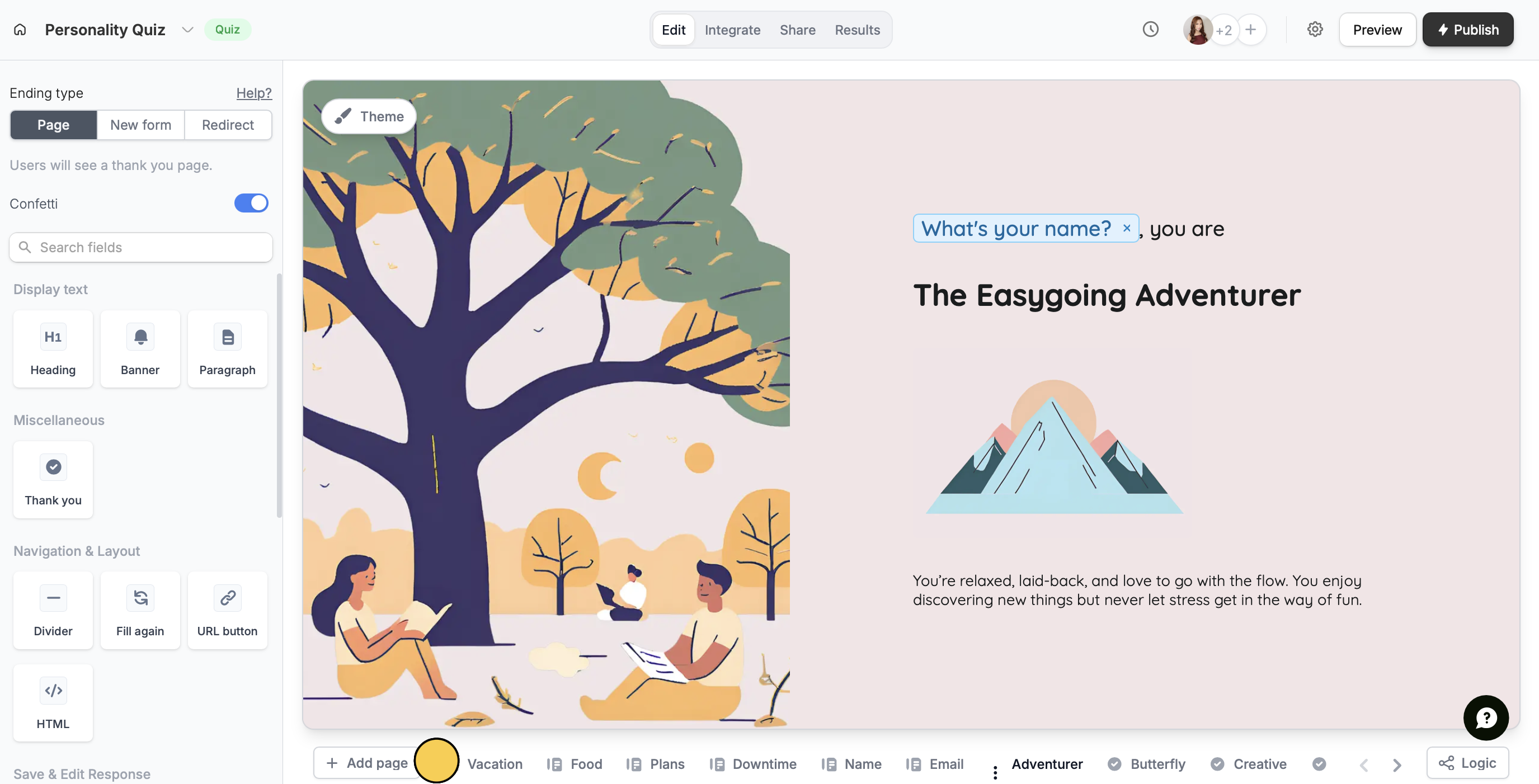
2
Open calculations
Click 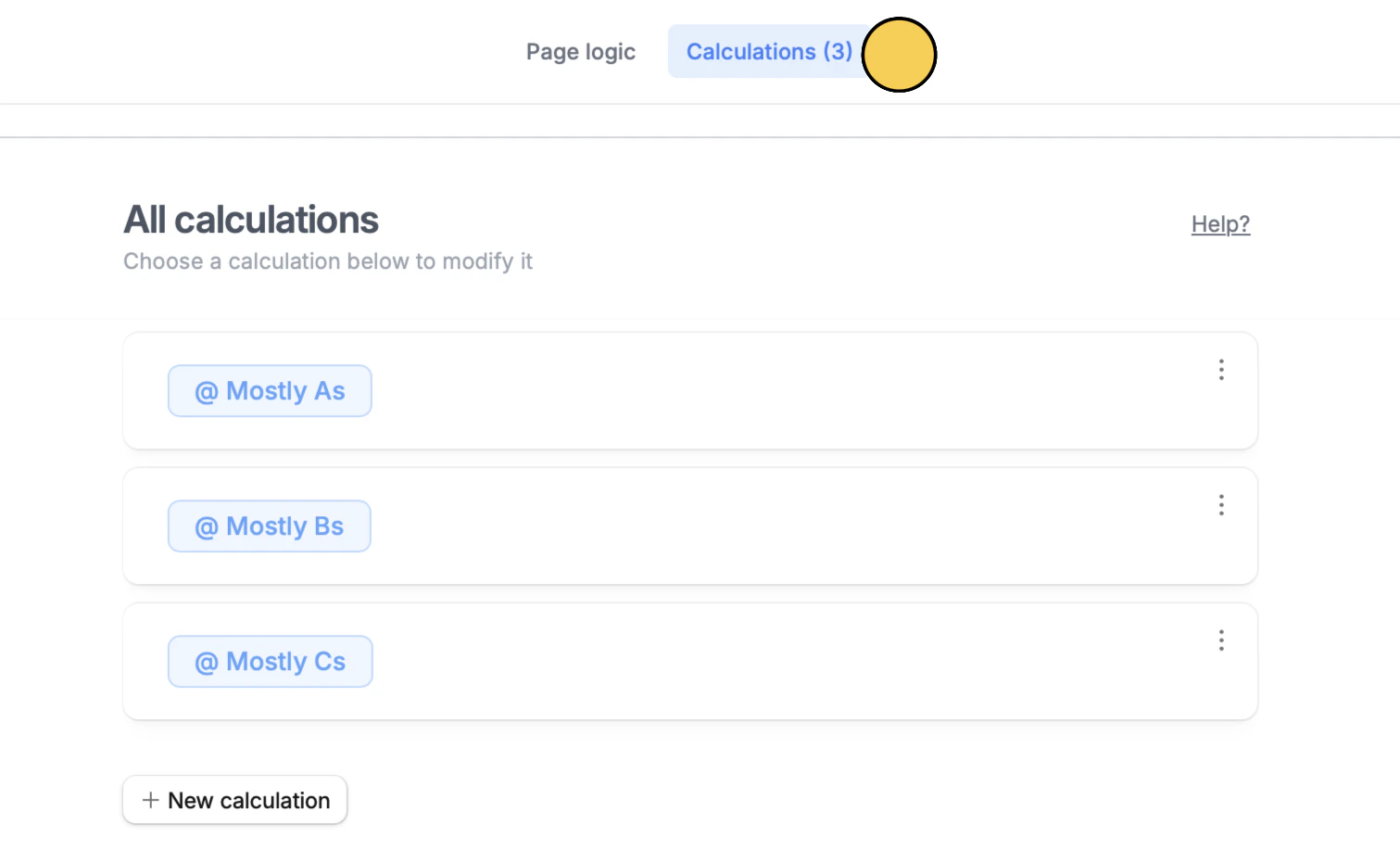
Logic at the bottom right, then click Calculations on top. We’ll make one calculation per result. Let’s start with “Mostly As”.3
Set rules
In the Initial value, put 0. First, we’ll treat all answers as neutral and assign 1 point to each selected option. Click 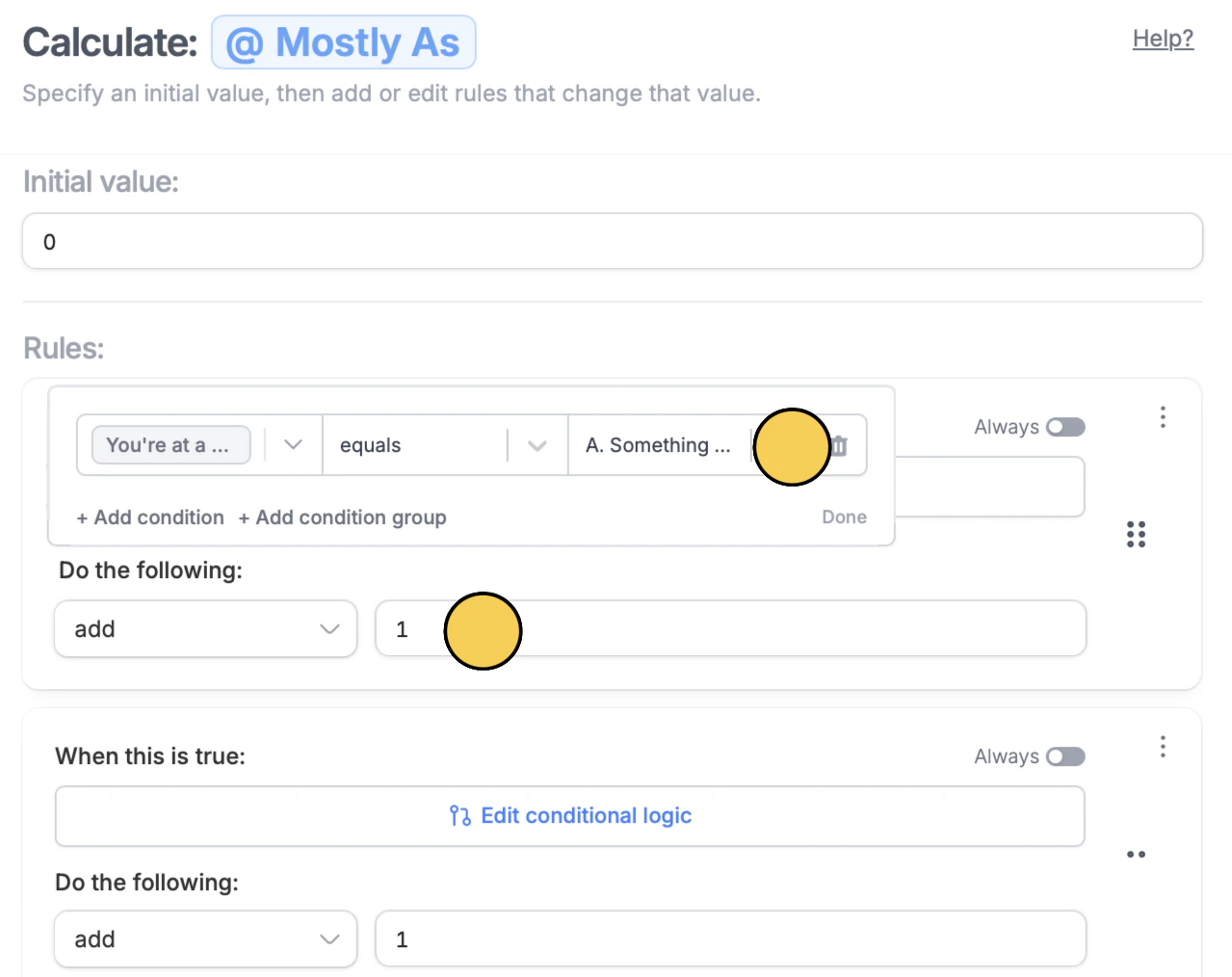
+ New rule to Set conditional logic.add. Repeat this by adding a new rule for each question.Next, create a separate calculation for “Mostly Bs”. Follow the same steps as above, but this time select option B in the right dropdown instead.4
Map results to most frequent answer calculations
Click 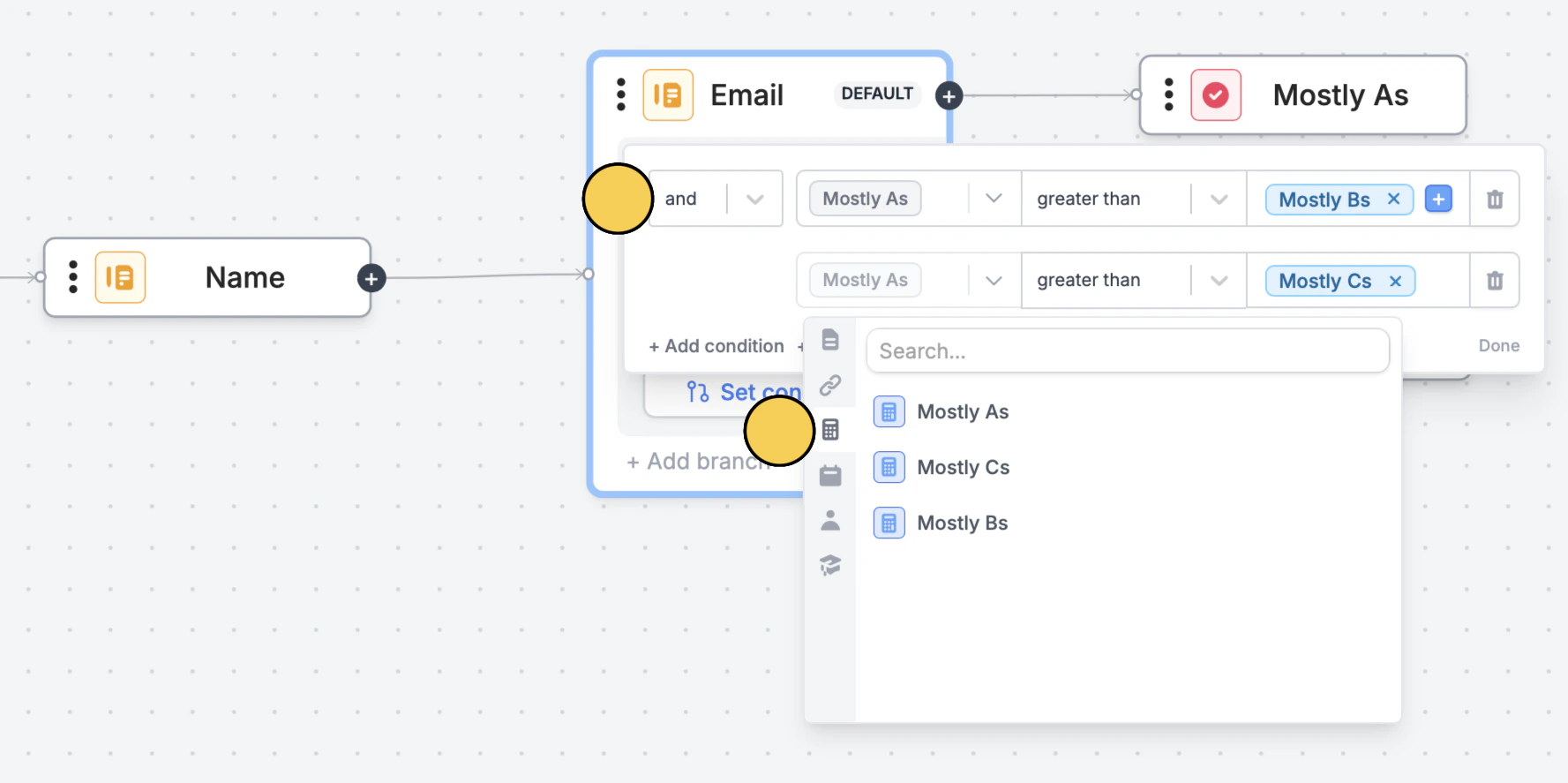
Page logic on top. + Add branch to Set condition. For the Mostly As result page, drag the connector to its page.5
Handle ties between results
If two results can end up with the same count, choose which one should win. In
Page logic, change that result’s condition from greater than to greater than or equal to. If a respondent’s answers tie, they’ll see that result’s ending page.Assign results based on total score
1
Assign different points to each answer
Click a question followed by the 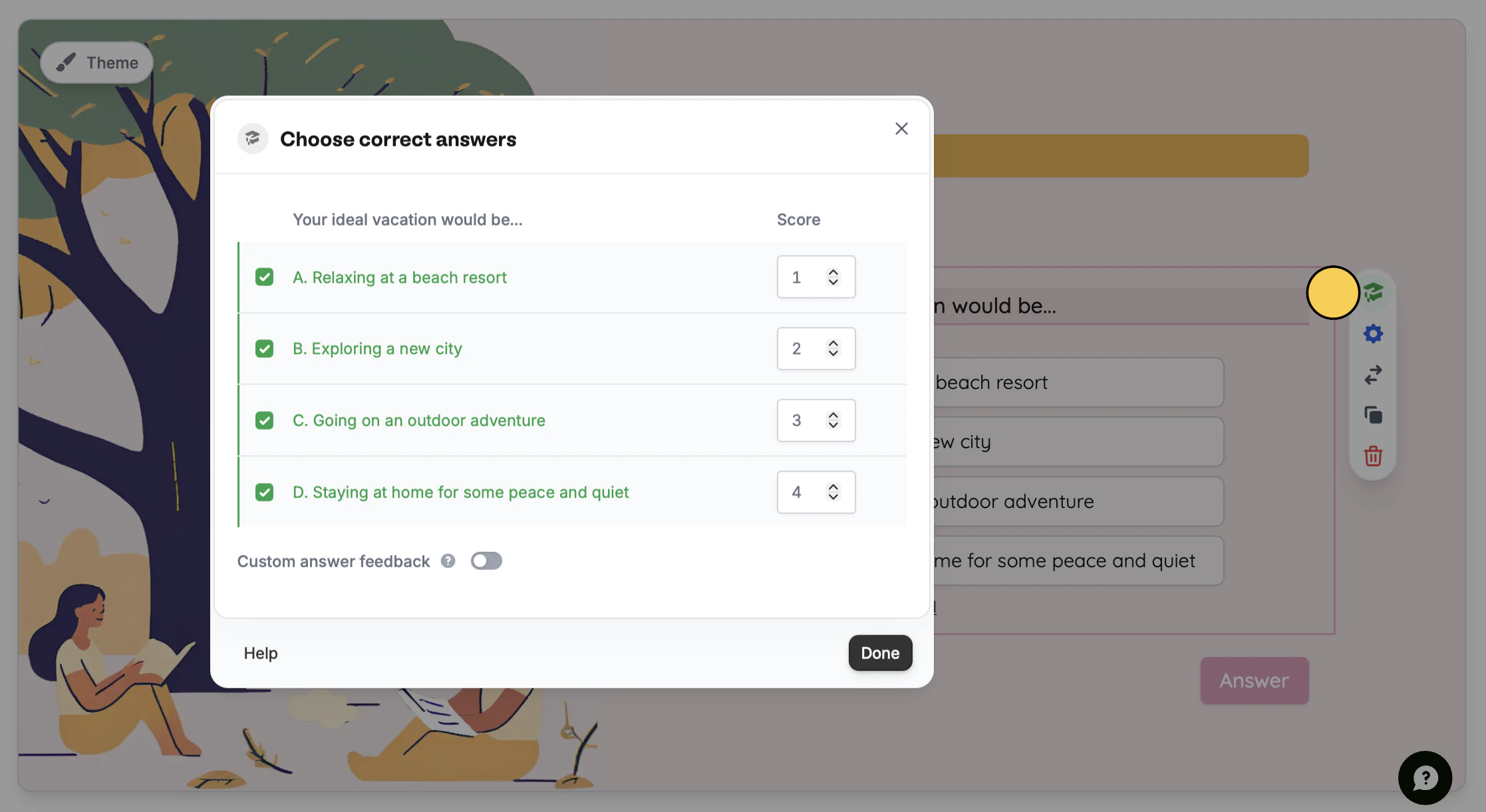
graduation cap icon . In the popup, tick ✓ all the answers and assign points for each.2
Create different ending pages
Edit the elements on your ending page to display one result type. Add more ending pages as needed to show the other types. In our example, we have “Adventurer”, “Social Butterfly”, and “Creative”.
3
Map ending pages to scores
Open 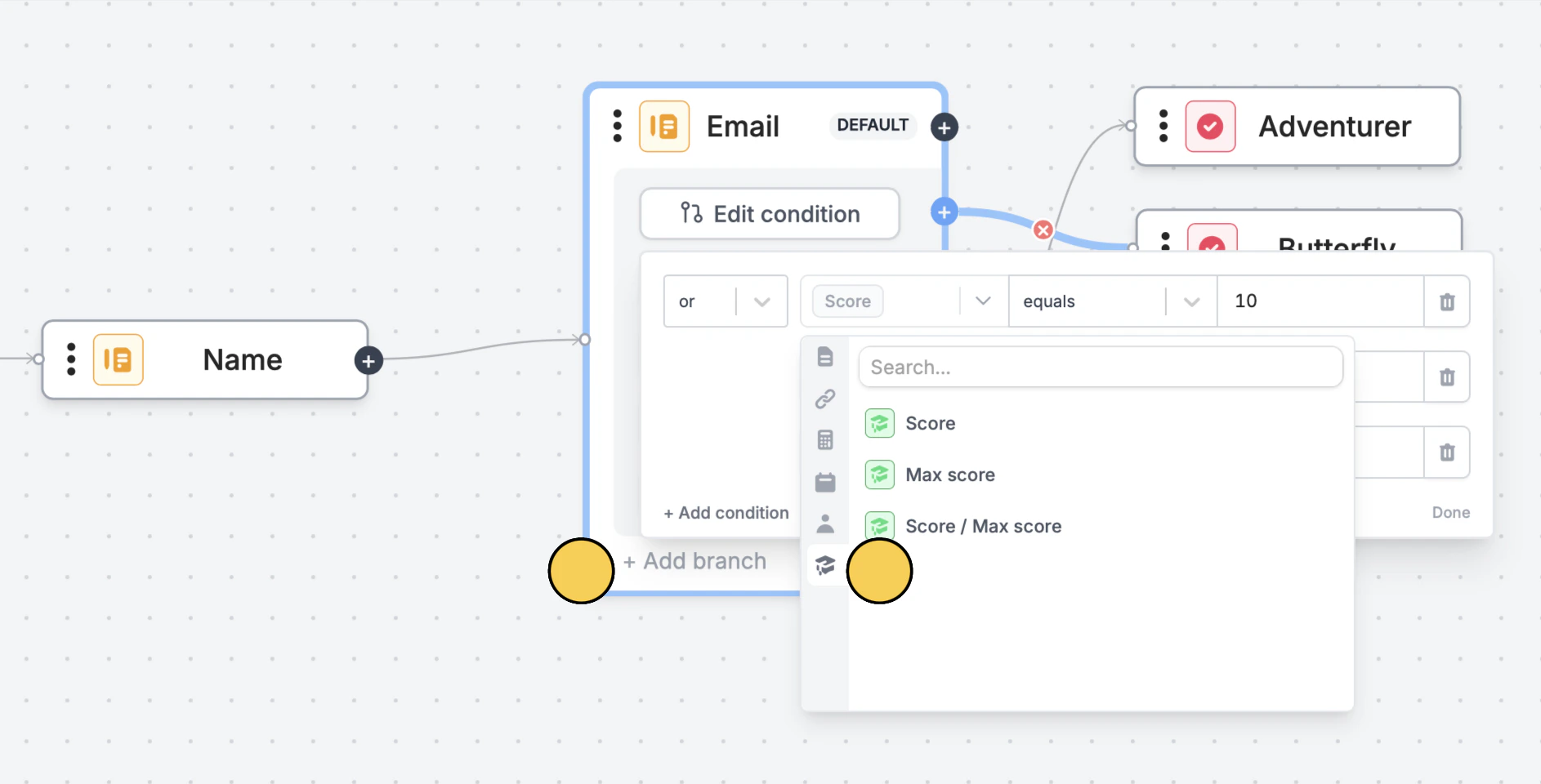
Logic from the bottom right. + Add branch to + Set condition.graduation cap icon followed by Score and add a value in the right dropdown. Then drag its connector to the relevant ending page.Follow the same steps for the other ending pages. Check this guide for more info on how page logic works.Relevant articles
Quizzes
Use different question types, calculate scores, and more.
Calculations
Calculate prices for order forms, compute quiz scores, and more.
Page logic
Hide or show pages or custom endings based on respondent input.