

Overview
Delaying actions gives you control over when tasks are triggered. You can set this delay to last for just a few minutes or extend it to hours or days, depending on your needs. This is especially useful for Fillout workflows that require follow-ups, reminders, or timed sequences.How to delay an action
1
Create a Fillout workflow
Click 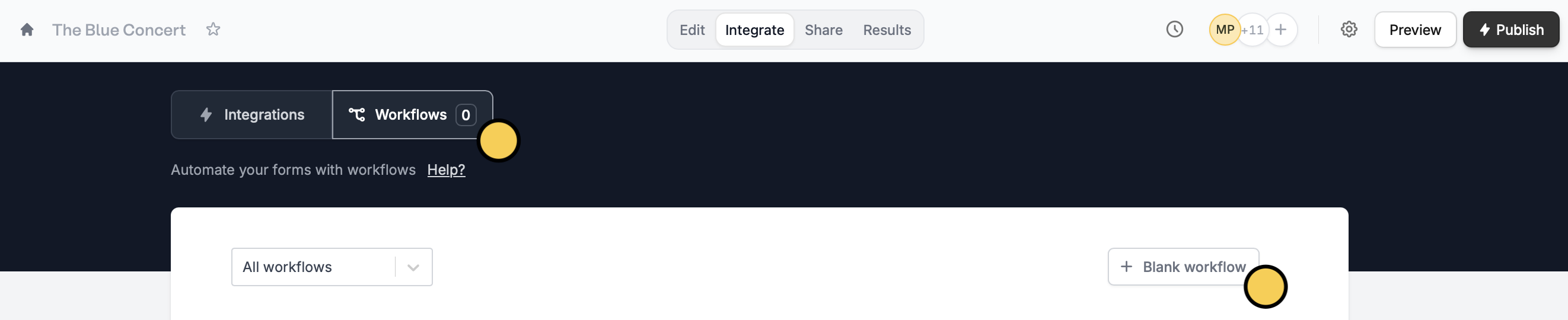
Integrate on the top menu of your form, followed by Workflows. Then, start with a + Blank workflow.2
Choose delay as a first action
Select a trigger. Then, choose 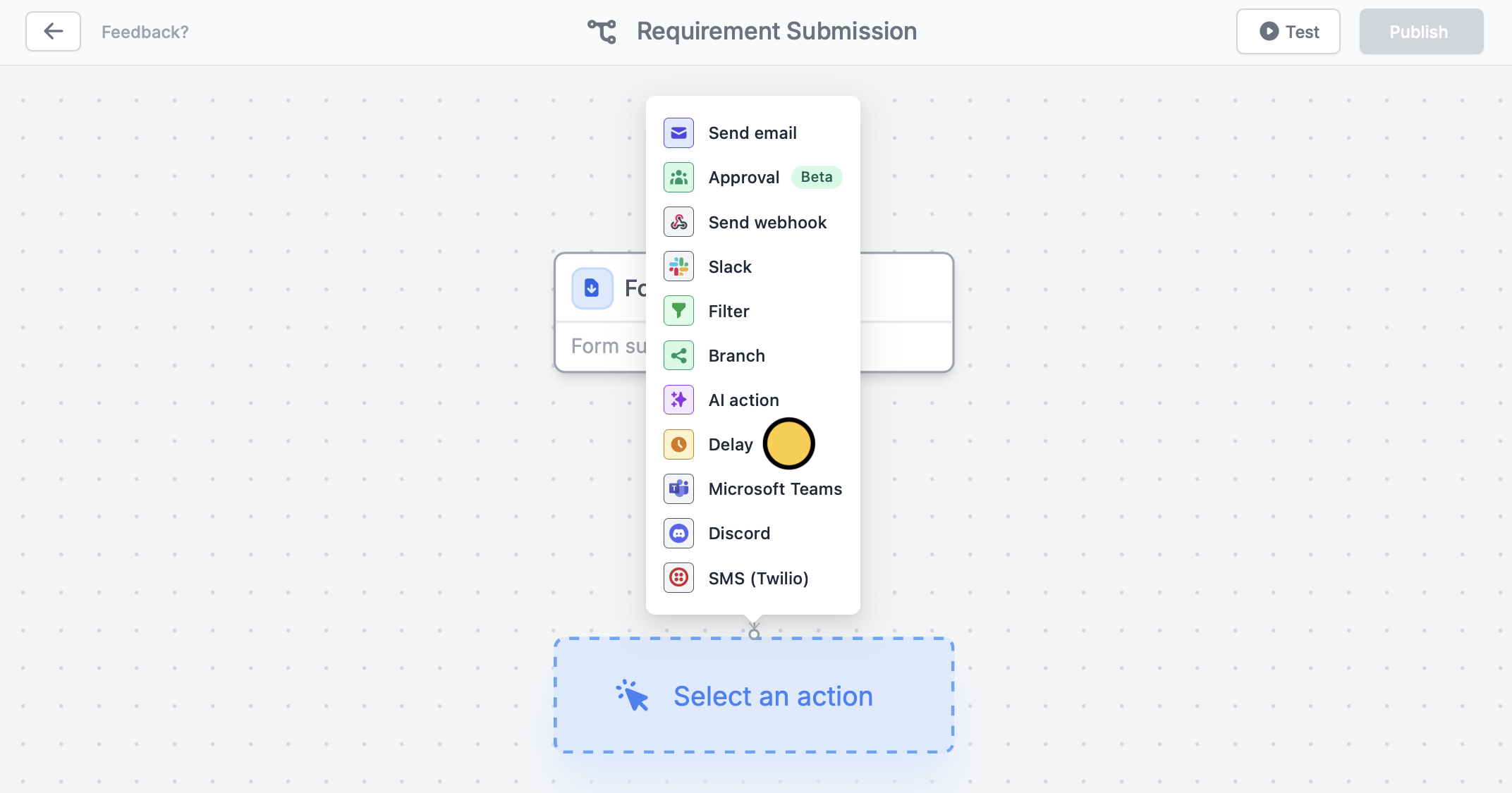
Delay and set how soon you want a task to be done. The default delay is 30 minutes, but it can also be set to a shorter duration in minutes or extended to hours or days.3
Add another action
Click under Delay to add another action. For this example, let’s choose 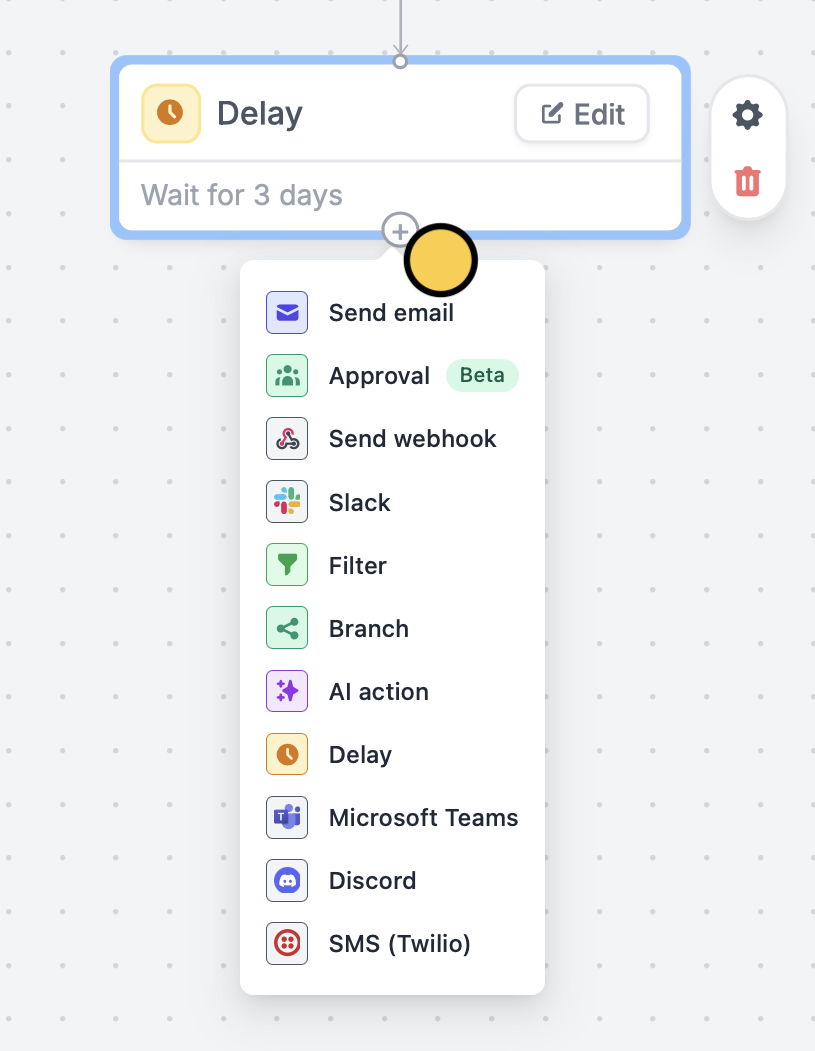
Send email. We’ll email them a list of requirements to submit. Remember to Test your workflow.4
Publish and share
That’s it!
Publish and share your form. Now, every form submission will send the custom email to respondents 3 days after completing the form.Related articles
Fillout Workflows
Simplify task flows with native multi-step automations.
Custom emails
Automate sending, pipe previous answers, and style your email.
Scheduling actions
Send reminders to yourself and other hosts.