Overview
You can automatically send emails and notifications based on your workflows. This is useful for confirmations, reminders, receipts, and more. Four email services are supported:| Type | Sender Name | Use-case |
|---|---|---|
| Zite | Notifications (notify@mail.zite.com) | Internal or testing |
| Gmail | Your Account Name (e.g. Finn Green - finn@gmail.com or finn@company.com) | Personal or team inboxes |
| Outlook | Your Account Name (e.g. Finn Green - finn@outlook.com or finn@company.com) | Personal or team inboxes |
| Custom SMTP | SMTP hosts (e.g. SendGrid, Mailgun, Loops) | Scalable, high-volume or production email |
Custom SMTP notifications is available on the Enterprise plan. Learn more here.
How to automate with email providers
The quickest way to send emails is using Zite’s built-in option, ideal for testing or internal apps. You can also connect your personal, Gmail, or Outlook account to send messages from your personal or work email.Choose email provider
In the chat box, request your app to be integrated with Email or click .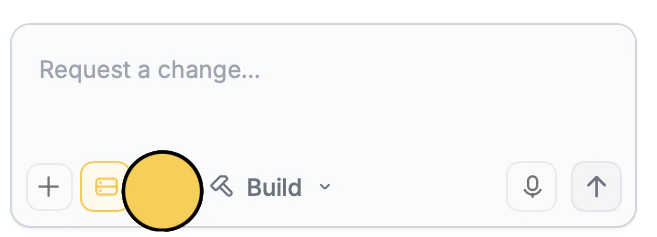
Email followed by your preferred email provider (Zite, GMail, or Outlook). If you choose Gmail or Outlook, you’ll be prompted to sign in to your account.For Custom SMTPs, check this section. Enter your use case
In the chat box, tell Zite how you’d like to use email in your app. For example, we’ll send an email when events are booked.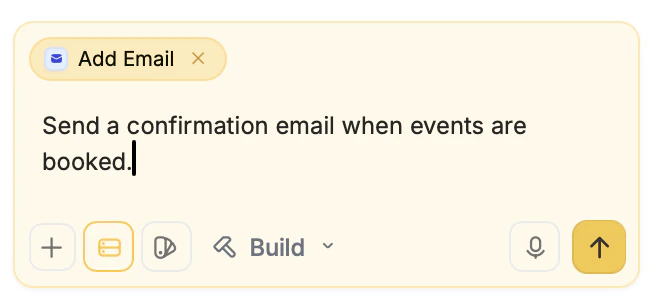
Customize email
Once Zite completes the integration, you’ll be prompted to 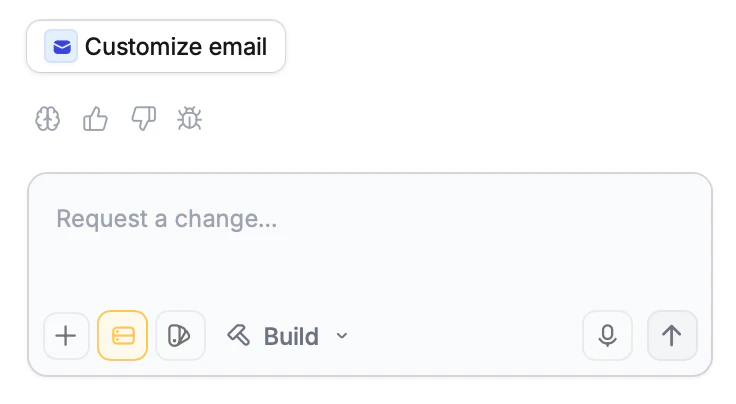
Customize email using a pre-created template.Edit email body. Click here to see all custom options.Test
Click 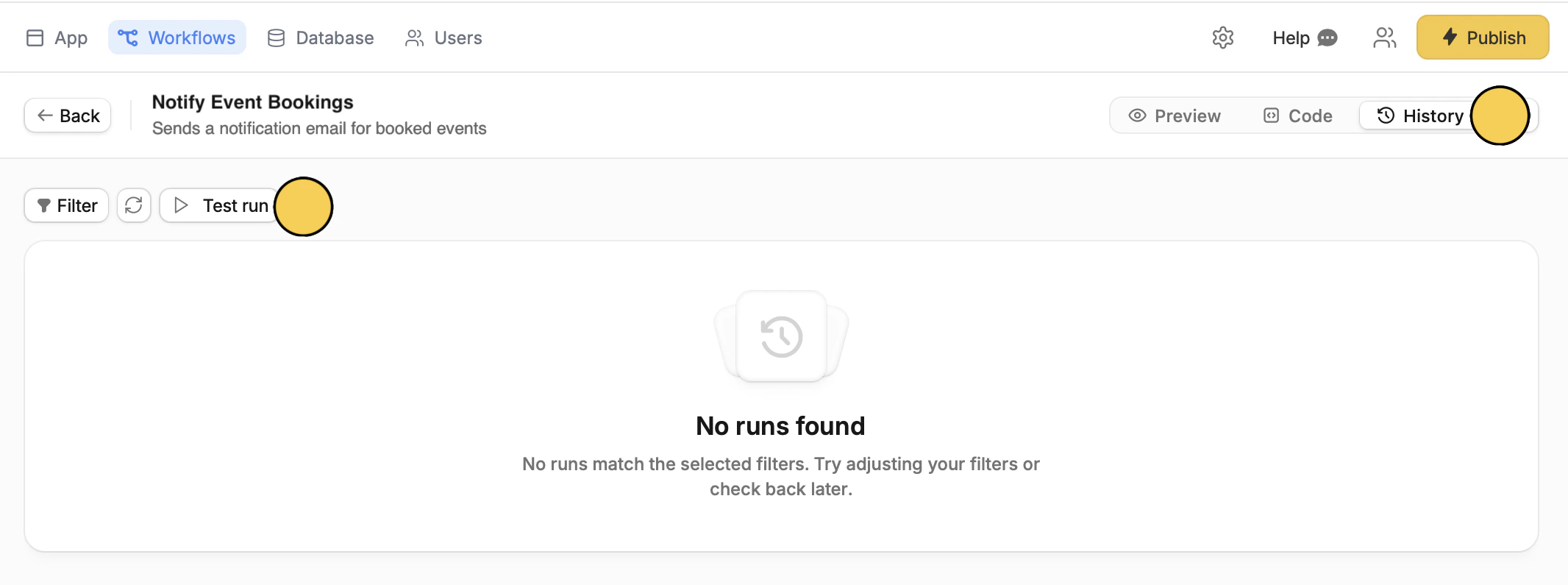
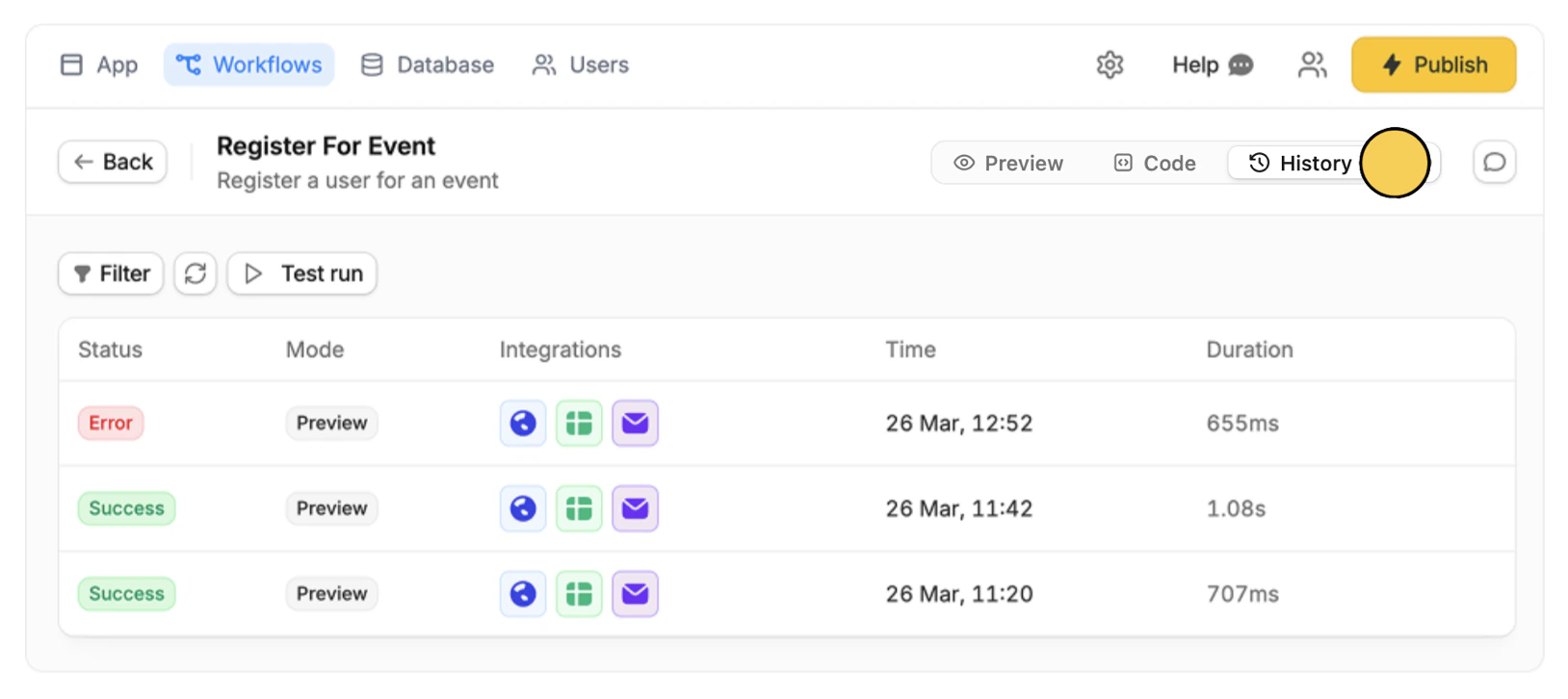
Workflows on top and select your email workflow. Then, click History followed by Test run. Customize your email
Aside from the custom email button that shows up during connection, you can access the email editor from theWorkflows page (top) by selecting the email workflow. Here, you can:
- Edit the sender email or use a dynamic email field
- Edit the default subject and body
- Change font weight, add bullets, and more by highlighting text
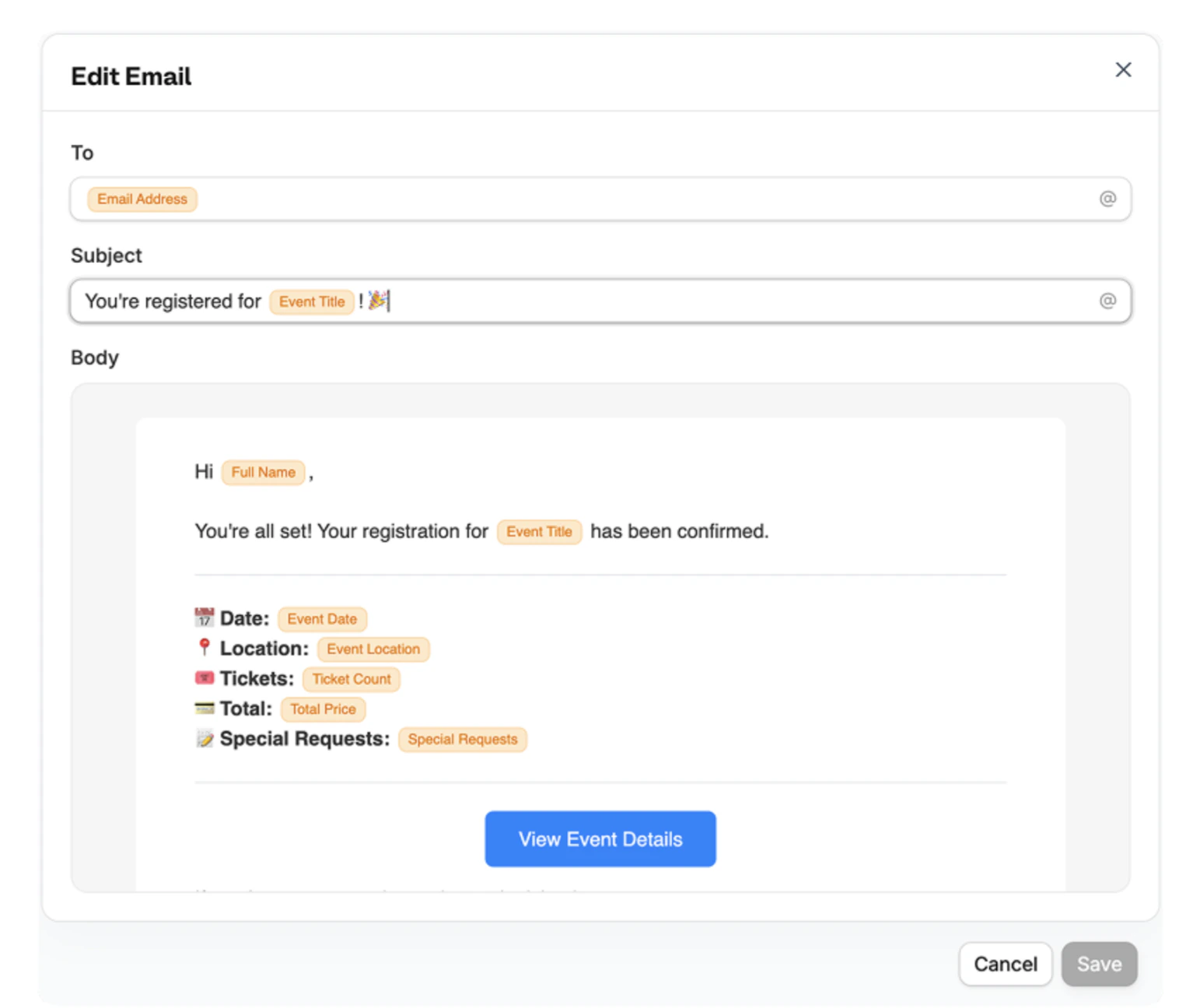
- Customize button text, alignment, and URL
- Insert dynamic data like name and preferences (orange tags) to personalize email by typing @ and selecting a field
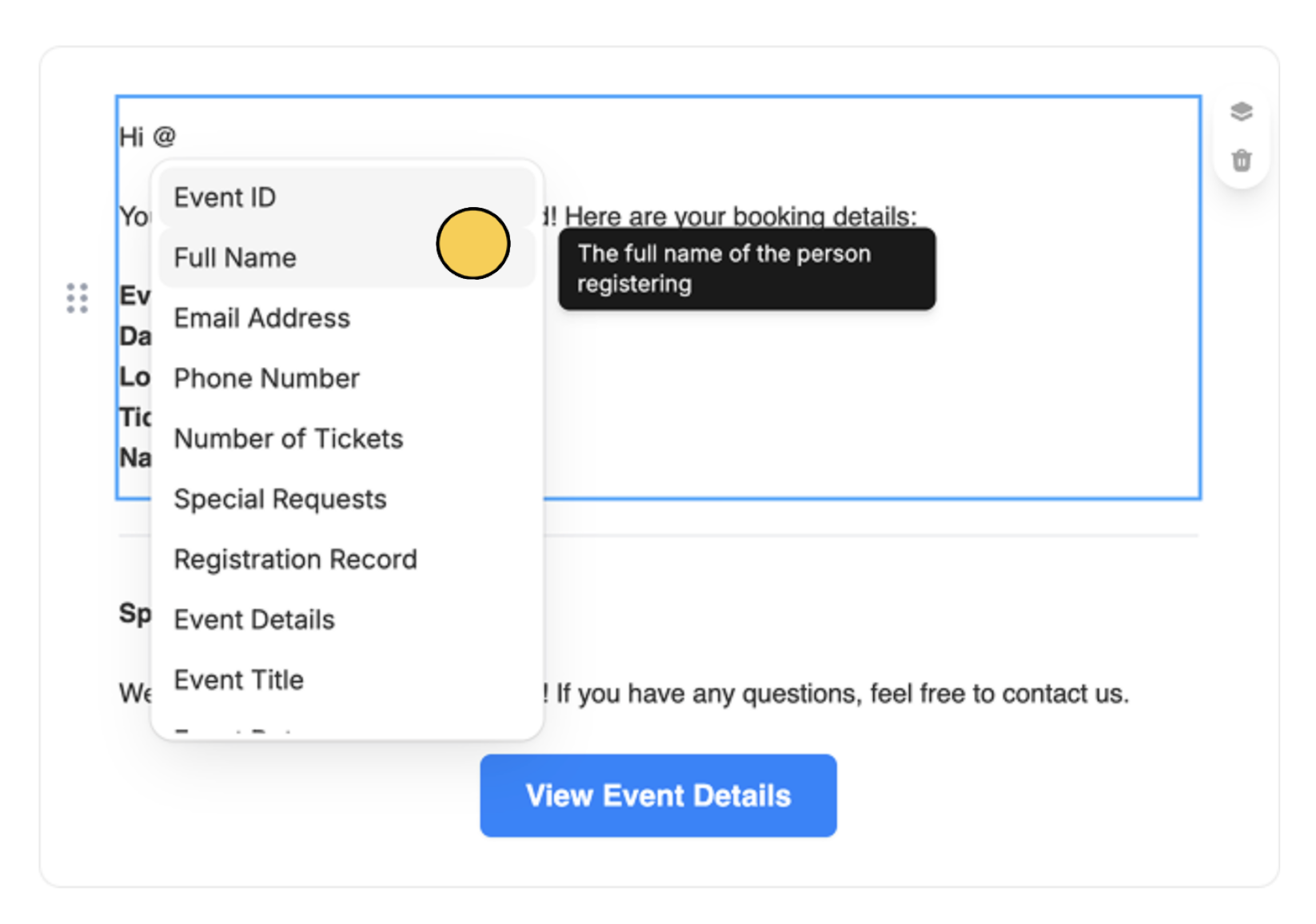
Fields are recognized by Zite as values from database columns or Fillout form questions.
How to automate via SMTP
You can also connect to SMPT providers such as SendGrid, Loops, Mailgun and others. This is best suited for scalable, high-volume or production email and is recommended for public-facing apps.Choose email provider
In the chat box, click followed by
Email.SMTP. In this example, we’ll use SendGrid as our host. Generate API Key
To fill out the necessary details, let’s go to our SendGrid dashboard. Click 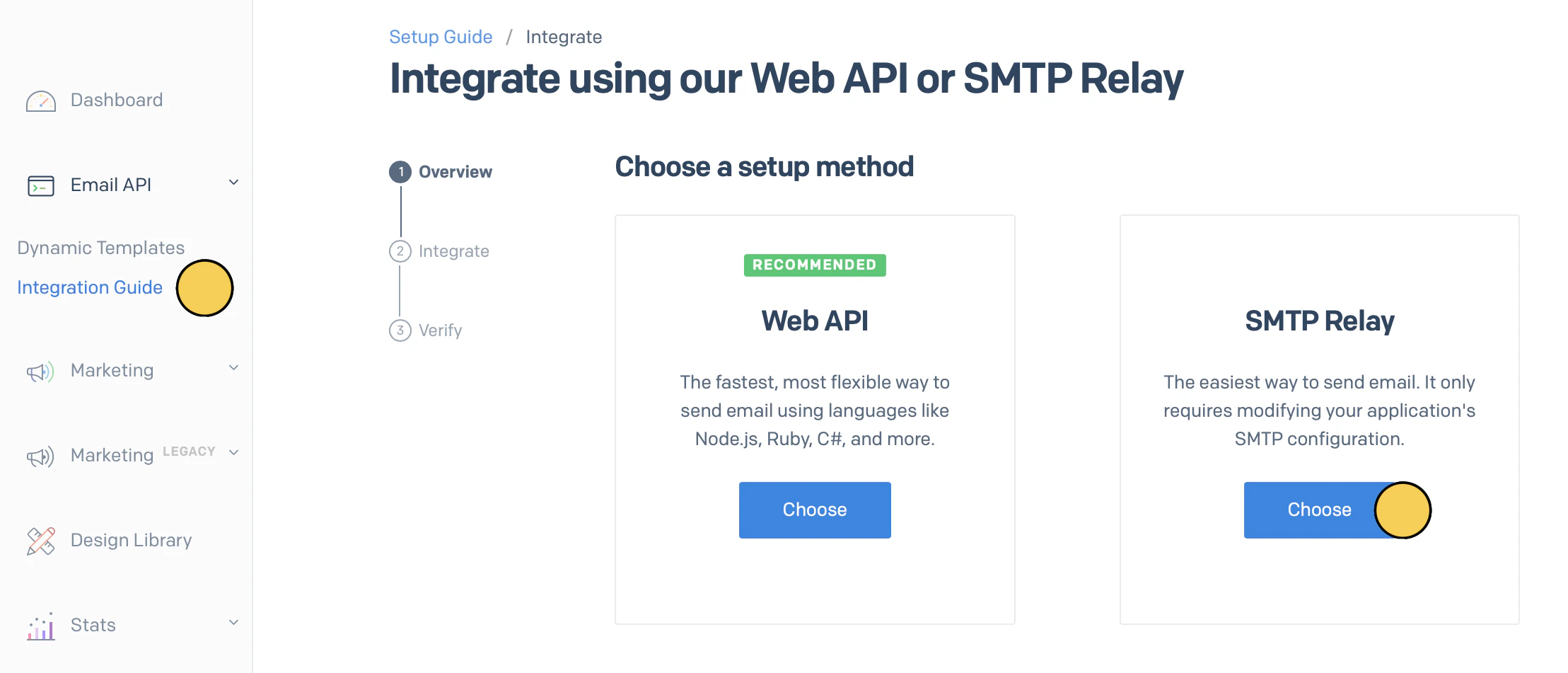
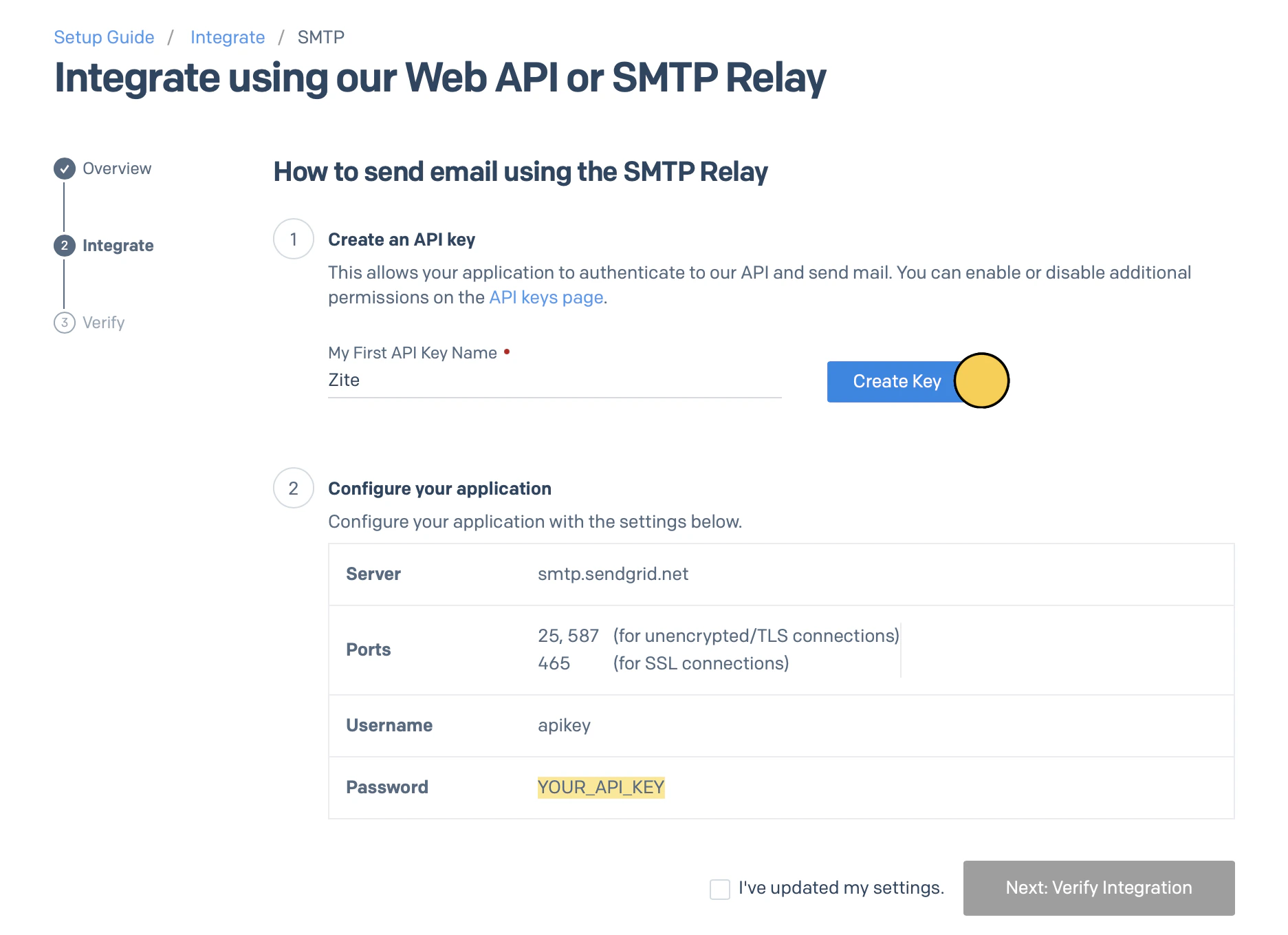
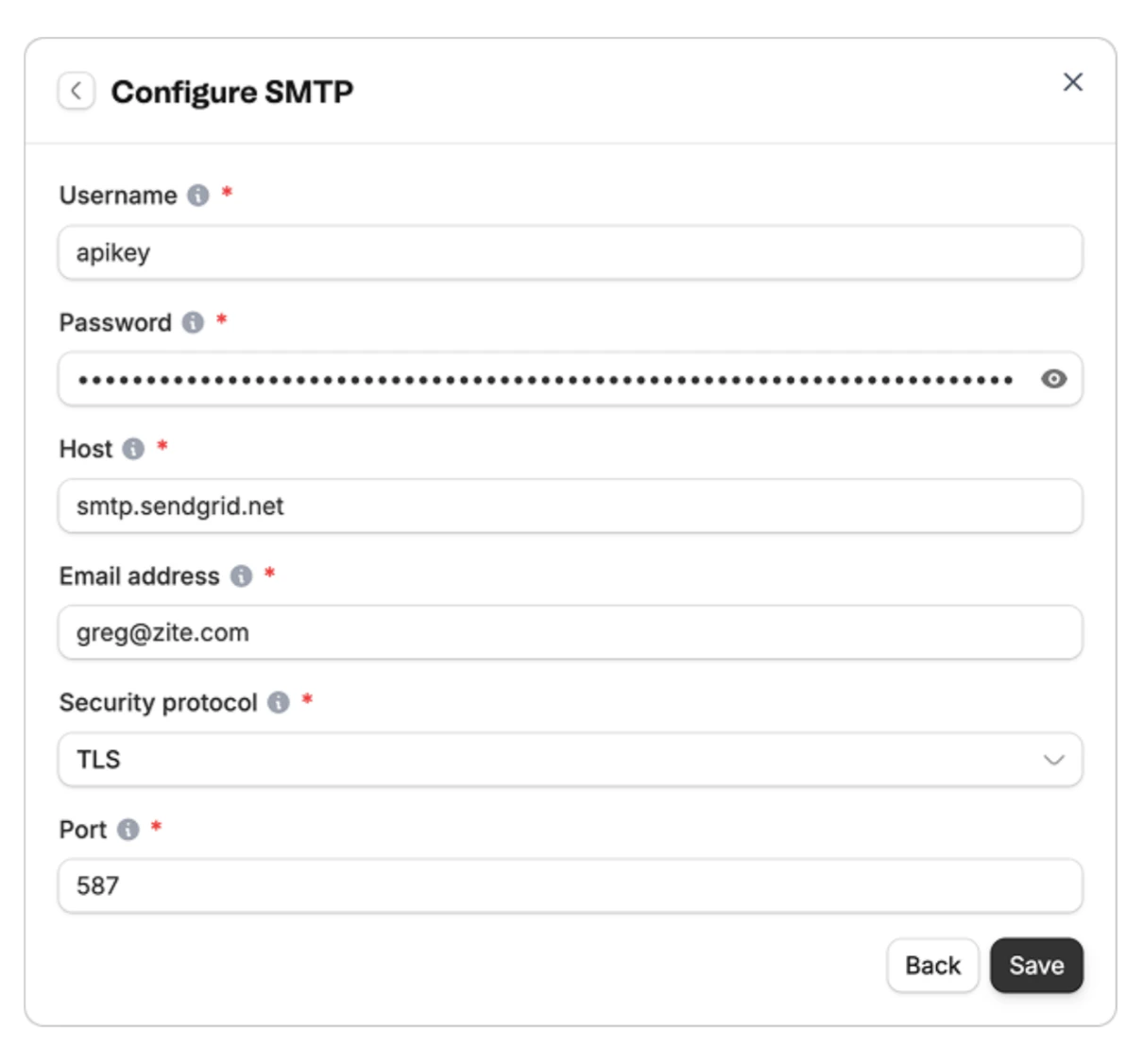
Email API on the left-hand panel followed by Integration guide. We’ll choose SMTP Relay.Create Key.- Username: apikey
- Password: sendgrid-api-key
- Host: smtp.sendgrid.net
- Email address: greg@zite.com (the email sender)
- Security protocol: TLS (recommended)
- Port: 587
Enter your use case
After saving the details, describe the change or action you want to be made in the chat.
Customize email
Once Zite completes the integration, you’ll be prompted to
Customize email using a pre-created template.Edit email body. Click here to see all custom options.Test
Click
Workflows on top and select your email workflow. Then, click History followed by Test run. Troubleshooting
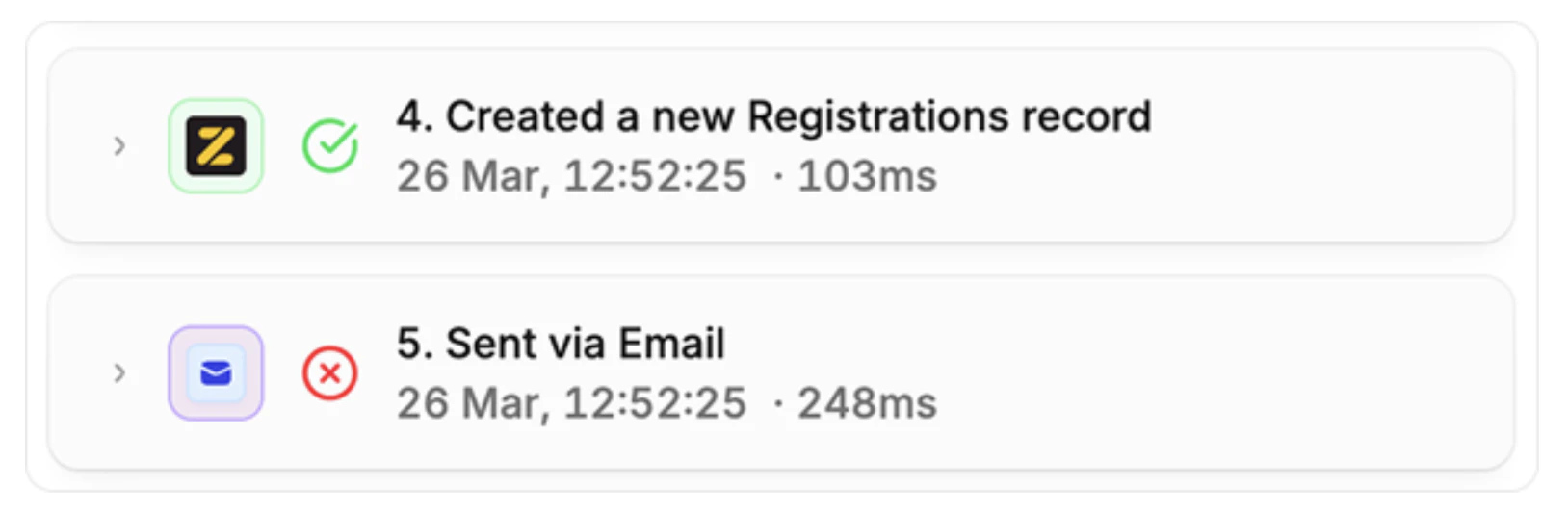
If your email did not arrive, clickWorkflows on top followed by your email workflow. Then, go to History.