

Time to complete: 5 minutes
Prerequisites: A Google account with access to Google Sheets
Prerequisites: A Google account with access to Google Sheets
- A fully functional CRM app connected to Google Sheets
- A customized interface with your branding
- A shareable link for your team
How to build a CRM with Google Sheets
Connect to Google Sheets
Open Zite and describe your app idea in the chat. For this example, type: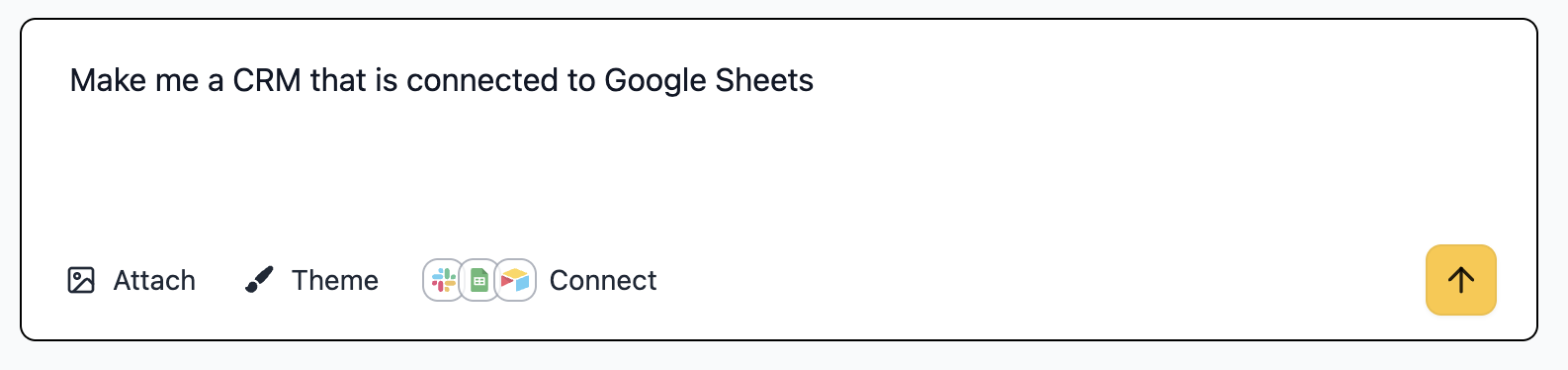
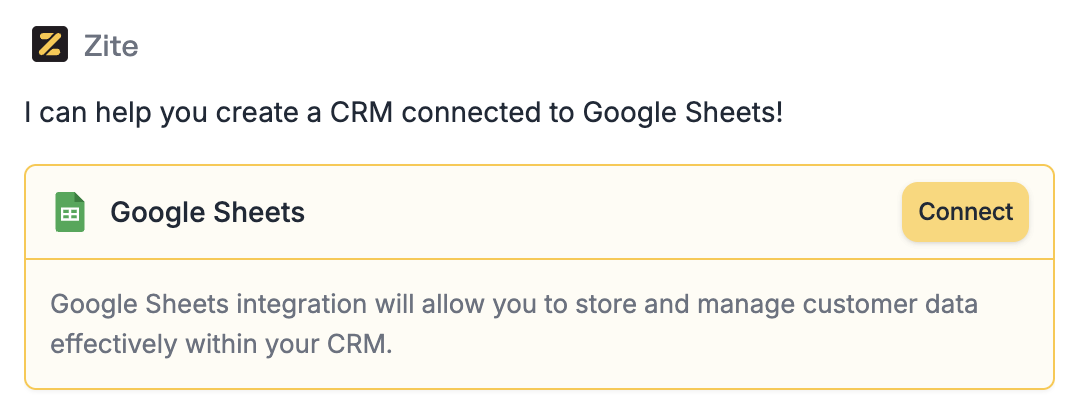
“Build a CRM dashboard connected to Google Sheets”
Connect to link your Google account.This allows Zite to:- Read and write data to your sheets
- Create new sheets if needed
- Sync data in real-time
Select or Create Your Data Source
Choose to set up with an existing sheet from your Google Drive or let Zite create new sheet.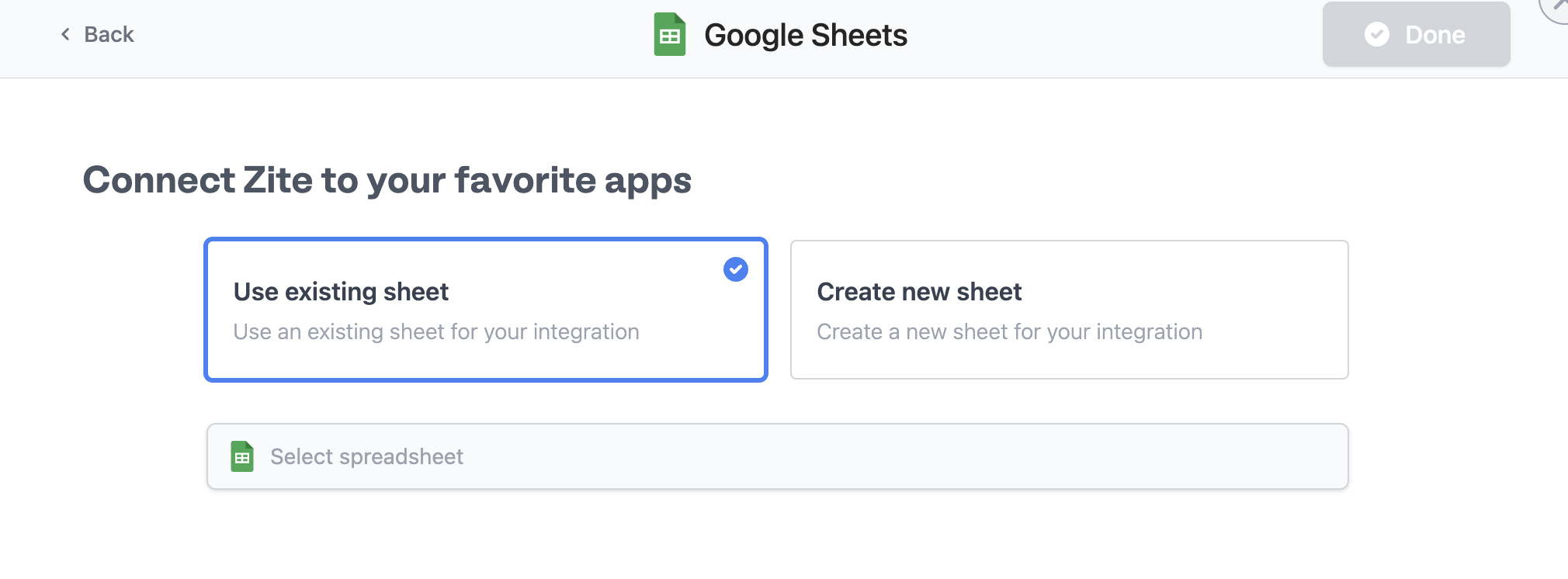
When creating a new sheet, Zite will automatically set up columns for common CRM fields like Name, Email, Company, Status, etc.
Save in the popup or Continue in the chat to begin building your CRM app.Customize your design
Click 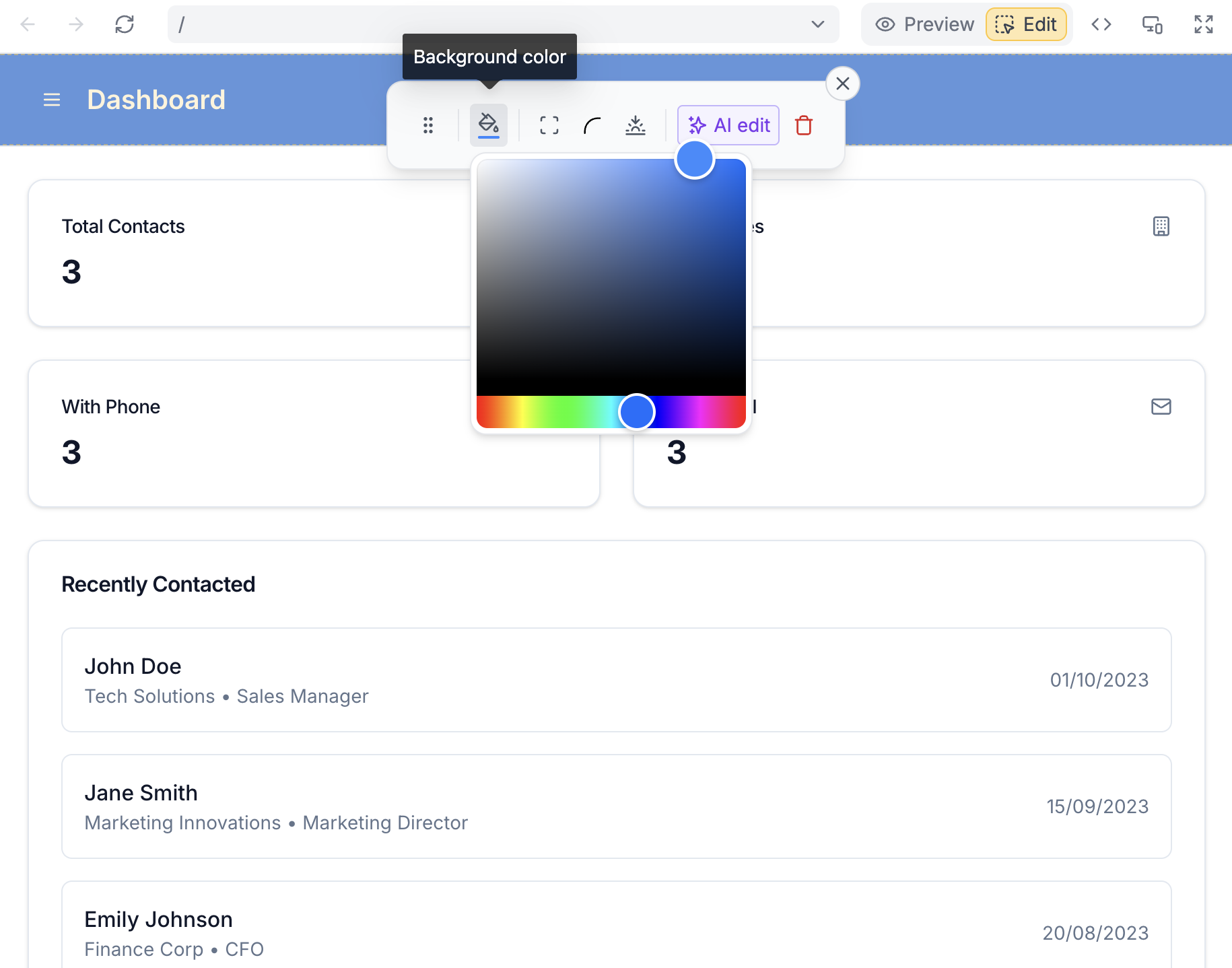
Edit to personalize your app with:- Branding: Add your logo and company colors
- Layout: Rearrange components and sections
- Typography: Choose fonts that match your brand
- Fields: Add or remove data fields as needed
Save when you’re satisfied with the design.Add User Authentication
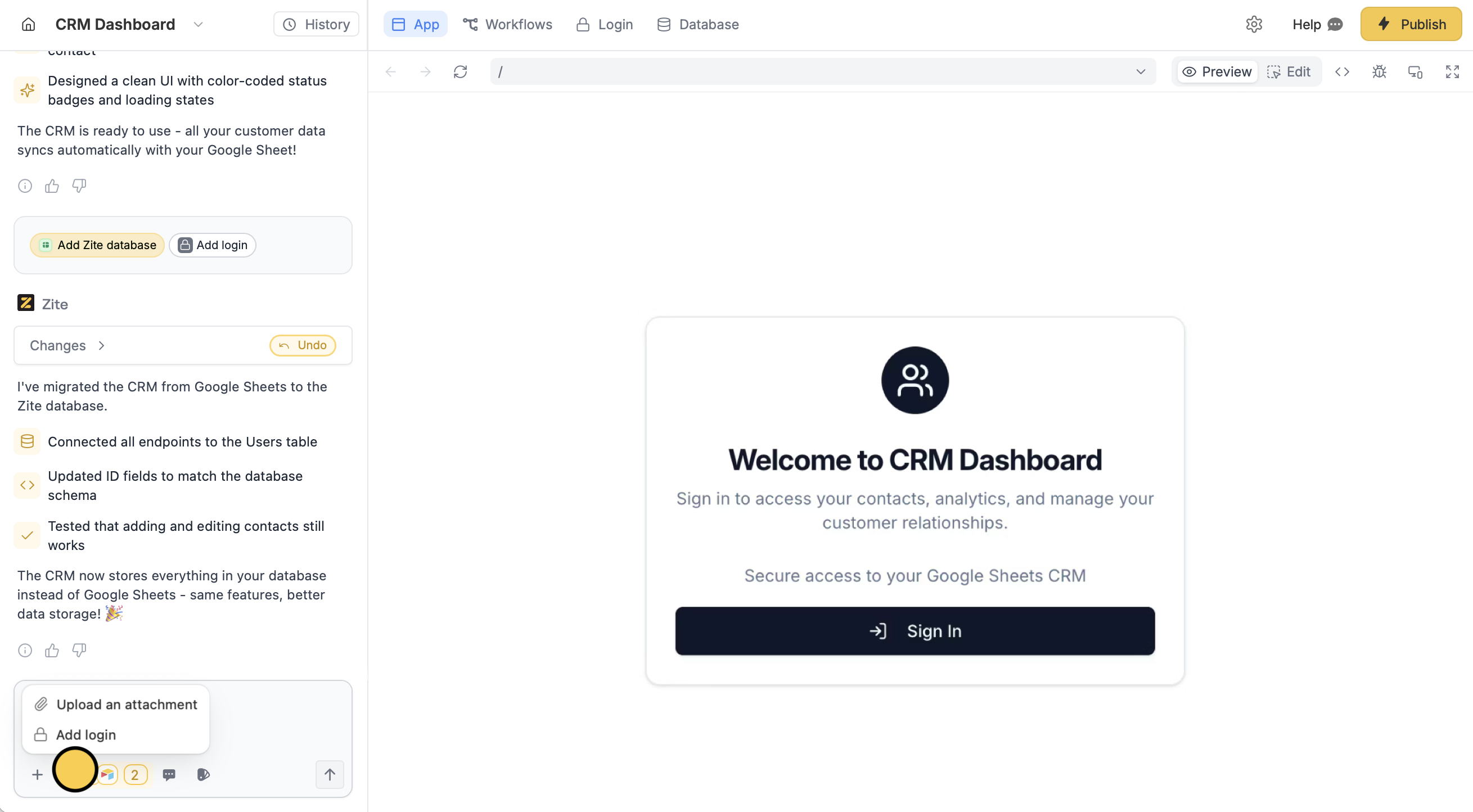
Configure access control
Navigate to 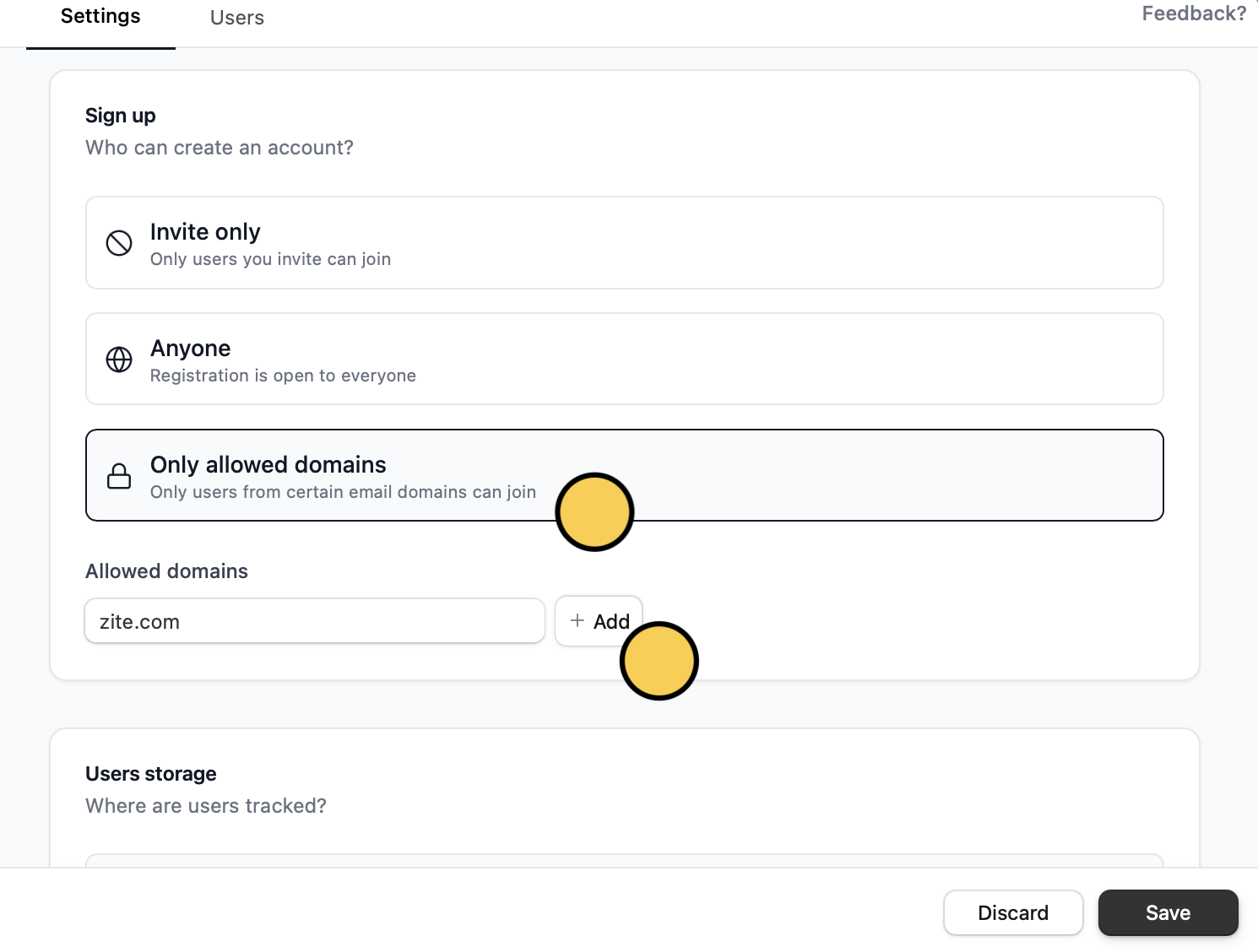
Login on the top menu and choose who can Sign up.Only allowed domains, add your domain, and then click Save.Deploy and share
Click
Share on the upper right corner to get your live app URL. You can send the link or embed it in your website or company’s internal tools.That’s it! Your app is now live and syncing with Google Sheets in real-time!Next Steps
Now that your Google Sheets app is live, explore these advanced features:Add Workflows
Automate tasks like sending emails when new records are added
Create Reports
Build dashboards with charts and analytics from your data
Set Permissions
Control who can view, edit, or delete specific data
Mobile Optimize
Ensure your app works perfectly on all devices
Common Use Cases
Beyond CRM, you can build various apps on Google Sheets:- Inventory Management: Track stock levels and orders
- Project Trackers: Manage tasks and deadlines
- Employee Directories: Maintain team information
- Event Registration: Collect attendee information
- Budget Planners: Monitor expenses and revenue
Need help? Contact our support team at support@fillout.com.