

Overview
Plan mode helps you scope what you want to build before any changes are made. Like a Product Manager, Zite asks questions when needed, and then generates an editable plan.
Plan mode uses Zite Max (the most capable model) to create a plan document summarizing what will be built, including scope, data, integrations, key assumptions, and what’s out of scope.
When to use Plan mode
- You’re starting a new app and want to think through requirements
- Your request is large or ambiguous, and you want a clear scope
- You need to align with teammates before building
- You want to avoid rework by deciding key details up front
While Plan mode does consume AI credits, it often reduces overall AI credit usage by encouraging more thoughtful planning before changes are made.
How to use Plan mode
Switch to Plan mode
On the lower left, click the 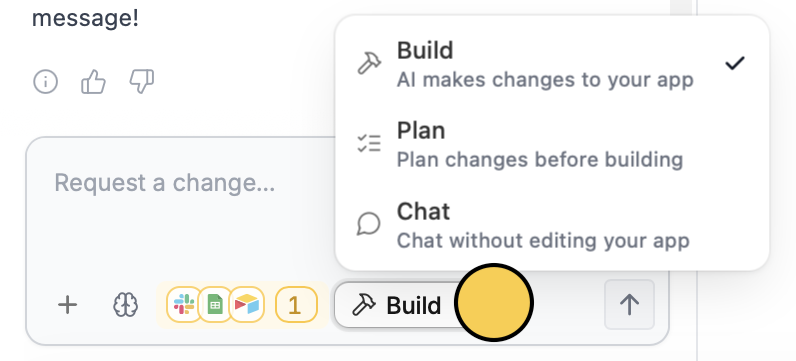
Mode and choose Plan.Shift + Tab on your keyboard.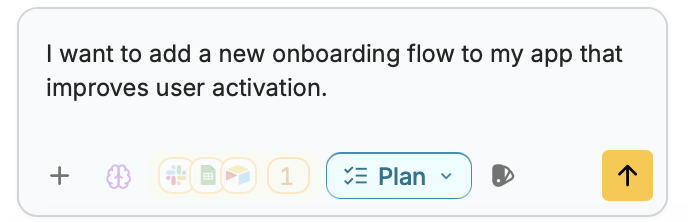
Answer clarifying questions (optional)
If Zite needs details, it can ask a few focused multiple-choice questions.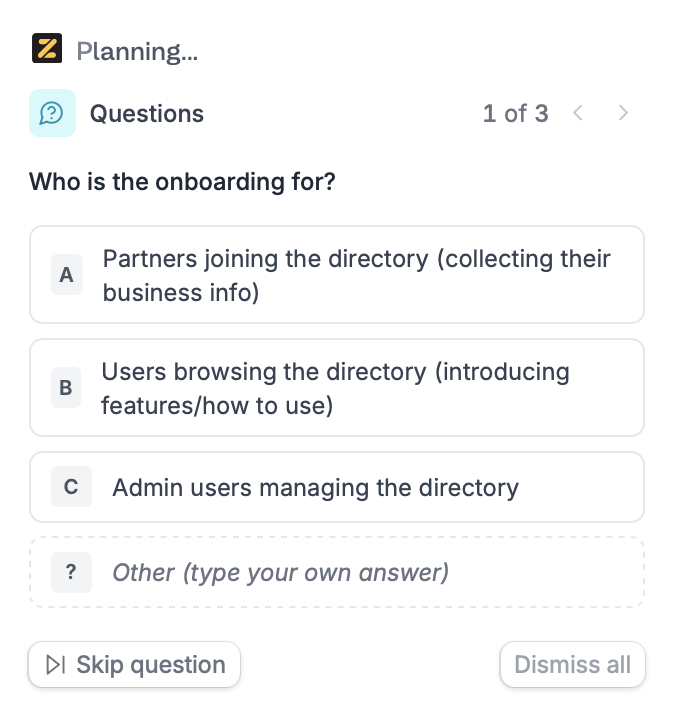
Review and edit the plan
You can click anywhere on the plan document to edit scope, wording, or decisions.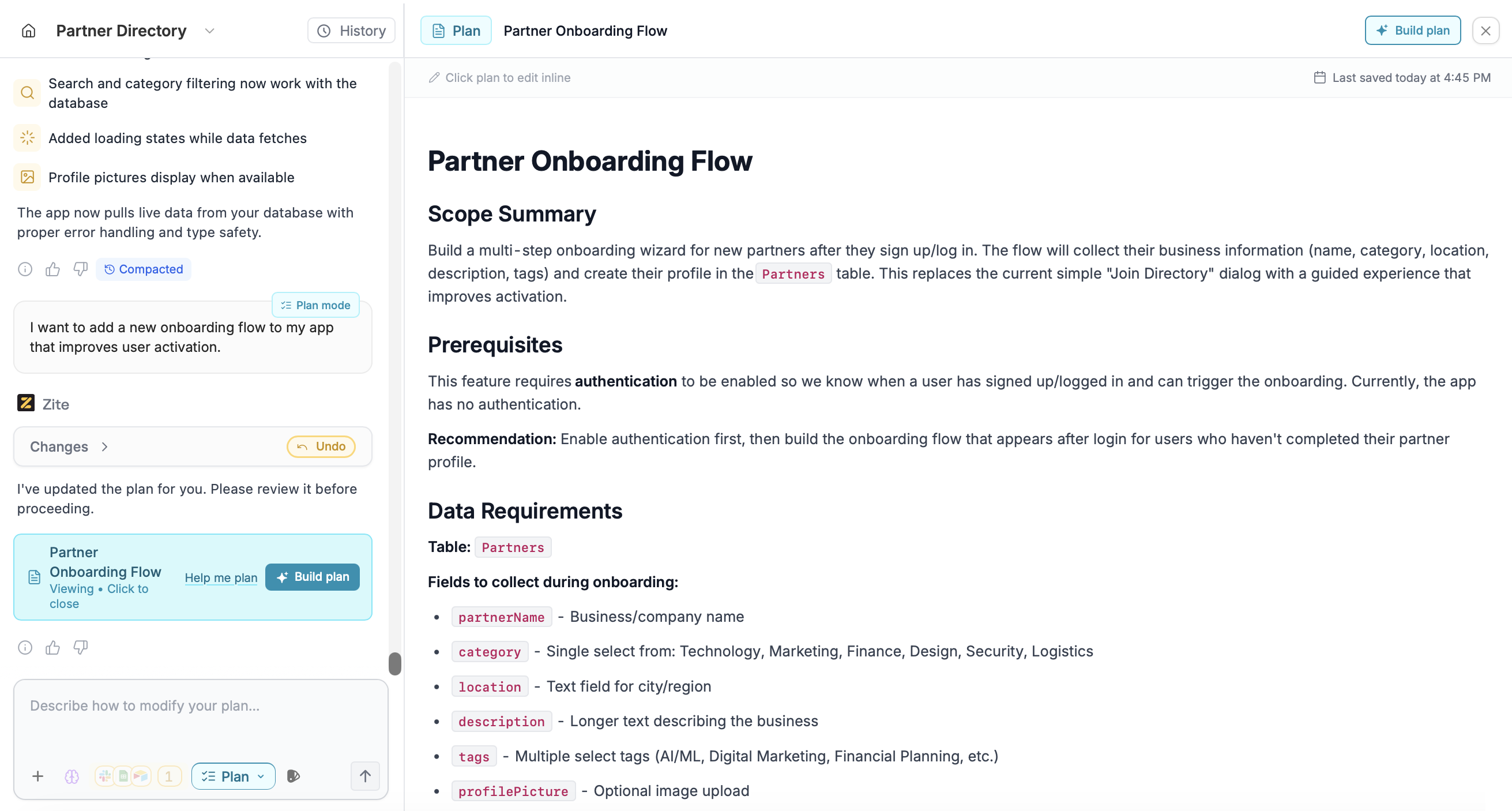
Refine the plan
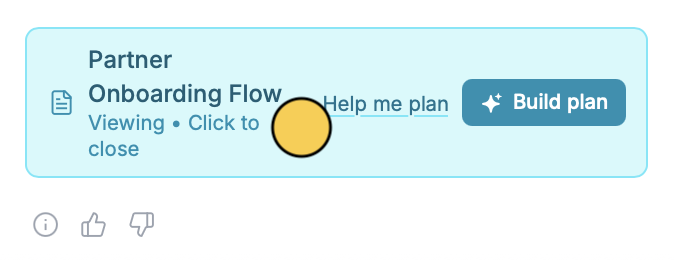
After a plan is created, you can clickHelp me plan to refine it. Zite will ask 2–5 quick questions to help finalize decisions before you build.
Related articles
Build mode
Ask Zite to make changes to your app directly.
Chat mode
Ask questions or get suggestions without changing your app.
Editor modes
An overview of Zite’s Build, Plan, and Chat modes.