

What is pre-fetching?
Pre-fetching means retrieving existing data before a form is displayed and automatically filling in the fields with that data.How it works
Typically, a form loads with empty fields. With pre-fetching, the form first looks up data from your database using an identifier (like an email), which you can use to pre-fill fields. For example, you can send users a link like: https://yourform.com/update-profile?email=juan@email.com When the form opens, it uses the email parameter to find a matching record in your database and fills in fields like:- Name: Juan Dela Cruz
- Email: juan@email.com
- Birth Date: Dec 2, 1992
- Position: Finance Manager
Common use cases
- User Profiles: Let users update their personal information with pre-populated fields
- Account Settings: Enable users to modify preferences without re-entering existing selections
- E-commerce Checkout: Pre-fill saved shipping and billing details for faster checkout
- Admin Dashboards: Allow administrators to edit existing records with pre-loaded data in forms
- Content Management: Let users edit existing posts or pages with previously saved content
Fetch data into your form
Connect to Zite Database
Open your Fillout form and click
Integrate on top to link it to your Zite Database.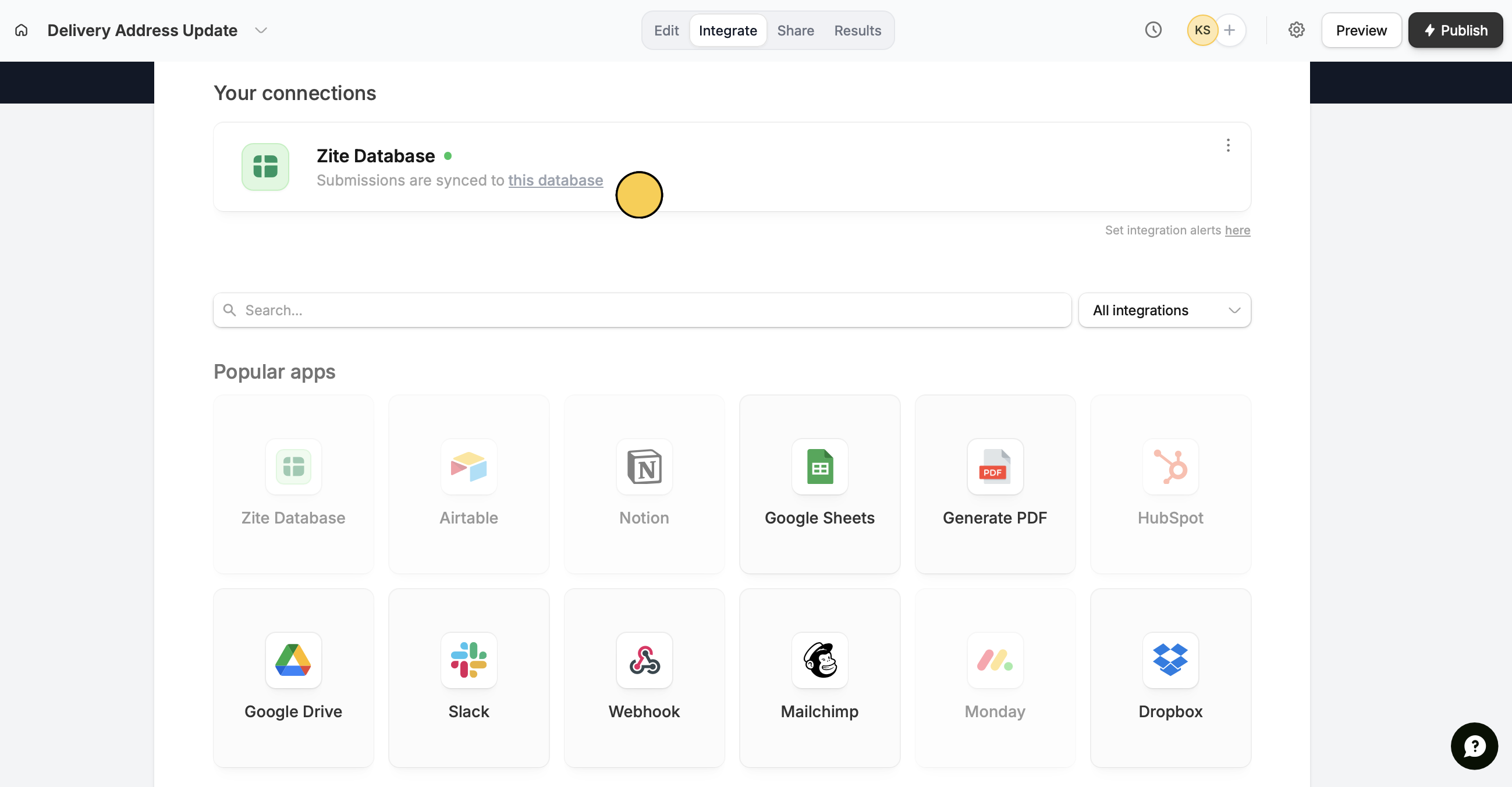
Add records to pre-fetch
Click 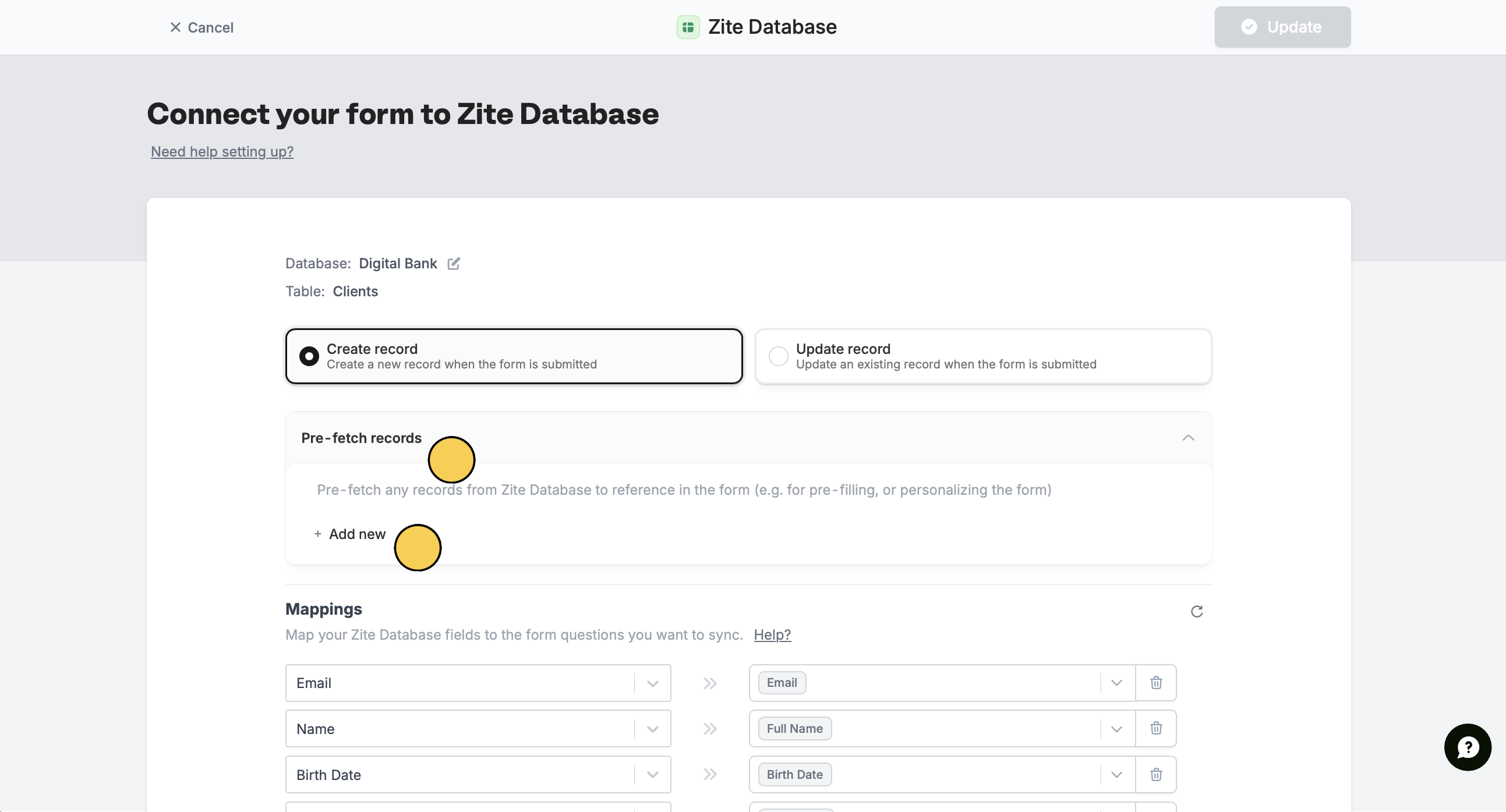
Pre-fetch records followed by + Add new. In our example, we’ll have a form where clients can update their delivery address. Instead of filling everything from scratch, their existing details will be pre-filled.Test fetch (Optional)
Select the Table you’d like to fetch records from. Then + Add condition to Filter by.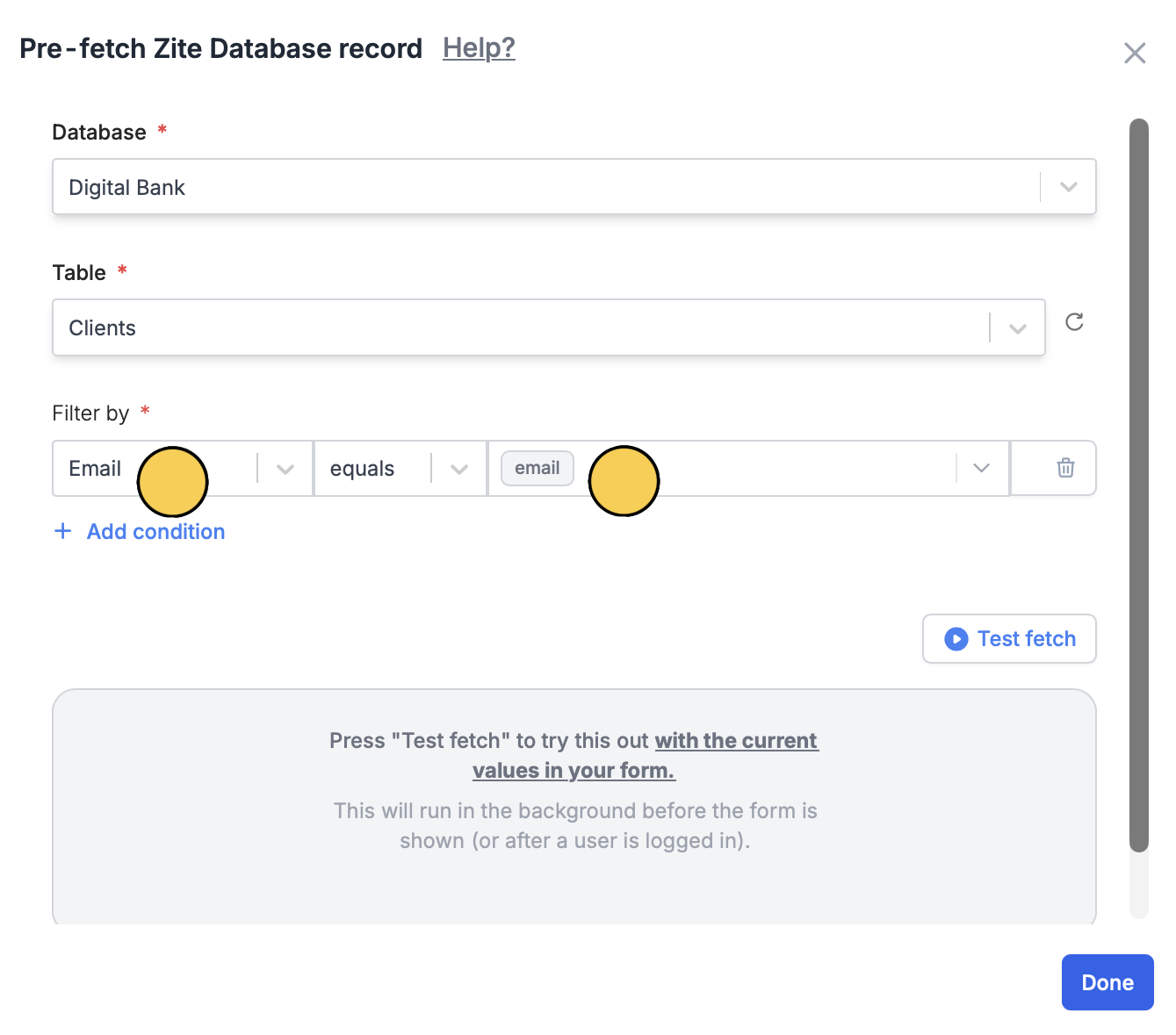
Email.Publish and share
Click
Publish in the upper right corner share your form using a link that includes the identifier. For example: https://yourform.com/update-profile?email=juan@email.com