

Overview
For some use cases, generating unique record IDs can be helpful when keeping track of data or exporting it for external use.Common use cases
- Invoices: Easily assign and reference invoice numbers when billing clients
- Data exports: Maintain consistent identifiers across systems
- Internal tracking: Quickly reference specific records without confusion
Create unique record IDs
Create or edit field
In your database, create a new column or hover over an existing column and click followed by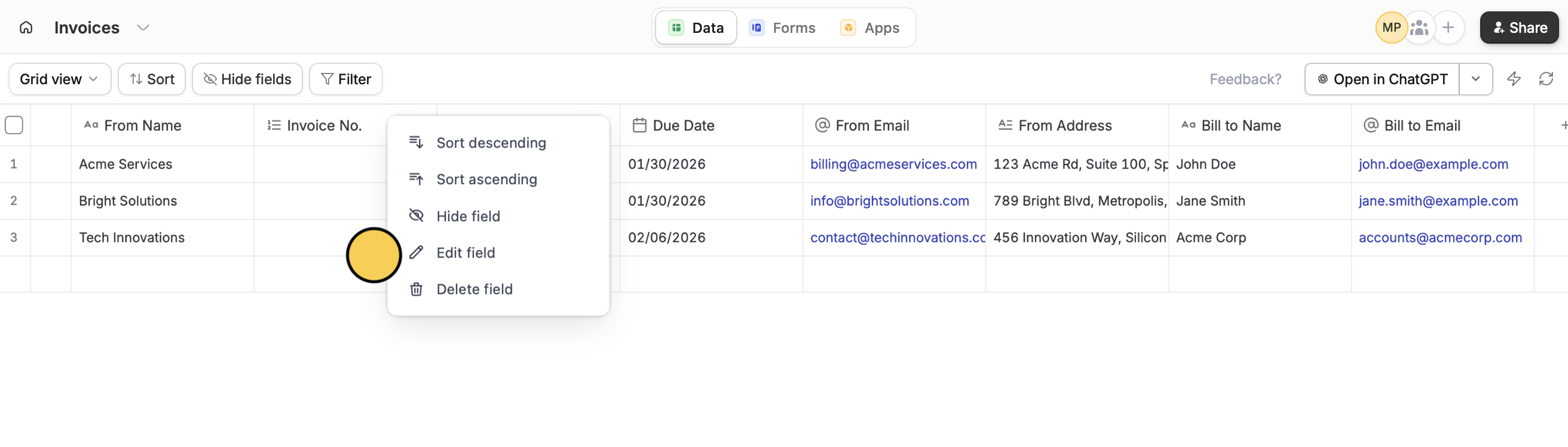
Edit field.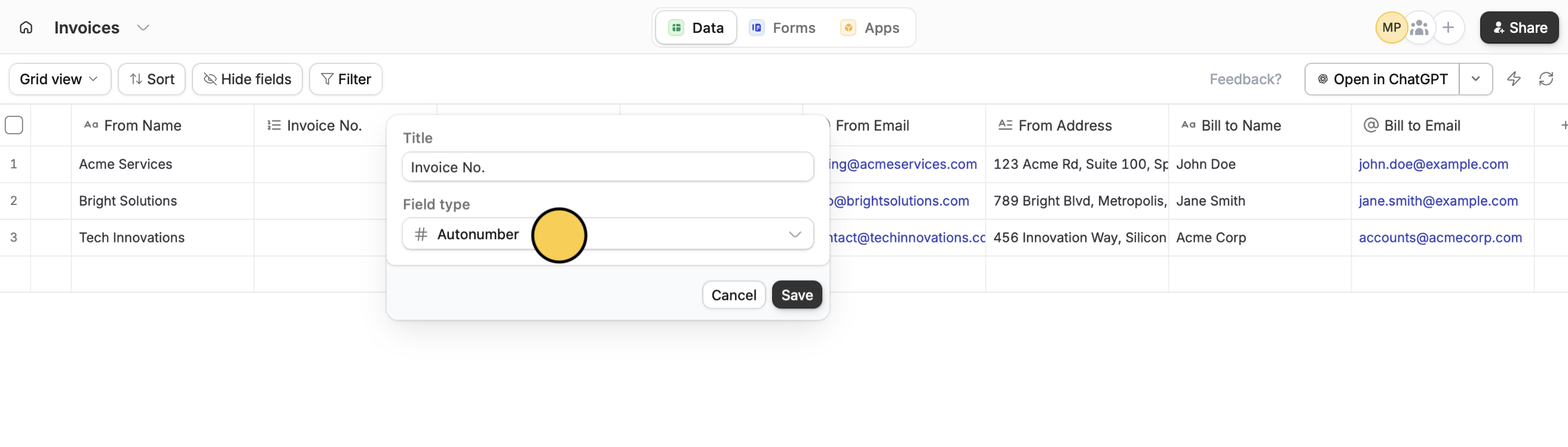
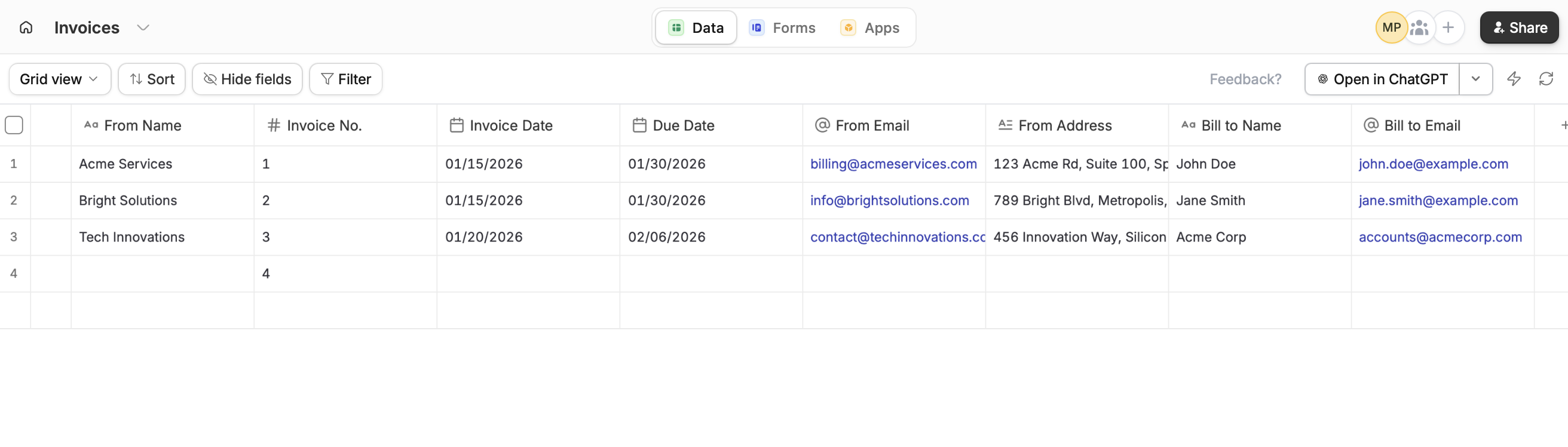
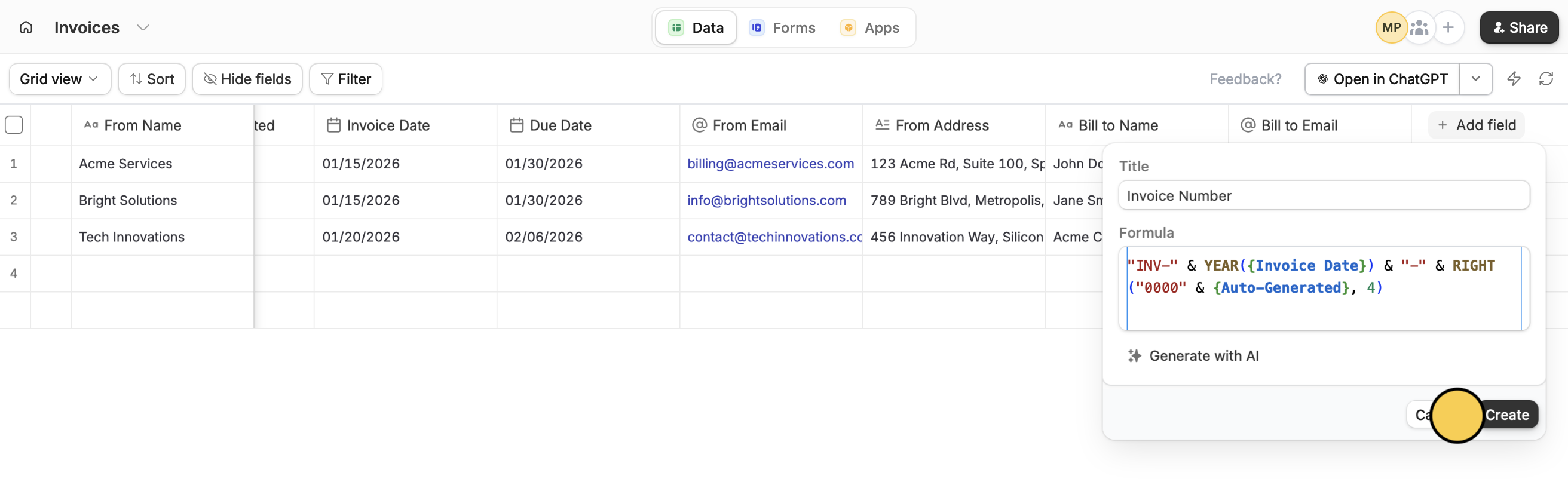
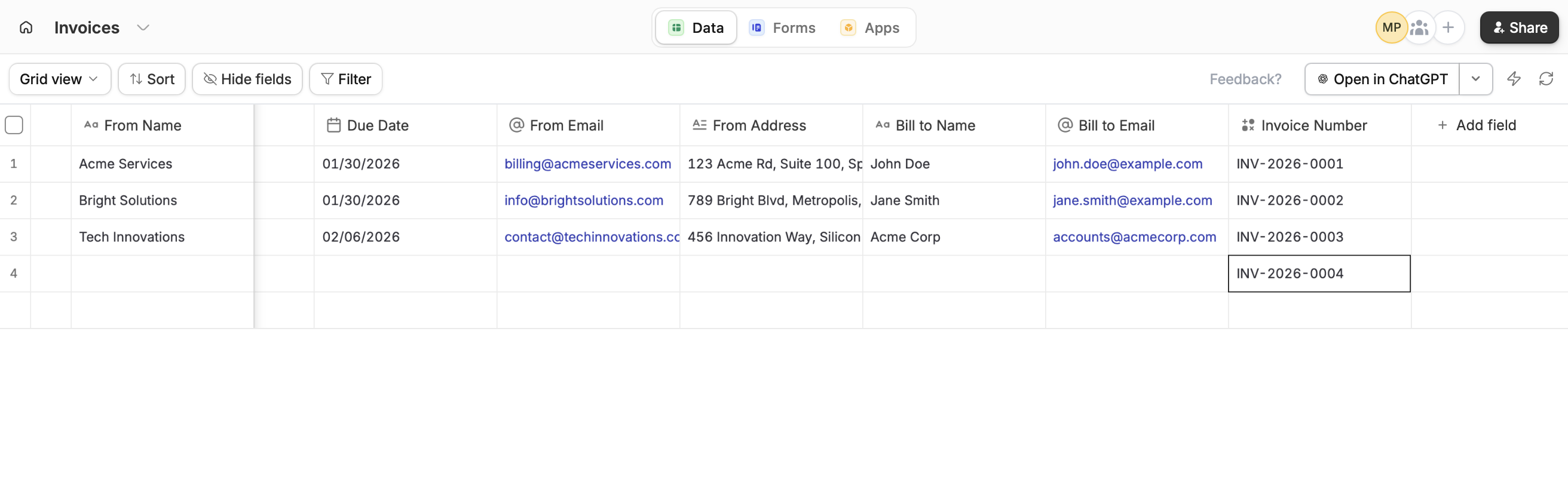
Create custom unique record IDs
Start with an Autonumber column
Follow the steps above. You can hide this field from view.
Add a Formula column
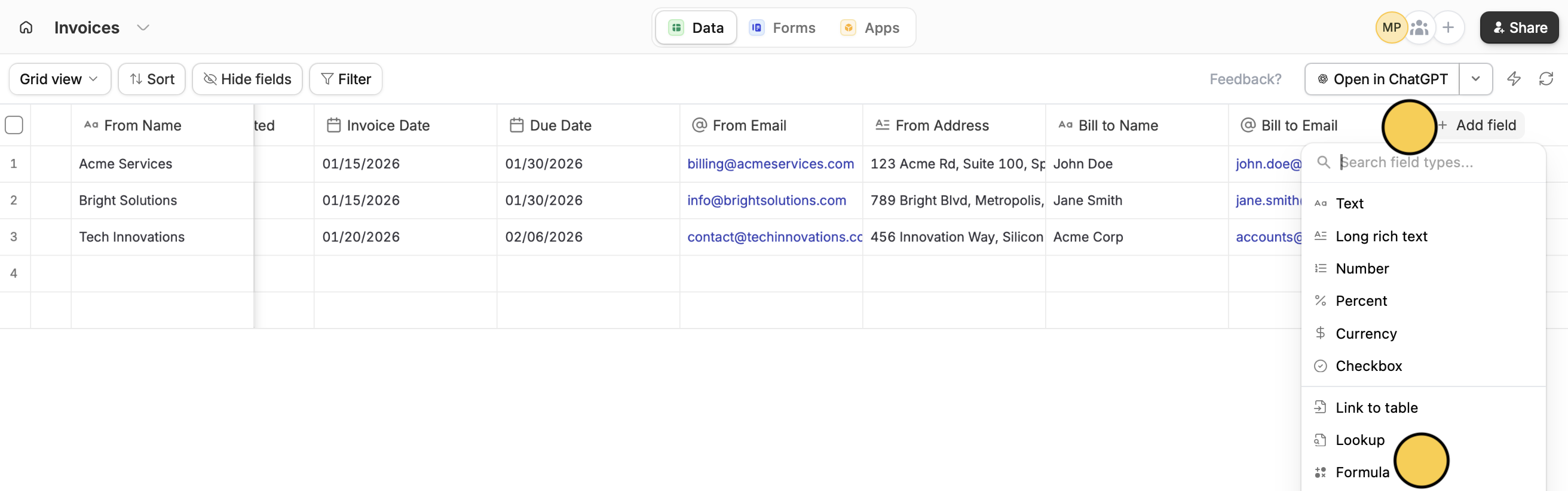
Related articles
Use formulas
Check all functions available in formula fields.