

Add data to a new database
Choose database
From the dashboard, click 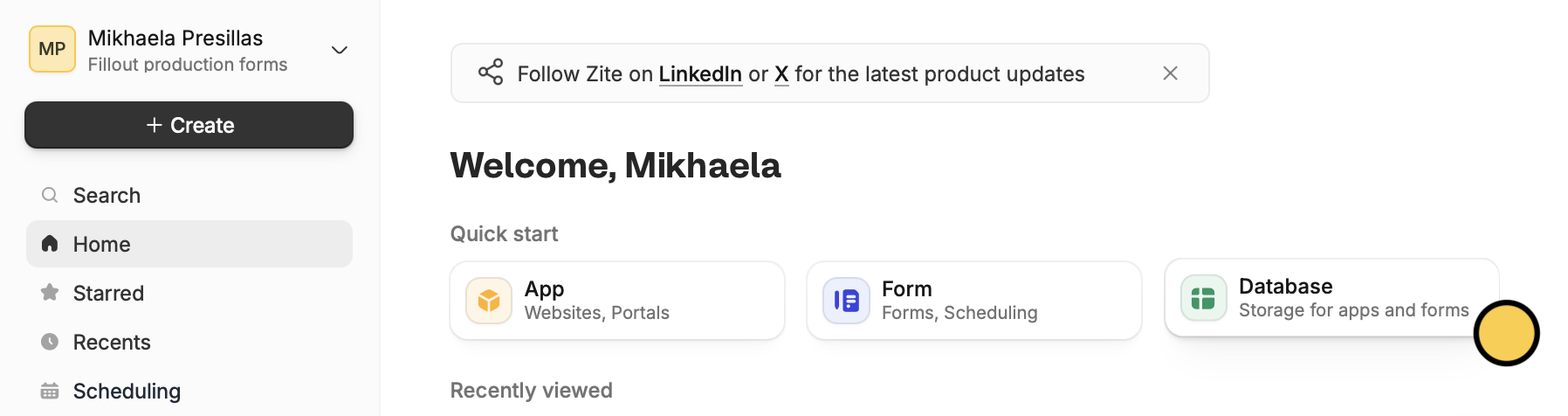
Database. Alternatively, you may click Create on the upper left corner.Import between a CSV, Google Sheets, or Airtable. In this example, we’ll choose Airtable.Choose an account and base
Select your source account and a base from there.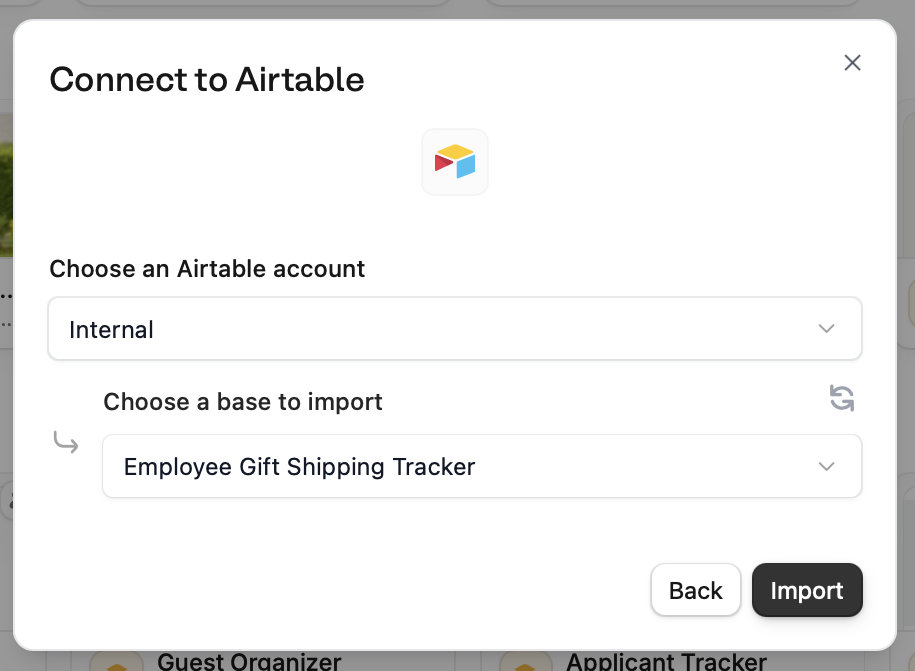
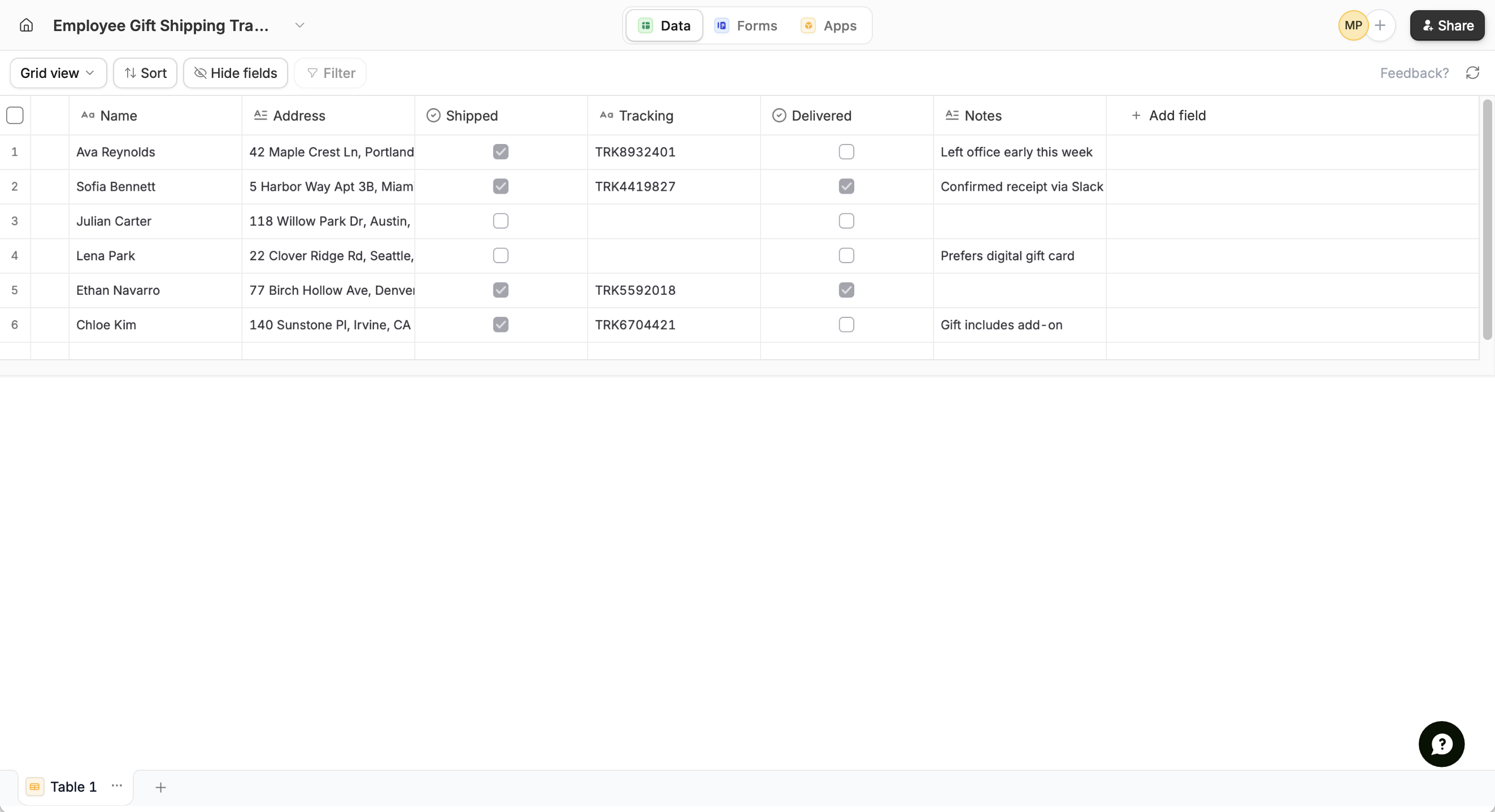
Add fields (Optional)
Click 
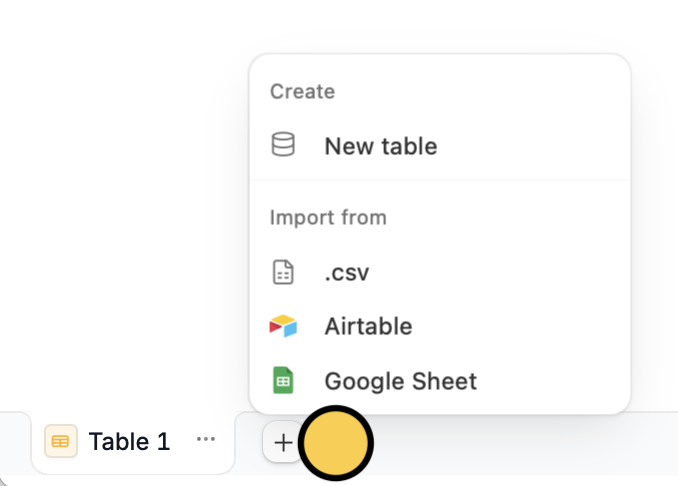
+ Add field beside the rightmost column.New table.Build forms and apps (Optional)
Connect your database to Fillout Forms or Zite Apps. Your data syncs automatically.
Add data to an existing database
Import to a new table
Navigate to your database
Open your database directly or from your Fillout form or Zite app, click 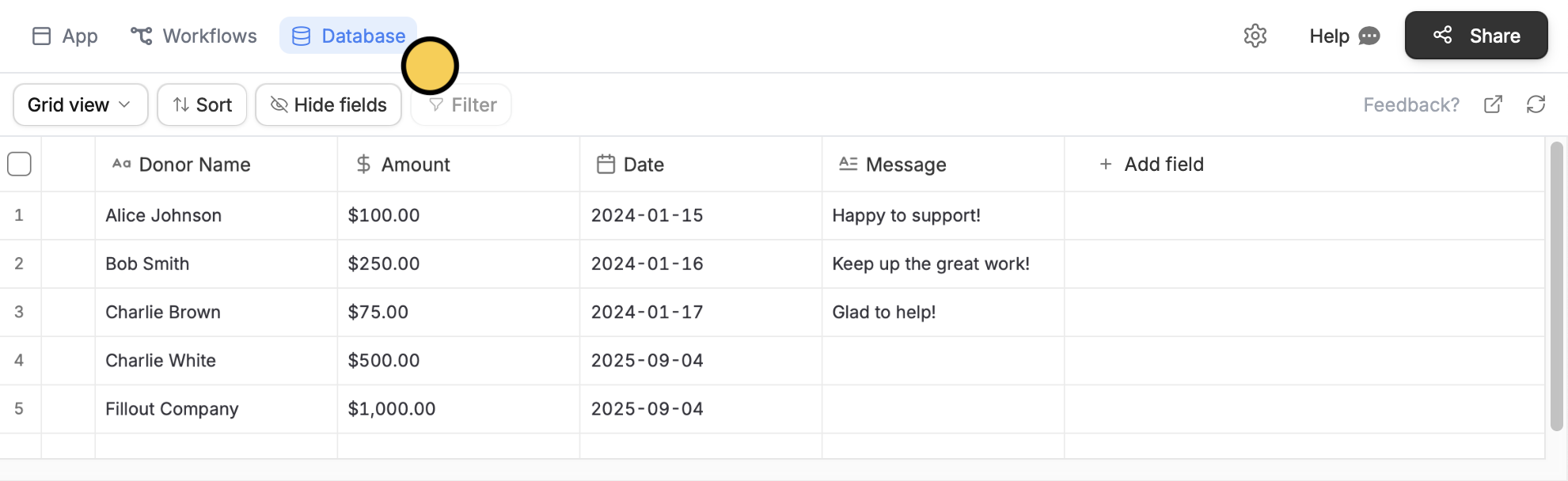
Database on top.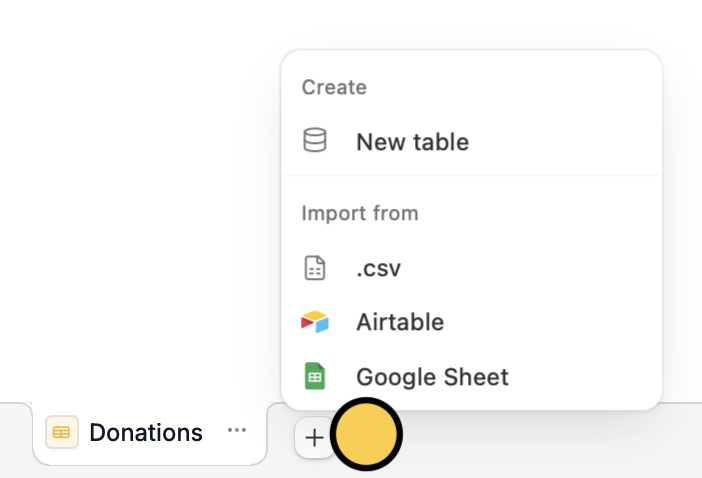
Choose your database
Upload your CSV file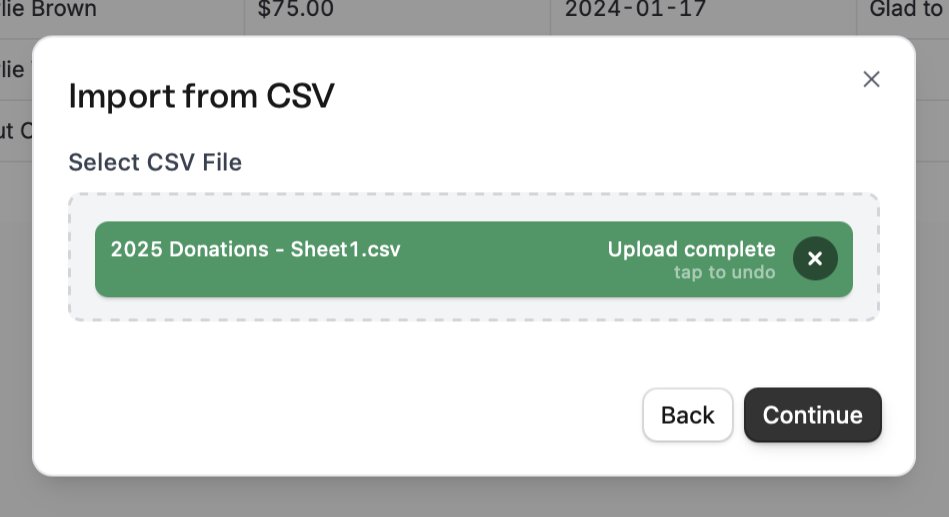
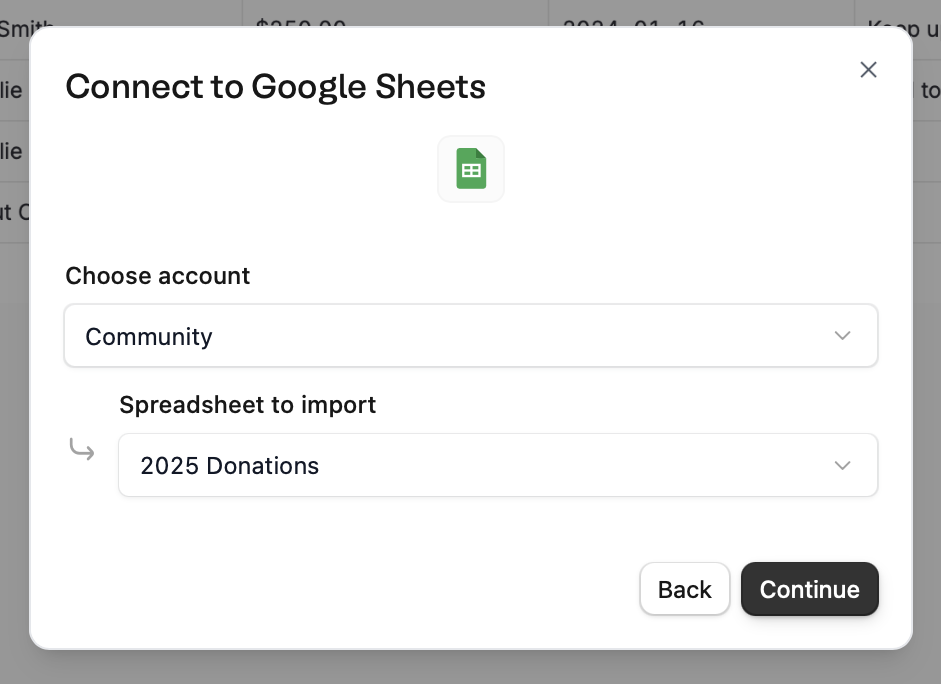
Review and edit
View a sample of your data and change field types before importing by clicking the column header. When everything’s all set, 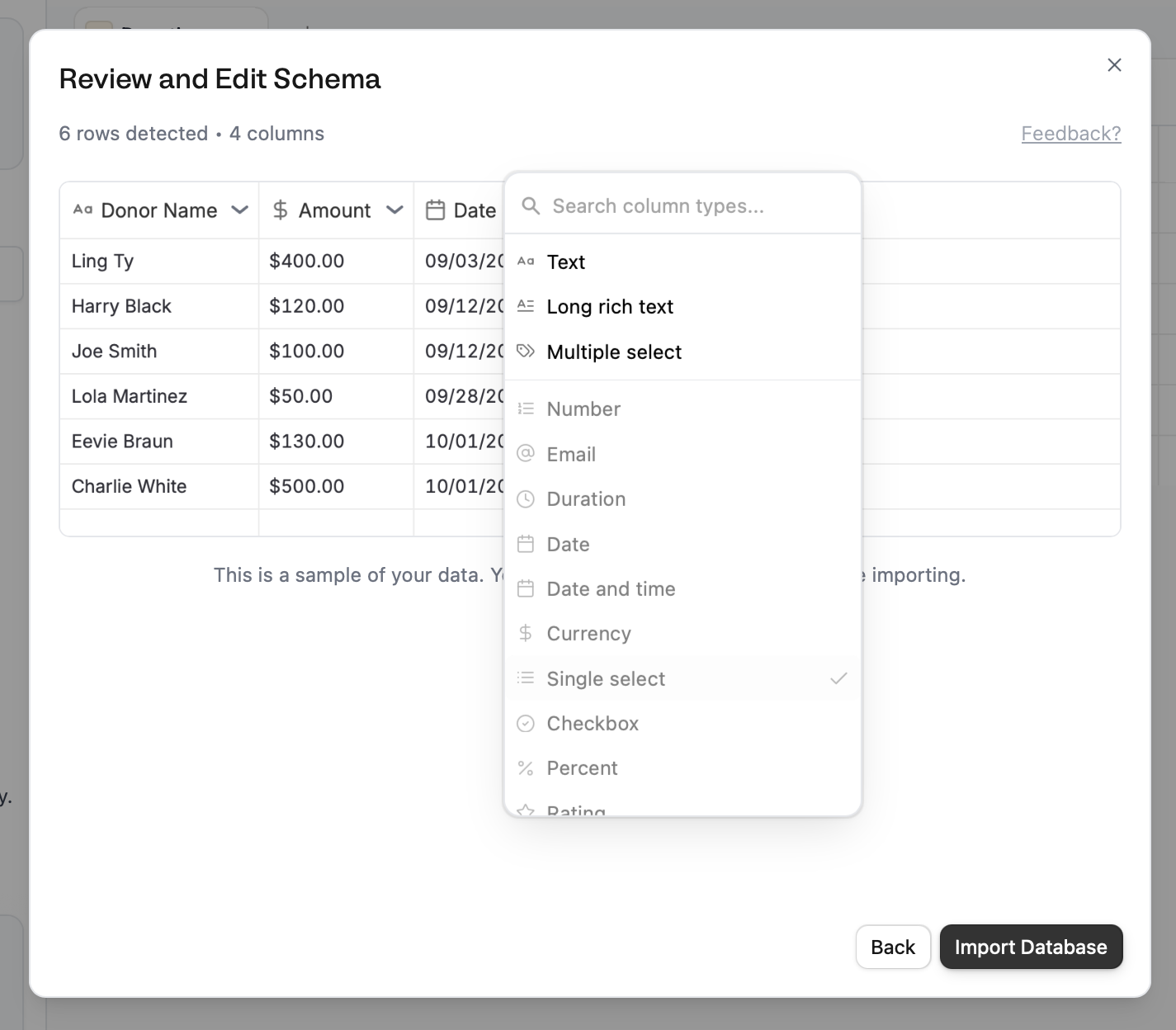
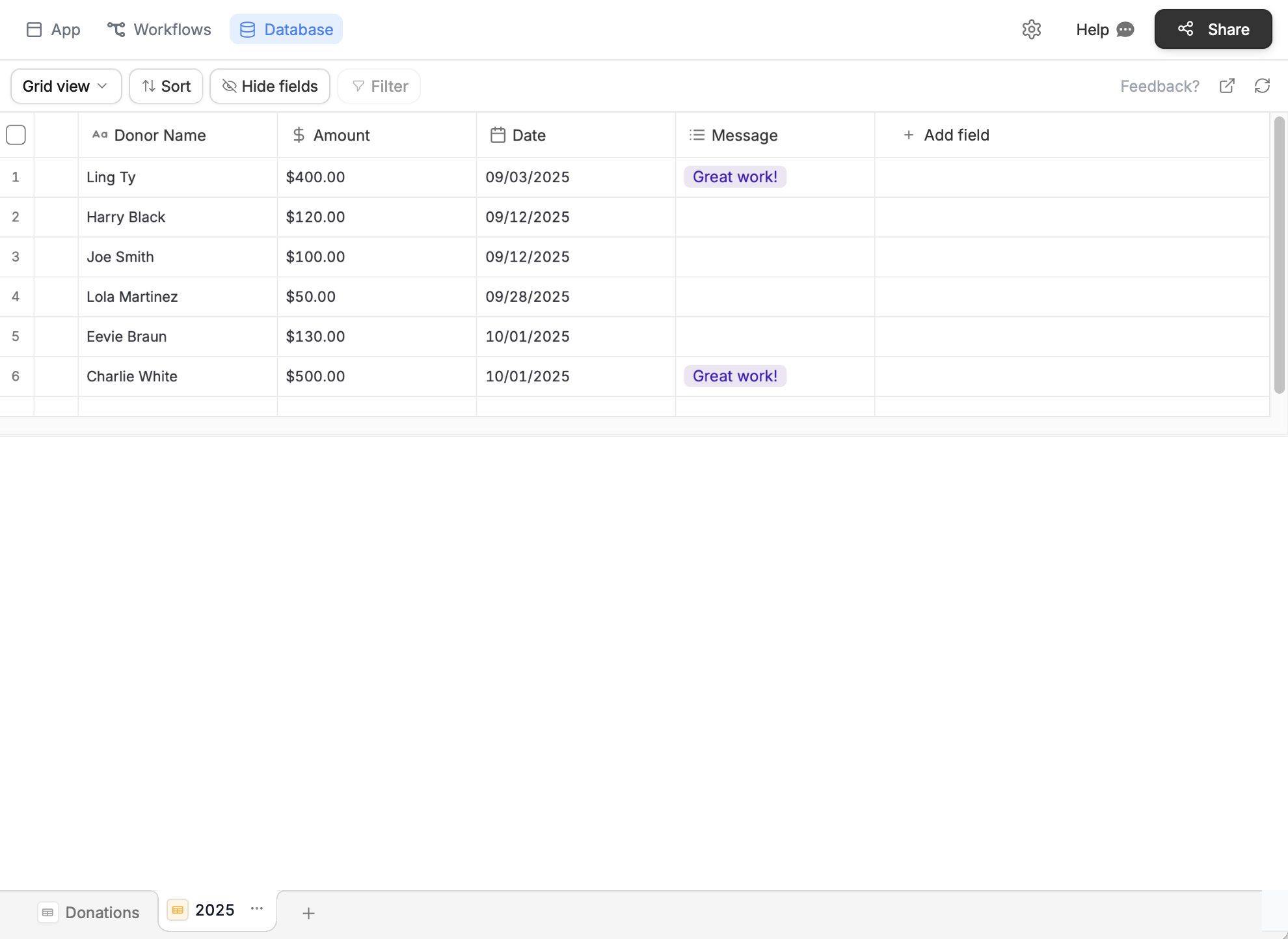
Import database.Import to an existing table
Navigate to your database
Open your database directly or from your Fillout form or Zite app, click
Database on top.Choose an external source
On the bottom left, click next to the name of your table followed by 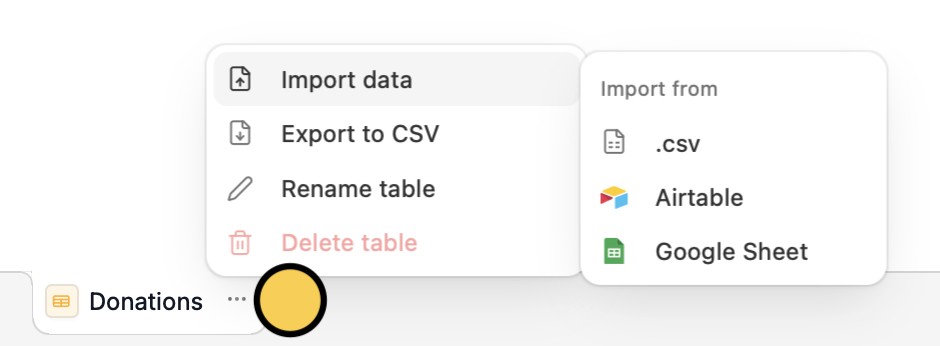
Import data and select your database source.Choose your database
Upload your CSV file
Review and edit
You’ll see a preview of the columns to be imported. Here, you can 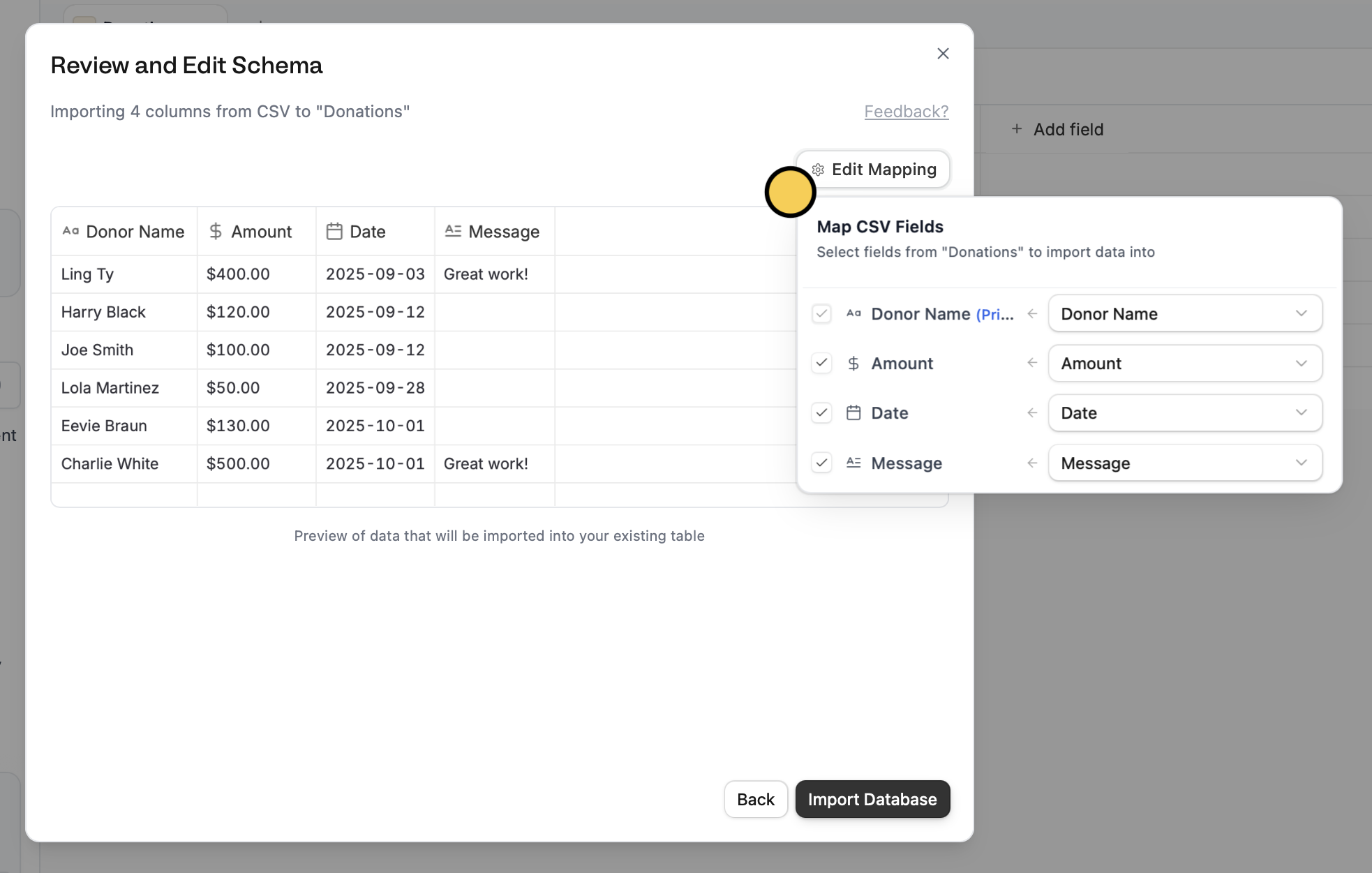
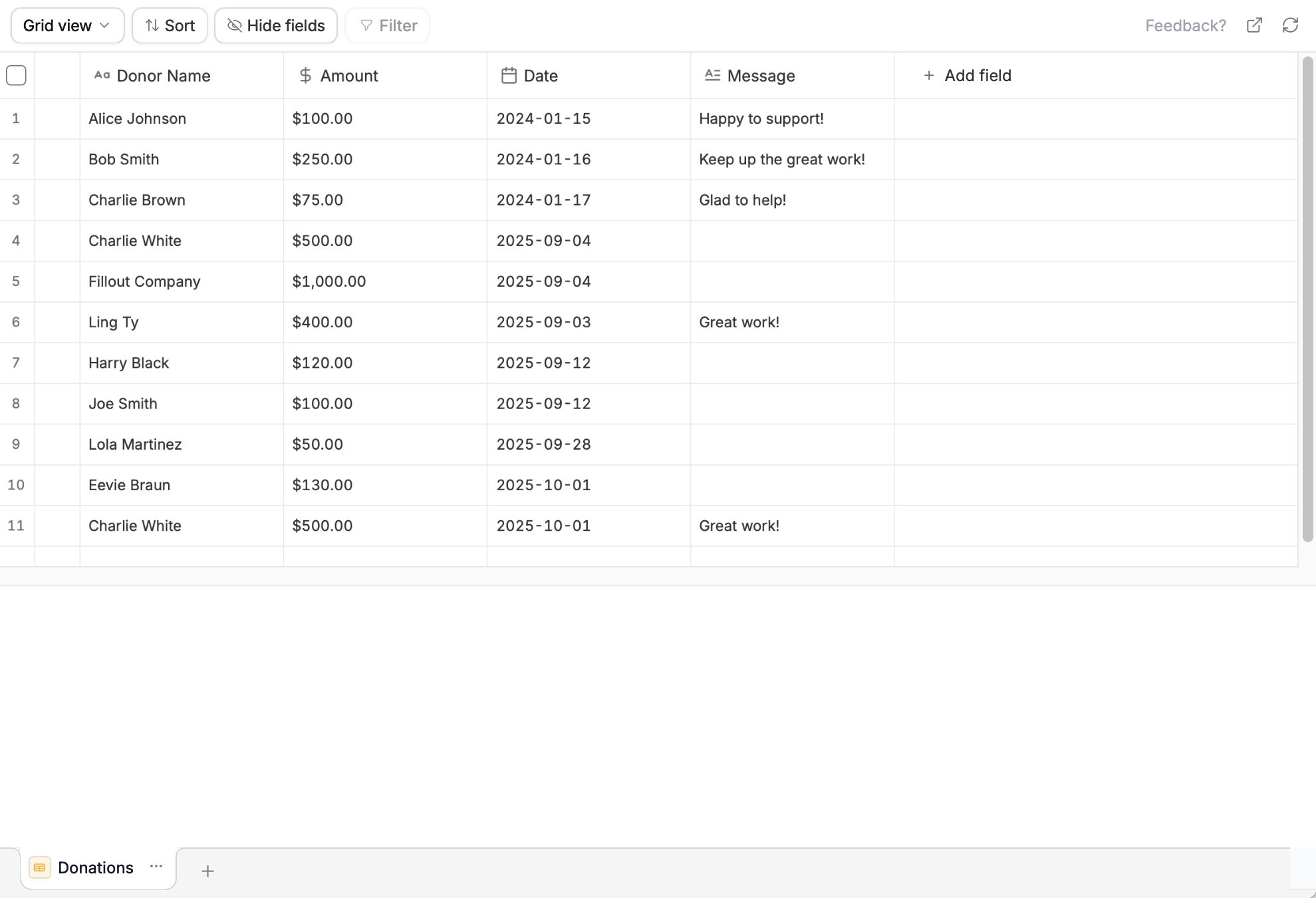
Edit mapping to change which columns on your external file you’d like to match with columns on your existing Zite database. Import database when the mapping’s all set.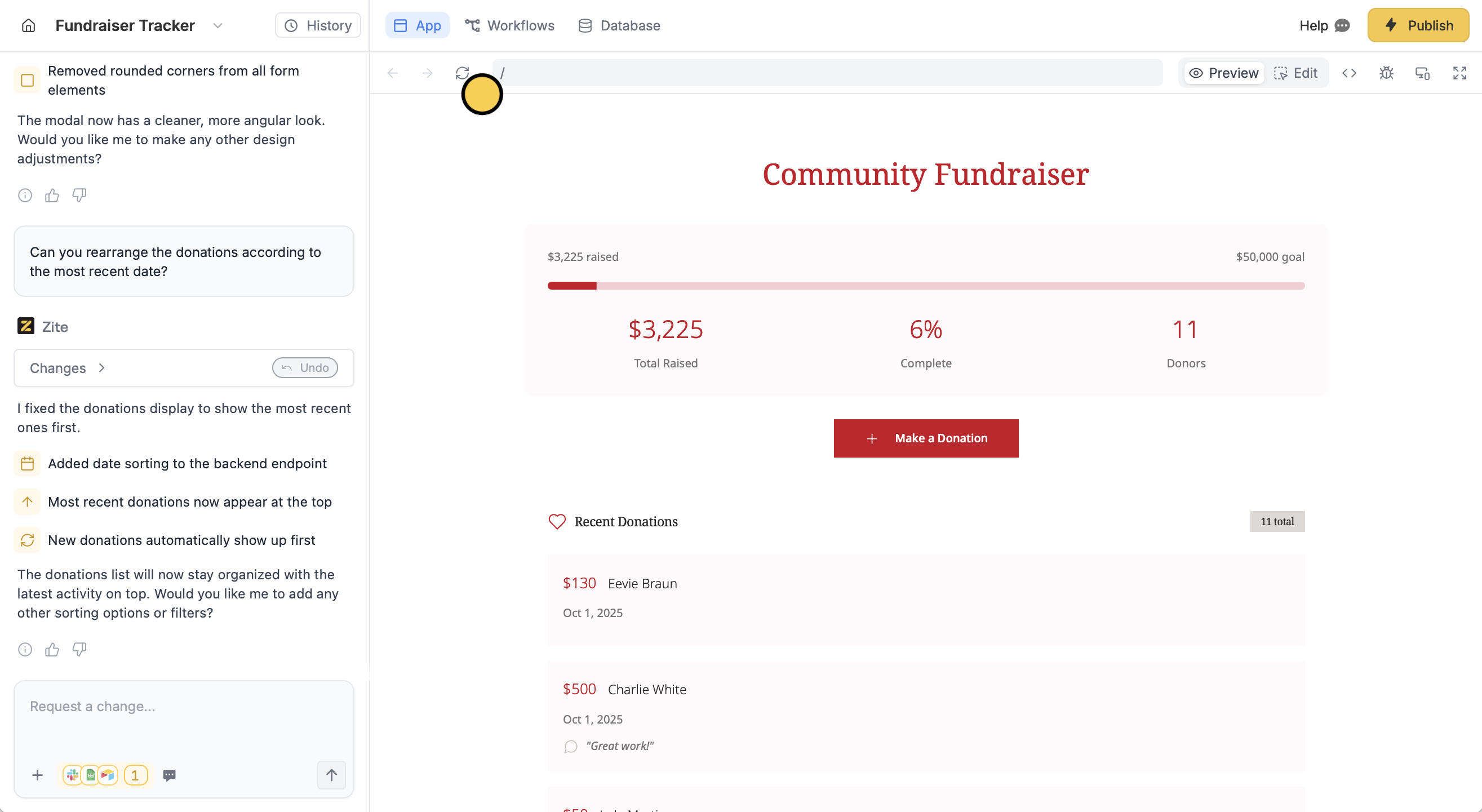
Related articles
Make a Database
Store and organize your data with Zite database.
Make a Zite
Create and launch your first app, software, or dashboard in minutes.