

Tutorial video
Check out Gareth’s tutorial on using Fillout to update existing Airtable records.How it works
1
Switch to update mode
Open your Airtable-connected form. Click 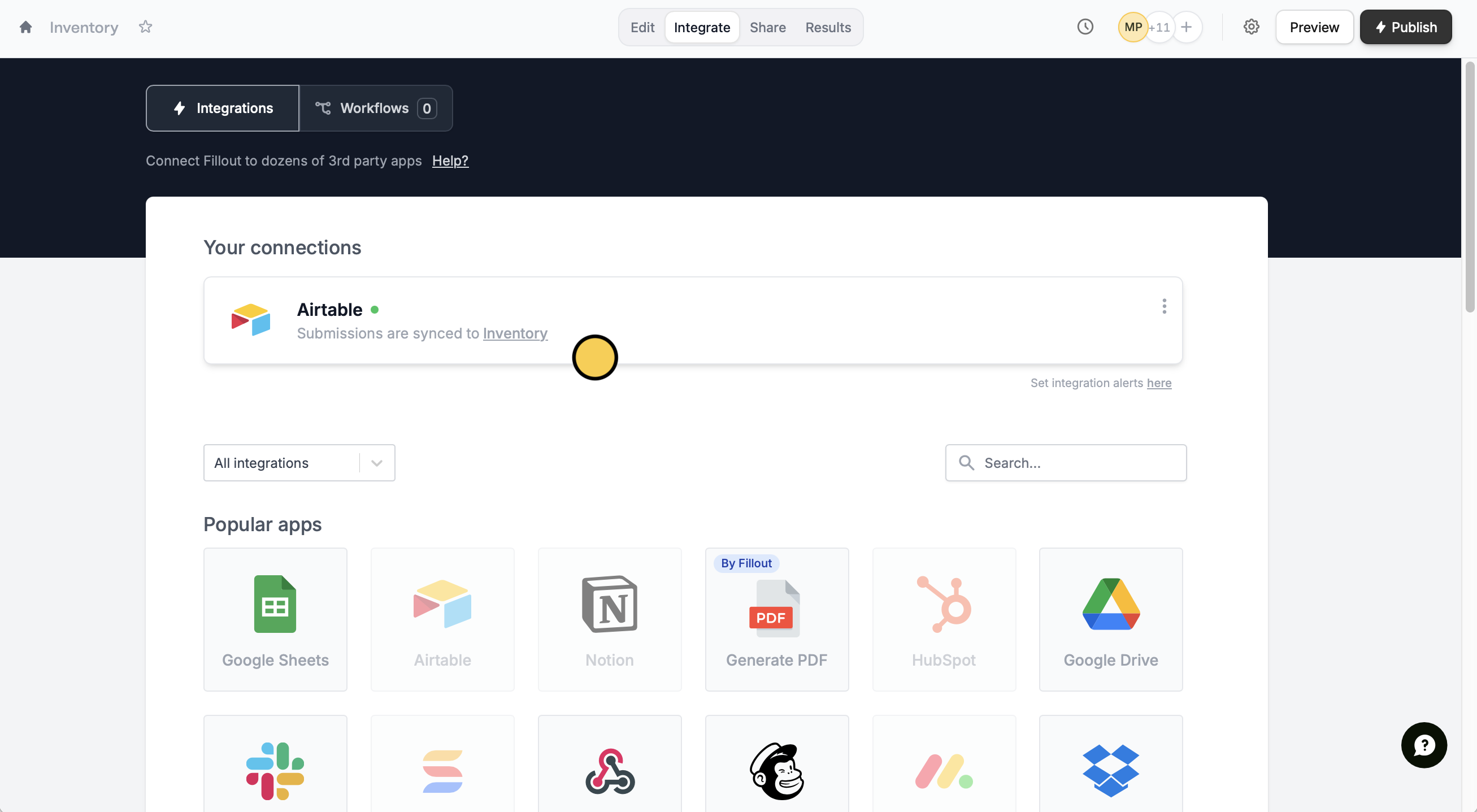
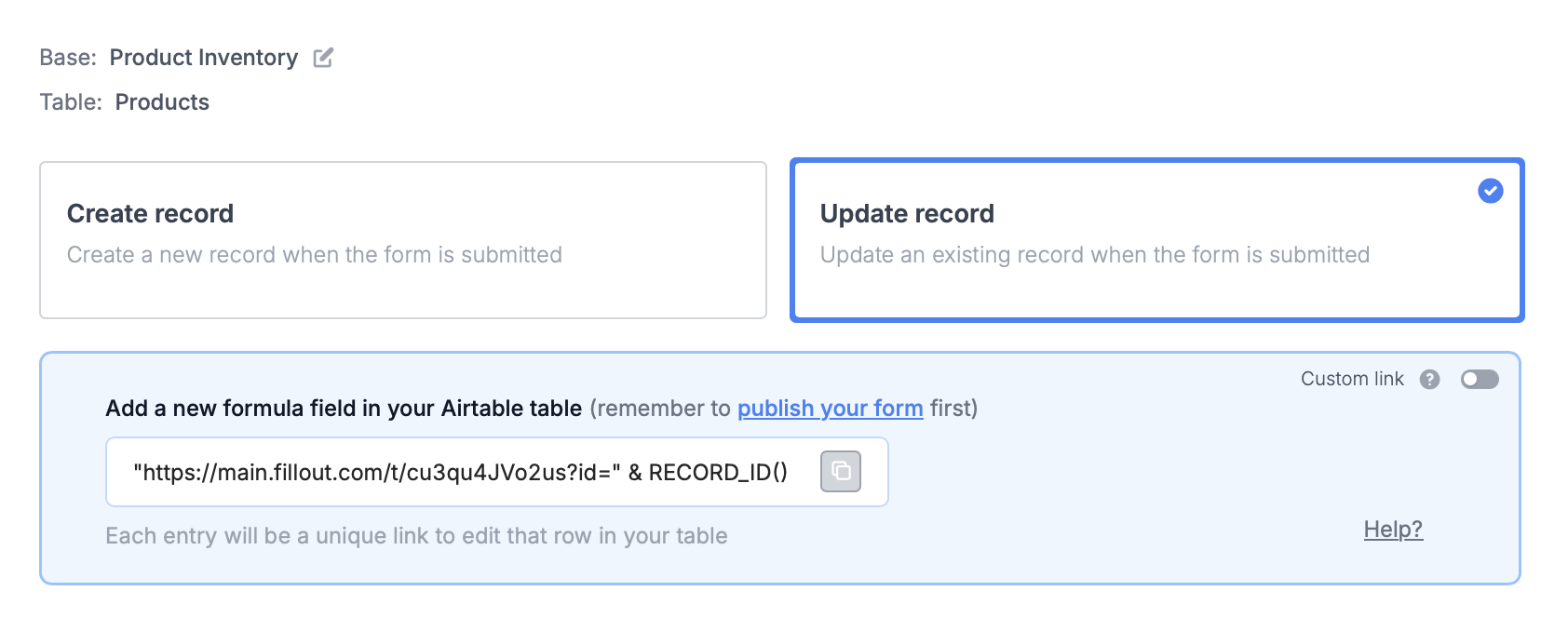
Integrate on the top menu followed by Airtable.Update record.2
Paste the provided formula
Create a new 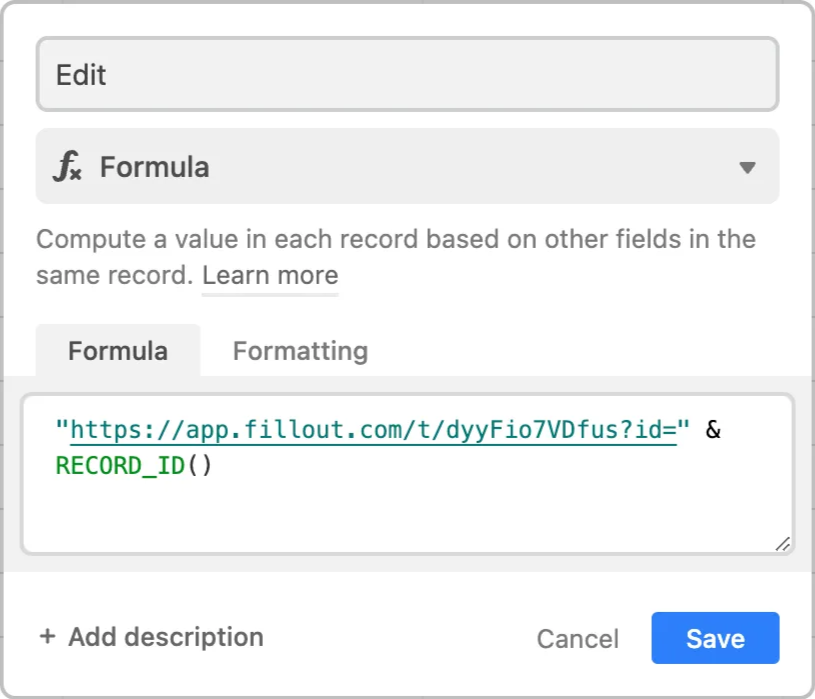
formula field and copy the formula Fillout provides on the Integrate page.3
Publish and share
That’s it! Click 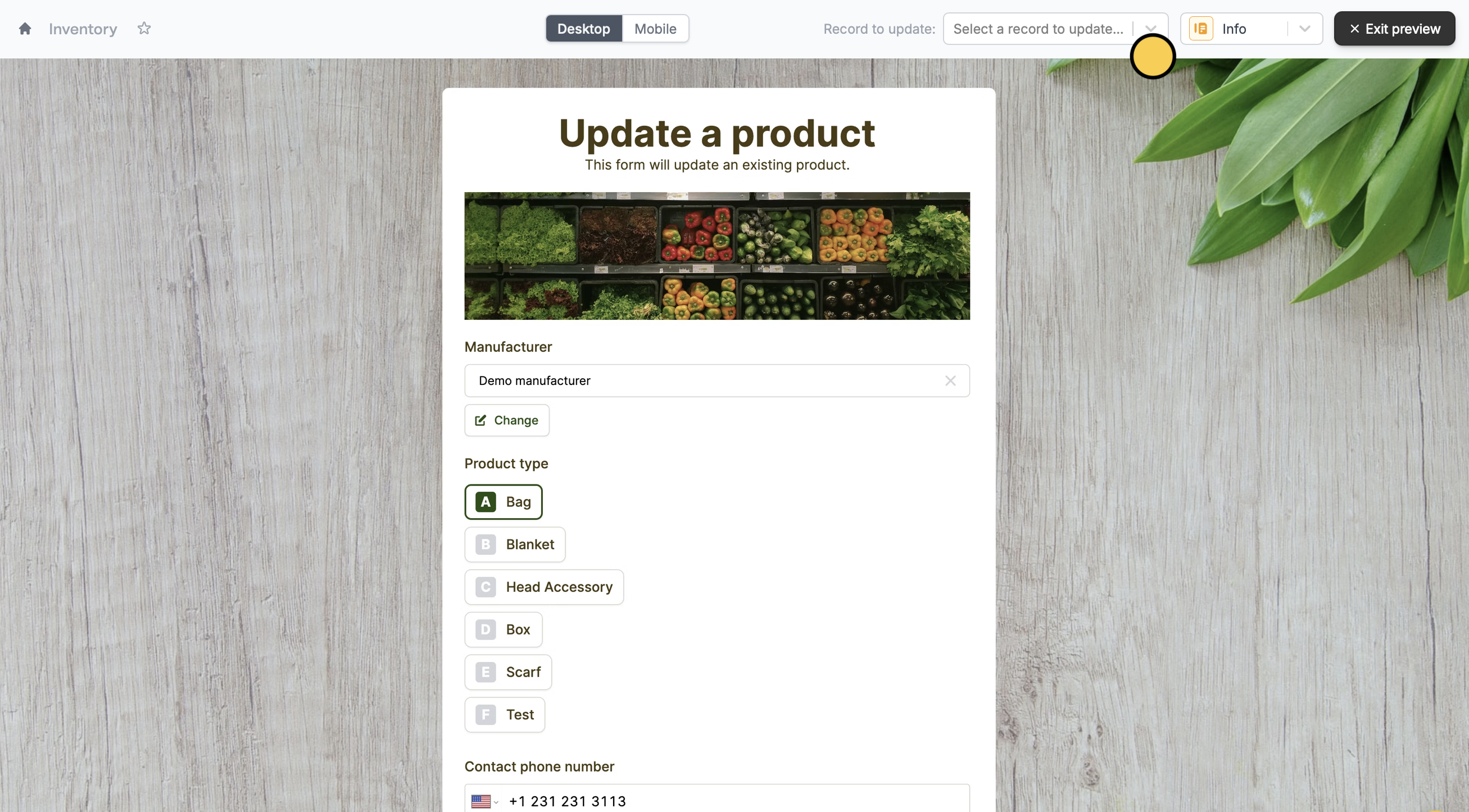
Update followed by Publish in the upper right corner.To update a record, click Preview and select a Record to update or click one of the unique links from your Airtable.If you don’t provide an id in the unique URL, the form will create a new record instead.
Let respondents choose a record to update
Use this approach if you prefer to let respondents choose (in Fillout) which record they’d like to update.Advanced next steps (Optional)
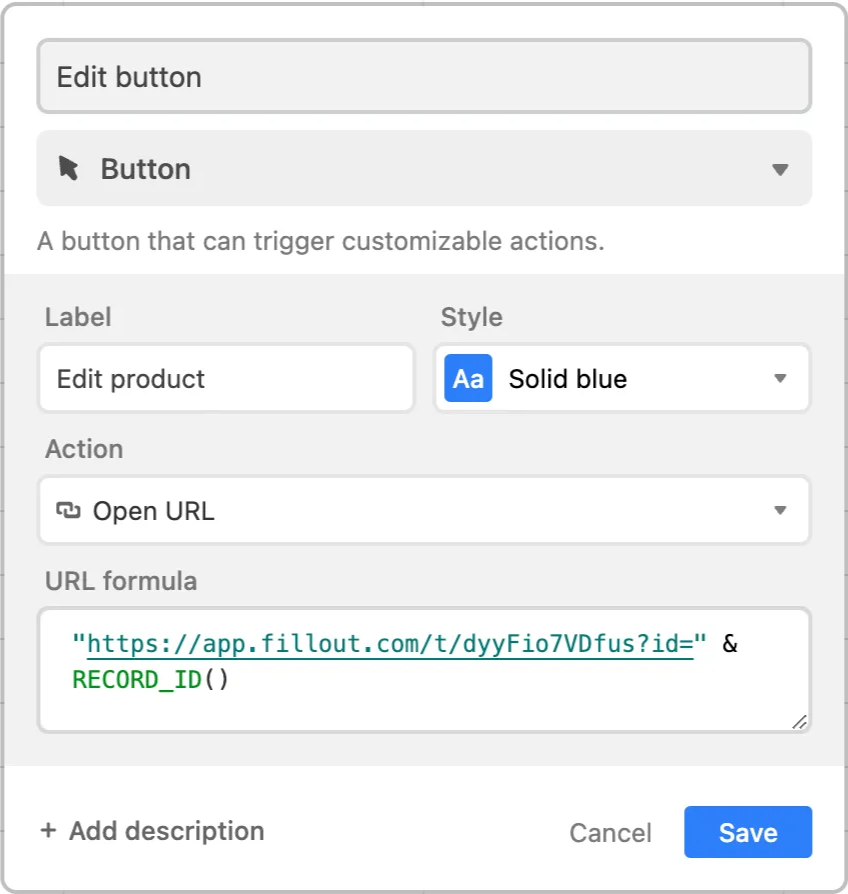
You can use update forms in combination with products like Airtable interfaces, Softr, or Stacker. For example, instead of adding a formula in Step 2 above, we could add aButton field.

Airtable specific guides
Create new linked records
Let respondents create records from your form.
Choose a record to update
Let respondents choose from your form.
Create multiple records
Add entries across multiple tables.